Skip to content





ClickUp keeps rolling out shiny new features, and the ClickUp AI Notetaker is one of the latest ones to get pushed into the spotlight. But let’s be honest for a second. ClickUp is not a meeting tool. It’s not built around calls, or video, or anything you’d normally associate with a meeting recorder. It’s a work management platform with a habit of adding new features whenever the mood strikes. So when I saw they’d released their own AI meeting notes, my first reaction was… really? What are you doing here?
Everyone’s jumping on the meeting-notes trend at the moment, so maybe this is ClickUp’s way of saying, “We can do that too.” Call it flattery if you like, and yes, I did feel slightly smug, but the reality is that this is a crowded space, and I had questions straight away.
My own relationship with ClickUp isn’t exactly deep. I’ve used it with an external agency as their single source of truth, and in the short time I spent inside that workspace, it felt a bit like a digital escape room. I’m a Notion girl. I love a Trello board. I can even tolerate Monday. But ClickUp has always given me a faint sense of “please get me out” energy, which is not ideal for a platform that wants to run your life.
Still, I’m fair. I paid for the plan. I enabled everything. I set it up. I ran a proper test call with a real colleague. I reviewed the transcript, summary, and action items. This isn’t guesswork. This is what ClickUp’s AI Notetaker actually does when a normal person tries to use it.
tl;dr? — My Honest Review of ClickUp AI Notetaker
It copes fine with short, simple internal calls, but the moment the meeting gets longer or more detailed the whole thing starts to wobble.
The summaries do the job but feel flat, with none of the nuance or color you actually need when you are trying to make sense of a real conversation.
There are no speaker labels in the transcript, which makes any proper review of the call more awkward than it needs to be.
Action items are hit and miss, and you can lose important points when the chat moves quickly.
It only really fits if your whole team already lives inside ClickUp and you just want everything in one place.
It is not great if you bounce between tools or need polished notes you can send to clients without rewriting them.
In most cases you will end up tidying, fixing or rewriting the output before you use it.
A Quick Note on Bias (Because It Is Only Fair)
Full disclosure before we go any further. I am writing this review for tldv.io. It is a solid bit of kit if you ask me. That means I am not arriving here as a perfectly neutral observer drifting through software like some sort of productivity specialist. I work in this space. I test meeting tools for a living. I know what good looks like, and I know when something feels off.
It also means I have some bias. Not wild bias. Not tattooing the logo on my body bias (This is based on reality, just so you know). Just the natural bias that comes from spending my days working with a team that genuinely cares about making your life easier in business by giving you amazing meeting notes and a LOT more.
But here is the important part. I am still going to tell the truth. If something impresses me, I say so. If something irritates me, I say that too. I do not do loyalty pledges. I have never written a review that pretends a tool works well when it does not.
So yes, I am biased. Probably less biased than the CEOs who sign off on these features. And definitely not biased enough to gloss over things that are messy or awkward. My only aim is to describe what ClickUp’s AI Notetaker actually did when I used it like a normal person in a real meeting.
Take that however you like.
What Is ClickUp (If You Have Never Touched It Before)?
If you’ve never used ClickUp, it helps to understand the role it usually plays inside a business. ClickUp is a work management platform that centralizes tasks, documents, and day-to-day operations. Teams use it to organize projects, track progress, and keep information in one place so they’re not switching between multiple tools.
The typical setup looks like this:
- A main workspace for the whole company
- Spaces for each team or function
- Lists and folders for projects, campaigns, or internal processes
- Tasks with owners, comments, deadlines, and checklists
- Shared docs for briefs, guides, and notes
- A calendar view showing upcoming work
- Status updates to monitor what’s moving and what’s on hold
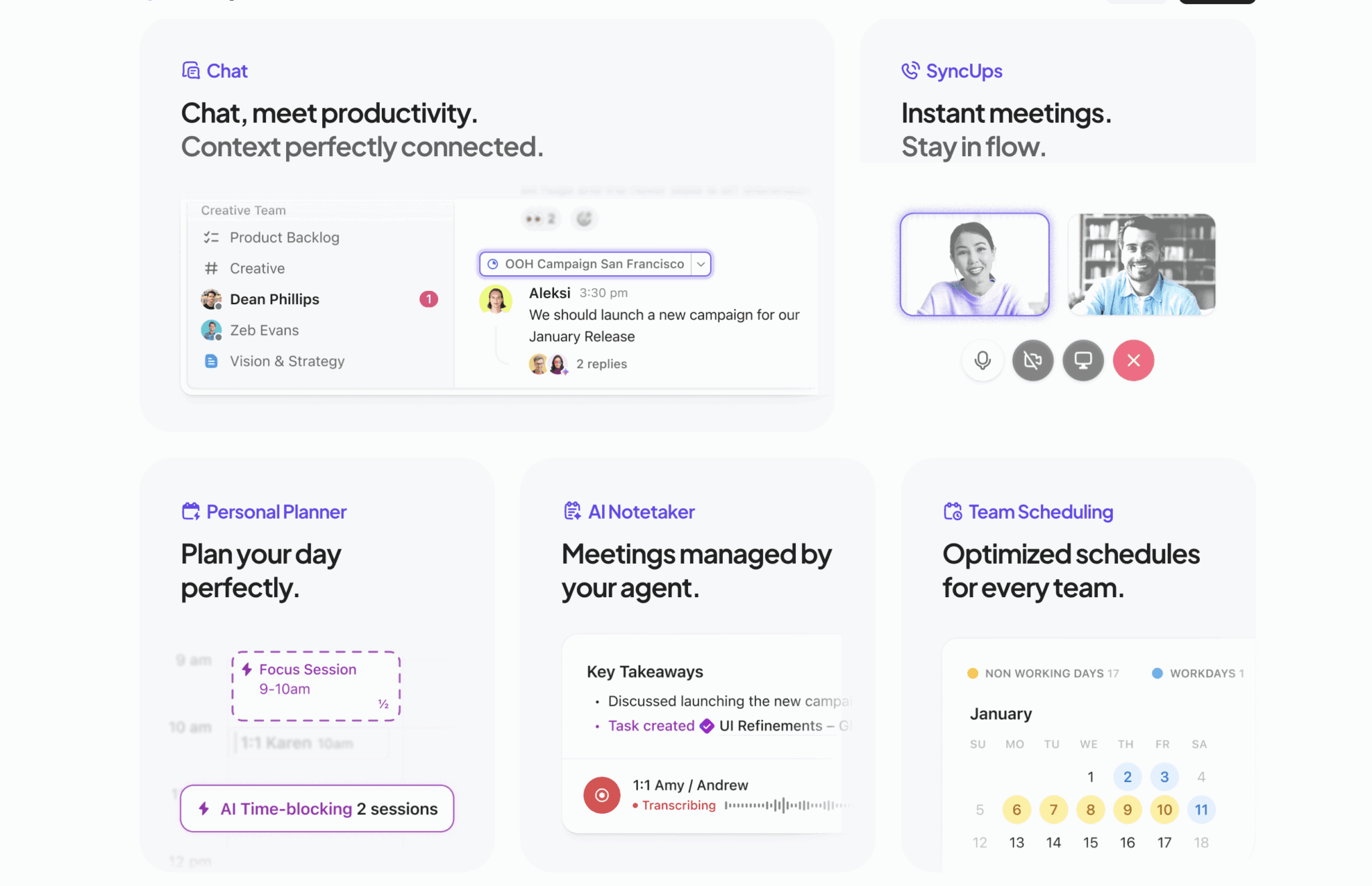
Marketing teams often use it to manage content planning and campaigns. Product teams use it for roadmaps and feedback. Customer support uses it to log improvements and documentation. HR uses it to maintain onboarding steps and internal resources. It’s commonly adopted by delivery, operations, product, marketing, and internal teams who want their project work in one location.
ClickUp also positions itself as a tool that can be adapted into a CRM. They state this directly on their website:
“Manage your leads, customer relationships and sales pipeline all in one place with ClickUp’s customizable CRM software.”
In reality, this isn’t how most companies use it. You can create a simple pipeline if needed, and some smaller teams do, but ClickUp doesn’t provide the structure of a dedicated CRM. It lacks proper contact records, call logs, and sequence tools. Most sales teams rely on a real CRM and use ClickUp only for the work that follows.
When ClickUp is used as the central location for tasks and documents, having meeting notes appear inside it looks logical. It keeps discussions close to the work that results from them. The key question is whether the AI Notetaker feels like part of this workflow or whether it behaves like an add-on.
What Is ClickUp AI Notetaker?
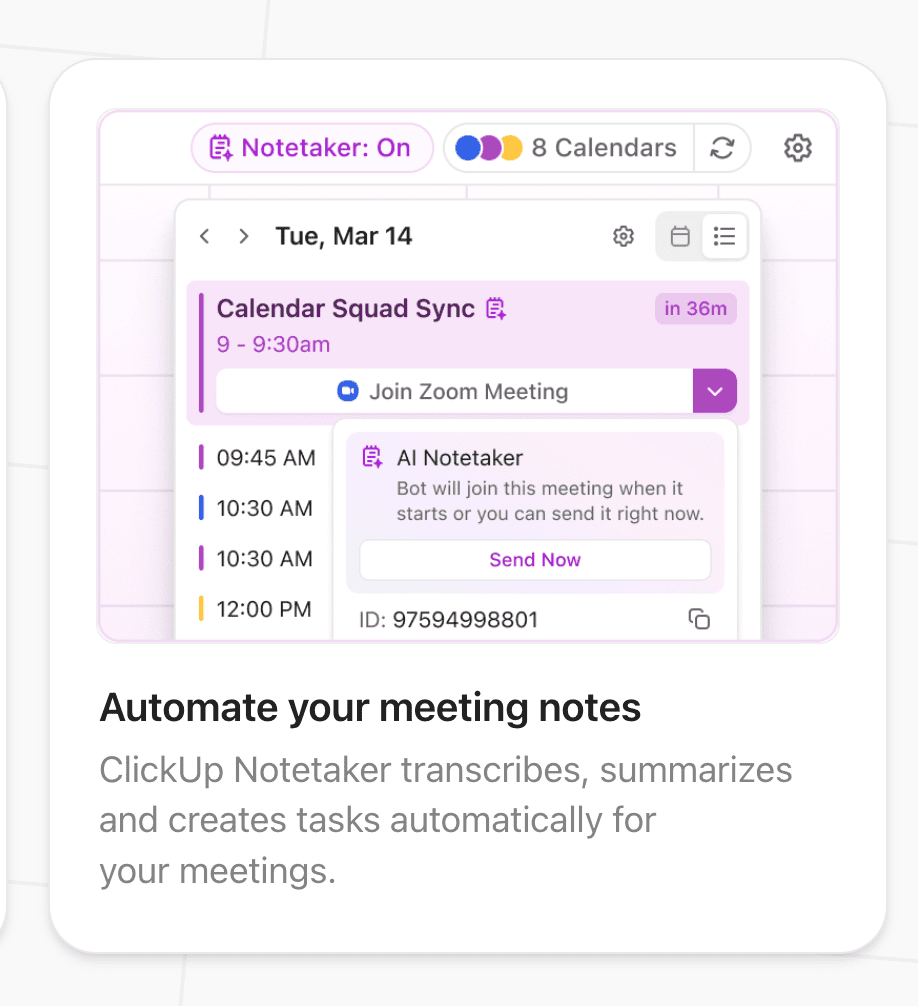
ClickUp AI Notetaker is a newly introduced feature that adds automated meeting notes to the wider ClickUp platform. It gives users the option to send a bot into Google Meet, Zoom, or Microsoft Teams calls so it can record the conversation and generate a transcript, summary, and a set of action items inside a ClickUp Doc. The intention is to bring meeting details into the same place where the rest of the work is planned and tracked.
This feature sits on top of ClickUp’s existing workspace tools and is available through a paid plan with an additional AI add-on. It is designed to support teams who already use ClickUp for project management and want their meeting notes to appear directly within that environment.
This review explores exactly how it performed in practice.
Setting Up ClickUp AI Notetaker: My Experience Getting It to Work
Before I could test anything, I had to work out what I was actually supposed to buy. This turned out to be more of a process than expected.
ClickUp has several paid plans, several AI add-ons, and several upgrade buttons that all sound vaguely connected to meeting notes. None of them are named in a way that helps you understand what does what, which meant my first task was deciphering the pricing page like it was a logic puzzle.

I started on the Free plan. That lasted about… three minutes? Because the AI Notetaker does not work there. So I upgraded to the Unlimited plan.
Then I had to pick between the AI Notetaker add-on and the larger AI Autopilot bundle. Both included “AI features”. Both mentioned meeting notes in a roundabout way. Both wanted more money. It felt like trying to assemble something when half the instructions were printed upside down. I consider myself a smart person, but this really tested me.
Eventually, I found the right combination. Unlimited plan plus the AI Notetaker add-on, which gave me 60 hours of recording time. That was enough to run my tests without fully committing to ClickUp as a lifestyle choice. I am also fairly sure I have not cancelled anything yet, so fairly sure I’m about to have more money debited out of my account.
Once the subscription was active, I turned on the ClickApps, connected my calendar, and checked my integrations. Somewhere in this process I met a button labeled “Eable permissions”. Not Enable. Eable. A small slip, but one that made me wonder how many updates this feature has been through in a very short space of time.
With everything finally switched on, I scheduled a test meeting. Let’s see what this can do!
Setting Up the Test Meeting Inside ClickUp
With the subscription sorted, the ClickApps switched on, and my calendar connected, I moved on to what should have been the easy part. I created a test meeting inside ClickUp, selected Google Meet as the provider, and waited for the link to appear.
It did not.
ClickUp synced the event to my Google Calendar, but it sent it across without a Meet link, which is a bit like sending out a party invite with no address. I had to open Google Calendar, add the link manually, and let ClickUp sync it back again.
Now, full honesty. I did not read any instructions. I never read instructions for software nowadays. In this “busy world of business”, I am far too busy and important (impatient) for that. So yes, this could have been my fault. But I also believe that meeting tools should be simple enough that a person on a deadline can set them up without needing a guided tour.
Once the link was finally in place, I invited Matt to join me on the call. He is my partner in all things AI meeting assistant testing, so if anything went wrong, he would understand the pain, and we would simply reschedule. With both of us lined up, I switched on the AI Notetaker toggle in ClickUp and hoped everything would behave itself.
All that was left to do then was join the call and see what happened next.

What Happened When the Bot Joined the Call?
When the meeting started, the ClickUp AI Notetaker joined right on time. No delay, no fuss. It simply appeared in the list of call participants, ready to record.
There was no announcement or confirmation window to show that it had started working. It just showed up, sat quietly on the call, and got on with it. If I had not been paying attention, I might have missed that it had joined at all.
Matt joined shortly after. He knows exactly how unpredictable these things can be. If anything had gone wrong, at least we would both have understood why.
In fairness to ClickUp, the bot behaved as expected. It joined the call, stayed connected, and listened without any glitches. That part worked smoothly.
The more revealing part came after the call ended, when I looked at the notes it generated.

Reviewing the Notes: Transcript, Summary, and Action Items
Once the call ended, ClickUp generated the meeting notes within a few minutes. Everything landed inside a ClickUp Doc linked to the event. On paper, this is exactly what the feature is meant to do. In practice, the results were a mix of solid structure and slightly flat delivery.
The transcript itself was accurate enough. It captured what we said without any major mistakes, although it did not label speakers. Everything came through as one continuous block of dialogue. If you already know the voices and the context, this is fine. If you plan to share the notes or revisit a longer call, it can make things harder to follow.
The summary was structured but a little dull. It pulled out the main sections of the conversation, but there was no personality, no nuance, and no sense of tone. It read like something produced by a system that wants to be useful but has not been taught how humans speak when they are tired, stressed, or trying to solve ten problems at once. It was correct. It was tidy. It was not something you would look forward to reading.
The action items were fine. They picked up the decisions we made and turned them into small follow-up tasks. Nothing groundbreaking, but nothing incorrect either. If you want a rough outline of what needs doing after a call, this will handle that.
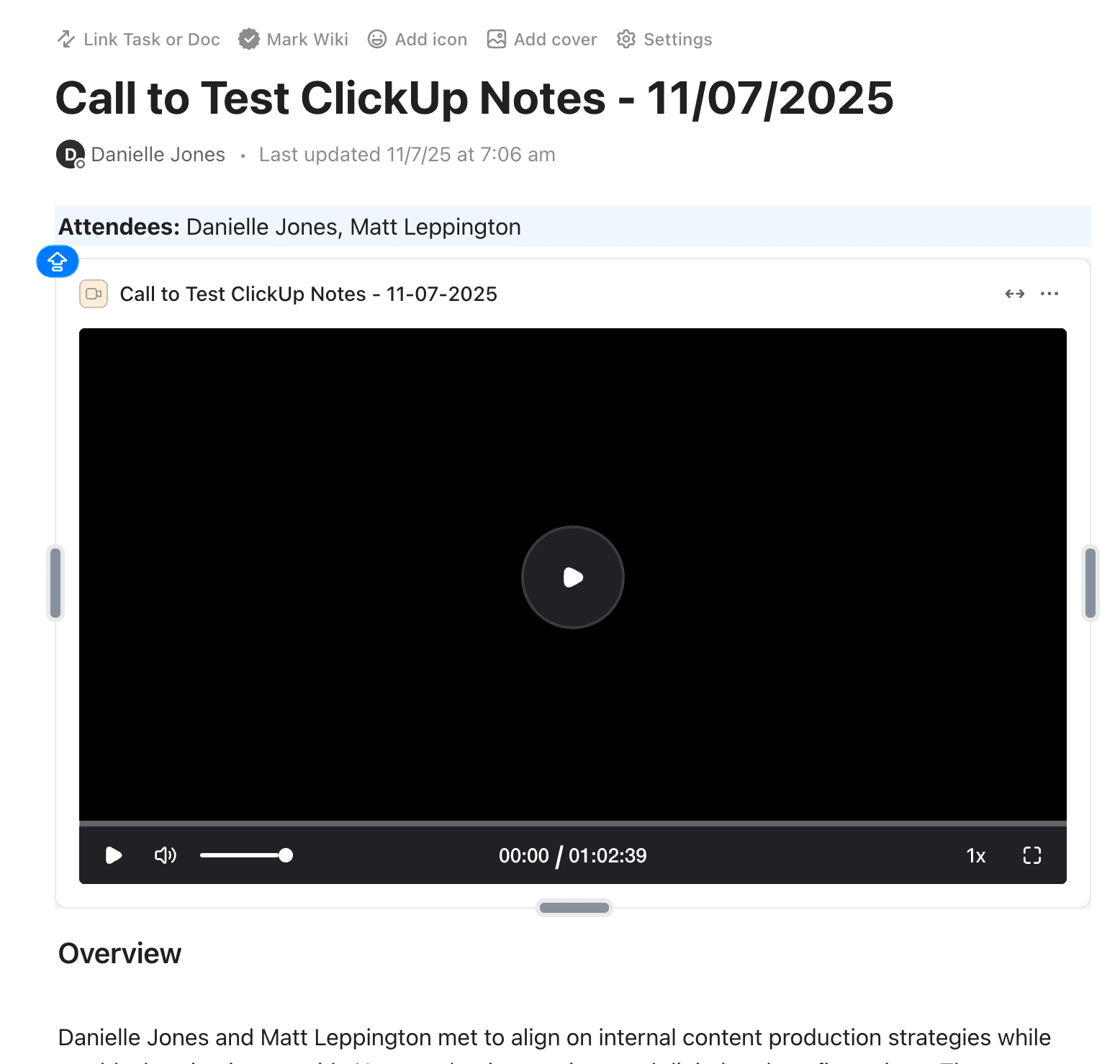
The overall document had that slightly chaotic feeling you get when everything is in one place but not quite arranged in a way that feels natural. It reminded me of those Google Docs that grow arms and legs over time. Everything is technically there, but it feels like it needs a small tidy before you can use it confidently.
Still, the core job was done. The call was recorded, summarized, and documented without any manual notes on my part. The question is whether the output is polished enough for real use or whether it becomes something you still need to rewrite yourself.
Where ClickUp AI Notetaker Starts to Struggle
I mentioned my own findings in the previous section and they still stand. The notes were plain, the document felt busy, and the overall structure leaned slightly repetitive. Other users have noticed many of the same things, and some of their experiences go even further.
Several people commented that the tool handles short meetings well but begins to fall apart once the conversation becomes longer or more detailed. One user described long calls as the point where everything “just goes downhill”, especially when they rely on the notetaker to capture next steps. They noted that in one meeting only about ten percent of the action items were picked up, which pushed them to copy the transcript into ChatGPT to get a complete list.

Accuracy and detail came up repeatedly. Users said the summaries were often correct but lacked depth, and some felt the tone was too bare for real work calls. A few pointed out that ClickUp’s next steps feature does not match the level of detail they see in other tools, with one person explaining that they “wanted more” because important points were not always captured.
There were also issues raised about the overall experience inside a company. One user working in a large organization said their team sometimes ended up with ten or more notetakers joining the same call because each person had the feature turned on. This fits with ClickUp’s current behavior where each user can send their own bot without knowing who else has done the same. It creates duplication and confusion, especially in bigger teams.
Pricing and plan limits came up as well. One user noted that the sixty hour allowance does not roll over and applies to the whole workspace. Another pointed out that ClickUp often shifts features to higher plans over time, which made them feel cautious about relying on this long term.
Even the people who liked the concept mentioned that the summaries and next steps felt too light for anything beyond the basics. One comment put it simply by saying the feature works, but it “kind of struggles at the main job”.
These points line up with what I saw in my own test. The notetaker works best when a meeting is simple and short. It still produces notes for longer calls, but the structure, detail and usefulness start to fall away the moment the conversation becomes more complex.
Privacy, Consent, and Data with ClickUp’s AI Notektaker
The AI Notetaker joins meetings as a visible participant, which is good. Anyone on the call can see it. Beyond that, the process is fairly hands-off, so here are the basics in a simple list.
What it does well:
- The bot is visible in the call, so there is no hidden recording.
- Notes stay inside your ClickUp workspace and follow your existing permission settings.
- No extra setup needed once the toggle is on.
What you need to keep in mind:
- There is no consent prompt or announcement. You have to say it yourself.
- There is no reminder during the call that a recording is taking place.
- There is no raw audio file you can review. Everything is processed text only.
- If your workspace has wide access settings, more people may be able to see the notes than you expect.
Ultimately, it is not risky, but it is also not guided. If consent, transparency, or access control are important in your workflow, you will need to handle those parts yourself.
Pricing and Access to ClickUp AI Notetaker
As I (and my credit card) found out, the ClickUp AI Notetaker is not included on the Free plan. To use it, you need two things:
1. A paid ClickUp plan
Most people will pick Unlimited, which is the lowest-cost option that supports AI.
$10 USD per user per month. This is around £8 GBP or €9 EUR.
2. The AI Notetaker add-on
This is separate from the base plan.
$12 USD per user per month for 60 hours. This is around £9 GBP or €11 EUR.
This is the combination I used for testing. There is also a larger AI bundle at $28 USD, but that includes broader AI features rather than anything essential for meeting notes.
So in real terms, to run your own tests, expect to spend something in the region of £18–£20 a month, depending on exchange rates and VAT.
A few practical notes from users and my own experience:
- Hours do not roll over. When the month ends, the allowance resets.
- The 60-hour limit is shared across the workspace, not per user.
- Several users mentioned that ClickUp has a habit of moving features between plans over time, which is something to be aware of if you plan to rely on this long term.
There is no free trial for the ClickUp AI Notetaker by default, although some users said a rep offered them one manually.
If you only want to run a few calls, the setup is manageable, but you do need to keep track of your add-ons. I am fairly sure I have not cancelled mine yet, so at this point I assume ClickUp owns me.
Where ClickUp AI Notetaker Fits and Where It Doesn’t
I would be wrong to say that this wouldn’t suit everybody. The ClickUp AI Notetaker works in a small but clear set of situations. If you already run your projects, tasks and documents inside ClickUp, it can feel like a useful add-on. It drops notes into the same place where the rest of the work sits, and for short internal calls this is perfectly workable.
Where it fits:
- Internal calls that stay under an hour
- Quick planning sessions where the outcomes are simple
- Teams who want everything stored in one system
- People who only need a basic summary and transcript
- Environments where the notes are for reference rather than sharing
Where it falls short:
- Long or detailed meetings where accuracy matters
- Conversations with a lot of decisions or moving parts
- Calls where tone and nuance matter
- Client-facing work that needs a clean, confident record
- Teams that do not use ClickUp as their primary workspace
- Anyone who needs speaker labels or a clear structure
Even inside teams who already use ClickUp, there is a practical question around how the notetaker behaves in real life. If several people in the same organization have the feature turned on, you can end up with multiple bots joining the same meeting. One user reported seeing ten notetakers arrive at once. It is not clear how ClickUp handles this inside the workspace. Do you get ten documents? Do the notes merge into one? Or does each person end up with their own version?
If meeting notes are meant to be a single source of truth, that kind of duplication could make things harder, not easier.
So the value of the ClickUp AI Notetaker depends heavily on your setup. If your team already works in ClickUp and only needs simple notes for short calls, it can sit comfortably in the flow. If your meetings need clarity, structure or consistency across a team, the limits start to show quite quickly.
My Final Honest Verdict on ClickUp’s AI Notetaker
ClickUp AI Notetaker does what it says it will do. It joins calls without trouble, records the conversation and produces a structured document inside your workspace. It supports 101 languages, which is impressive, and for short internal meetings it is steady and predictable. If your working life already runs inside ClickUp, having your meeting notes sit next to your tasks feels practical.
The limits appear once your calls get longer or more detailed. The summaries feel plain, the layout can be busy and the lack of speaker labels makes it harder to revisit anything complex. The situation with multiple notetakers joining the same meeting is another point to watch. It is not clear whether you end up with one shared document or several versions, which could create noise for bigger teams.
The other thing to think about is how much you want to lock your meeting notes inside a single platform. If you ever change your stack or work across different tools, having everything tied to ClickUp may slow you down. I say this as someone who tests meeting tools constantly. Staying tool-agnostic usually makes life easier.
So here is the simple conclusion. If you already use ClickUp heavily and your meetings are short and internal, the AI Notetaker is a fine add-on. If you want something with stronger structure or more flexibility across platforms, tl;dv is worth a try. It works across Google Meet, Zoom and Teams, it does not rely on any specific project tool and it gives you consistent notes you can take anywhere. Even if you stay with ClickUp, it helps to have a meeting tool that lives independently.
Choice is always good.
FAQs About ClickUp AI Notetaker
Does ClickUp AI Notetaker work on the Free plan?
No. You need to upgrade to a paid plan and add the AI Notetaker add-on.
How much does it cost to use the AI Notetaker?
You need a paid ClickUp plan plus the AI Notetaker add-on. Combined, it works out to roughly $22 USD a month, or around £18 GBP or €20 EUR.
Do unused hours roll over to the next month?
No. The 60-hour allowance resets every month.
Is the per-hour limit per person or per workspace?
It is per workspace. Your whole team shares that limit.
Does the AI Notetaker create speaker labels?
No. The transcript comes through as one continuous block without attribution.
Can multiple people send a notetaker to the same meeting?
Yes. This is how you end up with several bots in the same call. Users have reported having ten or more at once.
Does the tool announce that the meeting is being recorded?
No. The notetaker joins visibly as a participant, but there is no audio announcement. You need to handle consent yourself.
Can I download the raw audio recording?
No. ClickUp stores only the processed text inside a Doc. There is no audio file to download. There is a video.
Which meeting platforms does it work with?
Google Meet, Zoom and Microsoft Teams.