Connect tl;dv to Salesforce and get your meeting notes, AI summaries, and timestamped recording links automatically pushed to the right contact the moment a call ends. No copy-paste, no post-call admin, no next steps typed in from memory three days later.
Rated 4.7 / 5 on G2 across 537 reviews · 2M+ users · GDPR & SOC 2
Turn Conversations Into Structured Salesforce Data
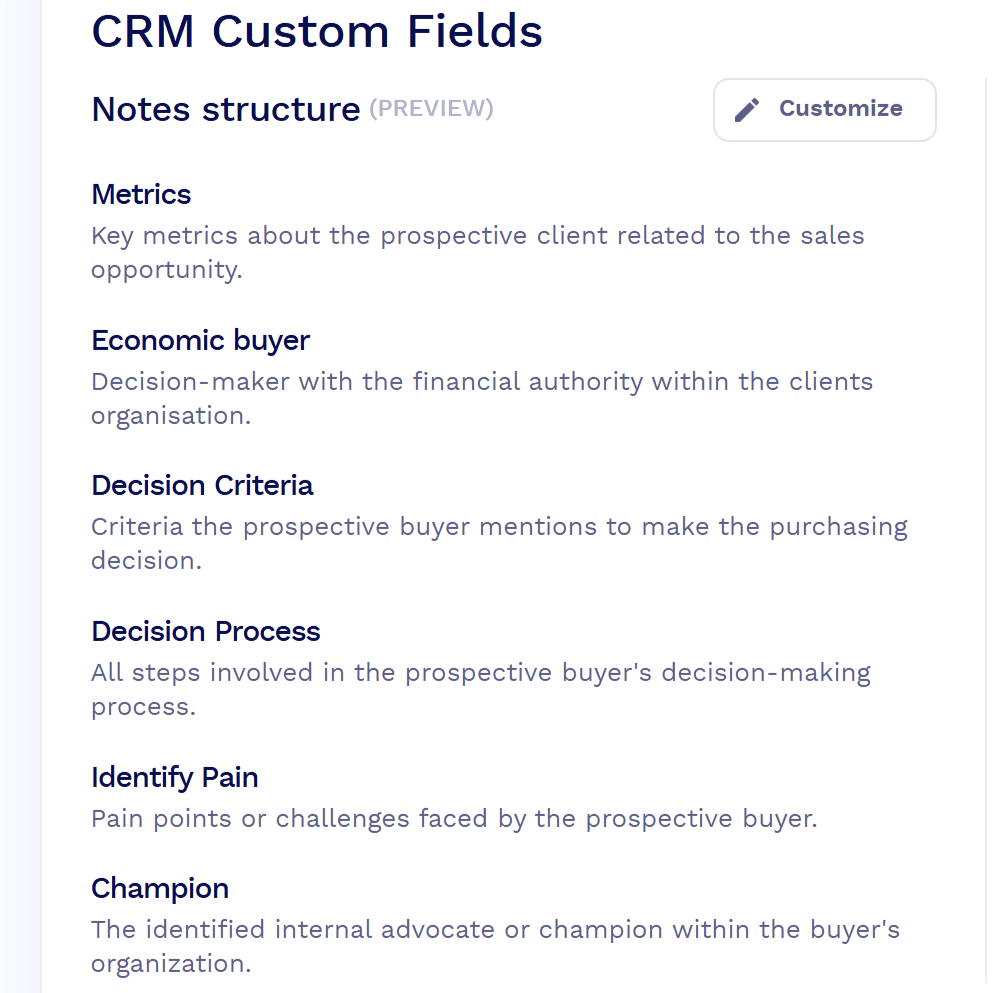
tl;dv’s field mapping allows you to send the right part of each conversation to the right Salesforce field, standard or custom.
Map a meeting-template section like “Budget,” “Competitors mentioned,” or “Decision maker” to the matching Salesforce field, and tl;dv fills it in after every relevant call. Your account records stay current and you reps never need to manually input data to Salesforce again.
For it to run smoothly, remember this: your template sections need to match your fields 1:1, and mapping runs one object at a time (Contacts or Opportunities). Decide where your data belongs before you start.
★★★★★
"tl;dv connects directly to my CRM and automatically records the notes."
Rated 4.7 / 5 on G2 across 537 reviews · 2M+ users · GDPR & SOC 2
How to Connect tl;dv to Salesforce
Connect your account.
On the tl;dv Integrations page, find Salesforce and hit Connect. Authorize with OAuth.
Choose what records.
Enable the configuration settings and pick which meetings auto-record from your calendar.
Map your fields.
Make your template sections the same as the Salesforce fields you care about.
Native, Zapier, or API: Pick Your Setup
Don’t know what any of this means? The native integration will cover most sales and CS teams straight out of the box. If you just want to send meeting notes across, start there.
Need something more custom? You’ve got two more routes. >>>
ルート
最適
What It Handles
プラン
Salesforce integrationNative
Most sales & CS teams
Auto-logs notes, summaries & recording links to the matched contact; maps notes to Salesforce fields
Programmatic access to recordings, transcripts & notes; lets an AI assistant act in your CRM
Pro & up
Salesforce Integration FAQ
Does tl;dv integrate with Salesforce?
Yes. tl;dv has a native Salesforce integration that automatically logs your meeting notes, AI summaries, and recording links to the contact you met with. It’s available on the Pro, Business, and Enterprise plans.
How do I connect tl;dv to Salesforce?
Go to the tl;dv Integrations page, click Connect on Salesforce, and authorize with OAuth. You can connect your own account without admin rights; teams can standardize the setup centrally. Full walkthrough here.
What meeting data does tl;dv send to Salesforce?
AI meeting notes and summaries, the full transcript (40+ languages), timestamped recording links, and action items — logged as a Task on the matched contact. With field mapping, specific note sections also write to individual Salesforce fields.
Which Salesforce records does tl;dv update?
It matches meetings to records by attendee email and logs to the associated contact. Field mapping can target one object at a time — Contacts or Opportunities — so you choose where your structured notes live.
Can tl;dv map meeting notes to custom Salesforce fields?
Yes. Map any meeting-template section to a standard or custom Salesforce field. Your template sections need to match your fields 1:1, and mapping runs one object at a time.
Is the tl;dv Salesforce integration one-way or two-way?
One-way. tl;dv pushes meeting data into Salesforce; it doesn’t pull Salesforce data back into tl;dv.
Is it native, or do I need Zapier?
The core integration is native. For custom objects, multi-step automations, or triggering Salesforce Flows, connect via Zapier (5,000+ apps) or tl;dv’s API and MCP server.
Which tl;dv plan includes the Salesforce integration?
CRM integrations, including Salesforce, unlock on Pro and are included on Business and Enterprise. The Free plan covers recording and transcription but not CRM sync.
Is the tl;dv Salesforce integration secure and GDPR-friendly?
Yes. Connection is via OAuth (we don’t store your Salesforce password), data is encrypted, and tl;dv is GDPR-compliant and SOC 2 certified. See the Security page and Trust Center for details.
How quickly does meeting data appear in Salesforce?
Shortly after the meeting ends — once the recording is transcribed and the AI summary is generated, the notes push to the contact automatically.
What if the contact isn't in Salesforce yet?
Matching relies on attendee email, so the contact needs to exist in Salesforce for notes to attach. If a meeting doesn’t appear, tl;dv’s CRM troubleshooting guide covers the usual causes.
tl;dv始めよう
Google Meet、Zoom、Microsoft Teamsに対応!録画・文字起こし・クリップ・共有まで、すべてこれひとつで完結。
 コンテンツへスキップ