Pular para o conteúdo






TL;DR
If you’re connecting Claude to a hosted service, start with the Claude Connectors Directory. Many SaaS tools can now be connected there without editing a config file. If a service gives you a remote MCP endpoint but isn’t listed in the directory, you can add it as a custom connector.
For local files, databases, desktop apps, or tools running on your machine, check for a desktop extension first. You can still configure a local MCP server manually when an extension isn’t available.
Claude Code has its own MCP setup. You can add local or remote servers from the CLI, keep a server tied to one project, make it available across your projects, or share the configuration with your team through .mcp.json.
| If you want to... | Start with... |
|---|---|
| Connect a hosted SaaS tool | Diretório de Conectores Claude |
| Add your own hosted MCP server | Custom connector |
| Connect local files, databases, or apps | Desktop extension |
| Run a custom local MCP server | Claude Desktop MCP config |
| Add MCP tools to Claude Code | claude mcp add |
| Share MCP configuration with a development team | Project-level .mcp.json |
Once you’ve connected a server, test it with a real request. A configuration can be saved successfully and still fail during authentication, connection, or tool execution.
Índice
What Is Claude MCP?
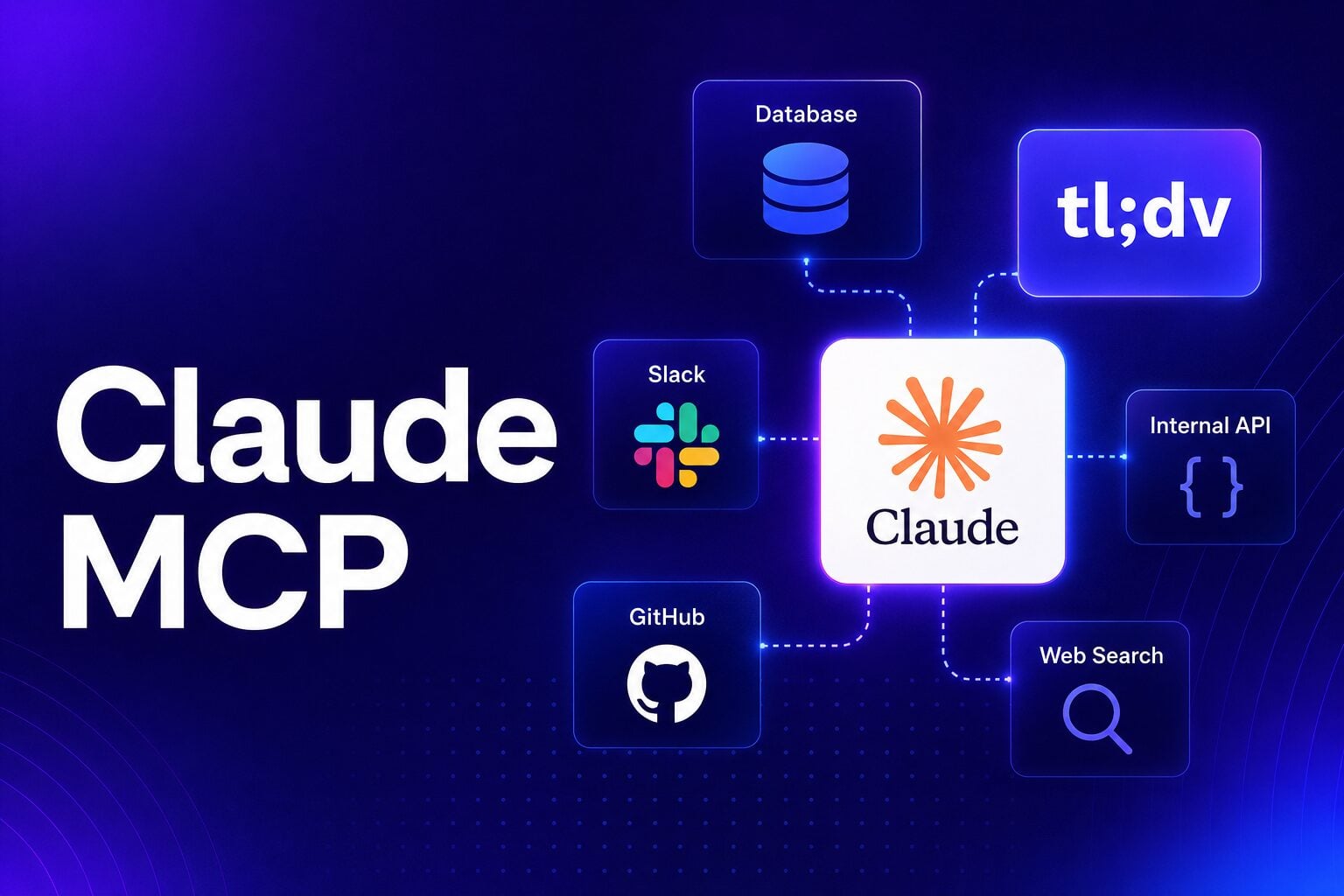
Claude MCP refers to Claude’s support for the Model Context Protocol, an open standard that connects AI applications to external tools and data.
An MCP server exposes capabilities in a format Claude understands. A GitHub MCP server, for example, can expose repositories, issues, and pull requests. A filesystem server can expose selected folders on your computer, while a database server can give Claude access to specific queries or database operations.
The connection means Claude can work with those systems directly when a task requires them. You don’t have to keep exporting data from one tool and pasting it into a conversation.
MCP servers can expose tools, resources, and prompts. Tools let Claude perform operations, resources provide information it can read, and prompts provide reusable templates. Claude Code supports all three.
You’ll also see Anthropic use the term ‘connector’ throughout Claude. Remote connectors connect Claude to hosted services through MCP. Desktop extensions package MCP servers that run locally on your computer. Anthropic currently recommends remote connectors for cloud services and desktop extensions for local tools and data.
What Is the Latest MCP Specification?
The latest published specification I found in the official MCP documentation is MCP 2026-07-28, released on July 28, 2026. It introduced a stateless protocol core along with changes to authorization and the extensions framework.
If you’re setting Claude up, you don’t need to understand every change in the specification. The practical parts are more straightforward: HTTP for most hosted MCP servers, stdio for local processes, connectors for supported cloud services, and Claude Code configuration for development workflows.
I cross-checked the commands, configuration locations, scopes, transport guidance, and Claude product behaviour in this guide against Anthropic’s current documentation in August 2026. MCP has changed quickly, so I’ve used the current official guidance where older setup guides differ.
That difference is worth checking before you connect anything. HubSpot’s remote server reaches contacts, companies and deals, but blocks activity objects entirely when Sensitive Data is switched on. Gong’s returns AI-generated insights instead of transcripts, so it will not give you what anyone said on a call. Both are documented in detail in what HubSpot’s MCP server can reach and what Gong MCP actually returns.
For a deeper look at the protocol itself, see our Model Context Protocol guide.
How Does MCP Work With Claude?
When Claude needs information or an action from a connected service, it can call the capability exposed by that MCP server, receive the result, and continue working with it in the same conversation.
The flow looks something like this:
You → Claude → MCP server → connected system → Claude
In Claude Code, that could mean pulling an issue from Jira, checking the related code, reading a GitHub pull request, or querying a PostgreSQL database. Anthropic’s own examples cover workflows across issue trackers, GitHub, monitoring tools, databases, Figma, and email.
The server decides what Claude can access. Some MCP servers expose read-only tools. Others can create issues, update records, send messages, or trigger actions. The permissions you grant to the connection determine how much Claude can actually do.
This is also why two MCP servers for the same platform may not behave in exactly the same way. Their available tools, authentication, scopes, and permissions can differ.
Which Claude MCP Setup Should You Use?

For a cloud or SaaS product, start with a remote connector. Anthropic treats remote connectors as the default for services you sign into online, and they can work across Claude on the web, mobile, Desktop, Cowork, and Claude Code.
If the connector already exists in Claude’s directory, you can connect it there. If you’re working with a custom service that exposes a public MCP URL, you can add that endpoint as a custom connector.
For something running locally, such as a filesystem, localhost database, desktop app, or local development tool, check for a desktop extension. Desktop extensions run on your machine and can access local resources that a remote connector cannot reach.
Claude Code gives developers another option because you can configure MCP servers directly from the CLI. That is useful when the connection belongs to a project, development environment, or repository.
So the older advice to immediately open claude_desktop_config.json no longer applies to every Claude MCP setup. Manual config is still supported, but you now have several ways to connect a server.
Local vs. Remote MCP Servers
A local MCP server runs as a process on your computer. Claude commonly communicates with it through stdio, short for standard input/output.
A filesystem server might be started with:
npx -y @modelcontextprotocol/server-filesystem /Users/username/Documents
The server runs locally and exposes the filesystem operations and directories you’ve allowed.
A remote MCP server runs elsewhere and exposes an endpoint over the network. These are common for hosted APIs, SaaS products, and services that need to work across several devices or users.
For Claude Code, HTTP is the recommended transport for remote MCP servers. SSE is still supported for older servers, but Anthropic now marks it as deprecated. Local processes generally use stdio. Claude Code also supports WebSocket servers for persistent connections where the server needs to push events back to Claude.
In most cases, you won’t choose a transport yourself. The server documentation will give you either an MCP URL or a local command, and that tells you which setup to use.
How to Connect a Hosted MCP Server to Claude
If the Connector is Already in Claude
Open the Connectors Directory, choose the service, and authenticate your account. That is usually the quickest route for hosted tools already supported by Claude.
Pipedrive MCP, along with many other CRM MCPs, can be found this way, for example.
If You Have a Custom MCP URL
Go to Customize → Connectors → + → Add custom connector, paste the remote MCP URL, and complete the provider’s authentication flow.
On Team and Enterprise plans, admins can control which custom connectors are available to members.
Remote Connectors
Remote connectors are reached from Anthropic’s cloud infrastructure, even when you are using Claude Desktop.
That means an MCP URL that works on your company VPN may still be unreachable to Claude if the server sits behind private DNS or a firewall. Anthropic provides IP ranges that can be allowlisted for private environments.
If the server needs direct access to local files, localhost services, or internal resources from your machine, a desktop extension may be a better fit.
Setting Up MCP in Claude Desktop
For a local tool, check Settings → Extensions in Claude Desktop first. Desktop extensions package the MCP server and its configuration, so you can install and configure them from the interface.
They can still ask you for things such as an API key, local directory, port, or application setting. Claude Desktop includes a built-in Node.js runtime for desktop extensions, which removes one of the dependency problems that appeared frequently in older MCP setup guides.
Some custom and older MCP servers still use the manual Claude Desktop configuration.
On macOS:
~/Library/Application Support/Claude/claude_desktop_config.json
On Windows:
%APPDATA%\Claude\claude_desktop_config.json
A simple filesystem configuration could look like this:
					{
  "mcpServers": {
    "filesystem": {
      "command": "npx",
      "args": [
        "-y",
        "@modelcontextprotocol/server-filesystem",
        "/Users/username/Documents"
      ]
    }
  }
}
Here, command tells Claude which executable to start, args are passed to that executable, and env can supply environment variables required by the server.
Check paths carefully when you copy a configuration from a README. An incorrect local path, missing executable, or environment variable that exists in your terminal but not in Claude’s process can stop the server from starting.
After editing the config, fully quit Claude Desktop and reopen it. The official MCP SDK documentation confirms both config locations above and recommends a full restart after changes.
How Do You Add an MCP Server to Claude Code?
Claude Code has its own MCP CLI, so you can configure servers directly from the terminal.
For a hosted HTTP server:
claude mcp add --transport http example https://mcp.example.com/mcp
If the server uses header-based authentication:
					claude mcp add --transport http example https://mcp.example.com/mcp \
  --header "Authorization: Bearer YOUR_TOKEN"
For a local server:
claude mcp add example -- npx -y @example/mcp-server
The -- matters. It separates Claude Code’s options from the command and arguments used to start the MCP server. Everything after it is passed to the server untouched.
You can pass environment variables as well:
					claude mcp add example \
  --env API_KEY=your-key \
  -- npx -y @example/mcp-server
Keep credentials out of configuration that will be committed to Git.
Choose the Right Claude Code MCP Scope
Claude Code supports three MCP scopes:
| Scope | Purpose | Config location |
|---|---|---|
| Local | Use the server only in the current project | ~/.claude.json |
| Project | Share the server configuration with the project or team | .mcp.json |
| Usuário | Use the server across all your projects | ~/.claude.json |
Local scope is the default and remains private to you. Project scope writes the MCP configuration to .mcp.json, which can be committed with the repository.
For a shared project server:
					claude mcp add --transport http shared-server \
  --scope project \
  https://example.com/mcp
.mcp.json file, review the server configuration before approving it. How Do Claude, Claude Desktop, and Claude Code MCP Settings Work Together?
This part has become easier, but the settings still do not all live in one place.
If you add a connector through claude.ai and Claude Code is authenticated with the same claude.ai account, that connector is automatically available in Claude Code. You can see it through /mcp. This does not apply when Claude Code is currently using an API key, Bedrock, Google Cloud, or another supported authentication method.
Local Claude Desktop configurations work differently. The standalone Claude Code CLI does not simply use every server in your Desktop config.
If you’ve already configured compatible servers in Claude Desktop, you can import them on macOS and Windows Subsystem for Linux with:
claude mcp add-from-claude-desktop
Then check the imported servers:
claude mcp list
Anthropic currently limits this import feature to macOS and WSL.
For reference, Claude Code stores local and user-scoped MCP servers in ~/.claude.json, while project-scoped servers live in .mcp.json.
3 Ways to Check if Your Claude MCP Server Is Actually Working
Adding an MCP server successfully does not necessarily mean Claude can use it. I would recommend these three quick checks before assuming the setup is done.
1. Check the Connection Status
In Claude Code, start with:
claude mcp listThis gives you a quick view of every configured server and its current state. You may see Connected, Needs authentication, Failed to connect, or Pending approval.
If the server is not showing as Connected, you already know where to start. A server waiting for authentication needs a different fix from one that Claude cannot reach at all.
2. Inspect the Server Itself
If you need more detail, run:
claude mcp get server-nameYou can also open /mcp inside Claude Code to review configured servers and their tools.
One detail from Anthropic’s documentation is useful here: seeing an Added ... message after claude mcp add only confirms that Claude saved the configuration. It does not confirm that Claude successfully connected to the server.
3. Test an Actual Tool
The final check is to ask Claude to do something that requires the MCP server.
If GitHub is connected, ask Claude to list the open pull requests in the current repository. If you added a database server, try a narrow read query. For a filesystem server, ask Claude to inspect a file from an approved directory.
If Claude can find the right tool, call it, and return the expected result, the connection is working end to end.
Best Tools to Connect to Claude With MCP
The best MCP connections are usually the tools Claude already needs as part of your work. If you use Claude for the same task regularly but still spend time pulling information from another system, connecting that system is a good place to start.| If you want Claude to work with... | Tools to connect |
|---|---|
| Meetings and customer conversations | tl;dv |
| Team conversations and collaboration | Slack |
| Code and repositories | GitHub |
| Projects and issues | Jira |
| Databases | PostgreSQL |
| Errors and monitoring | Sentry |
| Design context | Figma |
| Internal knowledge | Your existing document or knowledge platform |
With tl;dv connected, Claude can search your meeting library by keyword, date, or participant, pull speaker-labelled transcripts, retrieve meeting notes and metadata, and work across multiple calls in the same conversation. That makes questions such as “What objections came up across our customer calls this month?” possible without finding and pasting each transcript yourself.
Some newer tools offer MCP too. Wispr Flow’s Notetaker includes MCP access on its free plan, but it only reaches notes and transcripts, with no recording or CRM data behind them. Our Wispr Flow review compares it with tl;dv.
You can also combine that meeting context with another connected tool. For example, Claude could pull feature requests from customer calls in tl;dv and compare them with issues already sitting in Jira. Our guide on connecting meeting notes to Claude with MCP covers the tl;dv directory connector and self-hosted MCP setup in detail.
The same principle applies elsewhere.
- GitHub can give Claude repository, issue, and pull-request context.
- Jira brings project and issue data into the workflow.
- PostgreSQL can expose approved database queries, while Sentry adds monitoring and error data.
- Figma is useful when Claude needs design context alongside product or development work.
For company knowledge, connect the document stores, knowledge bases, or collaboration platforms Claude repeatedly needs information from.
Worth knowing that an announcement is not the same as a connector you can click. Zendesk announced an MCP server in May 2026, and it still has not arrived, so there is nothing for Zendesk in Claude’s directory.
Slack is a good example. Its official MCP server lets Claude search workspace messages, threads, files, channels, and people, then take Slack actions when you give it the required permissions. Our Slack MCP setup guide walks through the official Claude Code connection, authentication, permissions, and a real workflow.
Once Claude has access to useful business data, you can also build workflows that go beyond one-off questions. We tested one example in our guide to building a Claude dashboard, where Claude turns connected information into a more useful view for ongoing analysis.
For a wider comparison of integrations, see our best connectors for Claude guide.
Security Checks Before You Connect an MCP Server
MCP can give Claude anything from read-only access to a document store to permission to edit production data or run local commands. The security question is mostly about what a particular server can access and what it is allowed to do.
Before you approve a server, check:
- who maintains the server
- which OAuth scopes or permissions it requests
- what data it can read
- whether it can write, edit, or delete data
- whether it can run local commands
- how credentials are stored
- which external sources it can retrieve content from
For production systems, keep permissions as narrow as the task allows. If Claude only needs to analyse a database, read-only access is usually enough.
There is also the content Claude receives through those tools. Anthropic warns about prompt injection when MCP servers retrieve untrusted webpages, documents, messages, or other external content. Instructions hidden inside that content can try to influence Claude or trigger an unwanted action.
Project-level configuration needs the same scrutiny. A .mcp.json file in a repository can point Claude to remote services or start local processes. If you did not configure the server yourself, review it before approving it.
How MCP Affects Claude’s Context Window
MCP does use context, but the impact depends on which Claude product you are using and how many tools are active.
With regular Claude connectors, a large number of enabled tools can add context overhead. Anthropic provides On demand access for setups with many connectors, so Claude can load tools when it needs them instead of keeping every tool definition active throughout the conversation.
Claude Code handles this differently. It uses tool search by default, loading tool names and server instructions first and fetching full tool definitions when they become relevant. This keeps the context impact relatively small even when you have several MCP servers configured.
The larger issue is often the amount of data a tool returns. Claude Code currently warns when a single MCP result exceeds 10,000 tokens and limits MCP tool output to 25,000 tokens by default. You can change that maximum through MAX_MCP_OUTPUT_TOKENS.
If a tool keeps returning very large responses, I would tighten the query or reduce what the server returns before increasing the limit. Claude usually works better when the tool gives it the information the task actually needs.
Common Claude MCP Problems and How to Fix Them
Most problems come down to one of four stages: Claude cannot find the server, start it, authenticate with it, or use the tools it exposes. For a local server that does not start, run the same launch command directly in your terminal:
npx -y @example/mcp-server
If it fails there, fix that error first. Missing packages, PATH issues, incorrect runtime versions, missing environment variables, invalid paths, and permissions are common causes.
In Claude Code, a project server may remain at Pending approval until you open the project interactively and approve it. If the server connects but its tools are missing, /mcp shows the tool count for connected servers.
For deeper debugging, run:
claude --debug mcp
With remote servers, check the endpoint, authentication, DNS, TLS, and firewall rules. If the MCP URL only works inside your private network, remember that a remote Claude connector reaches it from Anthropic’s infrastructure, not through your local network.
Once you know whether the failure is in Claude’s configuration, the server itself, authentication, or the network, the fix is usually much easier to narrow down.
Where to Go Next
For a hosted service, start with Claude’s Connectors Directory. For something running locally, check whether a desktop extension already exists. Claude Code gives you more control when the MCP connection is part of a development workflow or needs to be shared with a project.
Once you’ve added the server, verify the connection and run one real tool request before building a larger workflow around it.
FAQs About Claude MCP
Can you use Claude MCP on the free plan?
Yes. Claude supports custom remote connectors on Free, Pro, Max, Team, and Enterprise plans. Free users are limited to one custom connector, and the service you connect may have its own subscription requirements. If you only want to test one hosted MCP server, the free plan can be enough. Local setups and third-party tools can still have separate requirements.
Can Claude use multiple MCP servers at once?
Yes. Claude Code can keep multiple MCP servers configured and use the tools that match the task. Its tool-search system loads tool definitions when they are needed instead of putting every schema into the context window at startup. It is still worth keeping your setup intentional: each extra server adds permissions, authentication, maintenance, and another place to troubleshoot if something breaks.
Does MCP replace APIs?
No. APIs and MCP usually sit at different layers. An API exposes operations that software can call directly; an MCP server presents capabilities in a standard format an AI client can discover and invoke. Many MCP servers use existing APIs underneath. A direct API is often better for a fixed, predictable workflow, while MCP is useful when you want Claude to choose tools dynamically from the conversation.
Can the same MCP server work with other AI clients?
Often, yes. MCP is an open standard rather than a Claude-only format, so the same server can be used by other clients that support the protocol. Compatibility still depends on the transport, authentication method, protocol version, and features each client implements. You may therefore reuse the server while keeping separate client-specific configuration.
Do you need coding knowledge to use Claude MCP?
Not for most hosted connectors. Directory connectors are usually a connect-and-authenticate flow, and desktop extensions package much of the local setup for you. Manual local servers require more comfort with terminal commands, JSON configuration, file paths, and environment variables. Building your own MCP server is a development task, but using an existing connector often is not.