Pular para o conteúdo






TL;DR: How to use Gemini AI?
- Four Pricing tiers: Free ($0), Google AI Plus ($7.99/month), Google AI Pro ($19.99/month), Google AI Ultra ($249.99/month). Pro is the right tier for most professionals.
- Gemini 3.1 Pro runs a 1 million token context window. Deep Think mode is Ultra-only.
- Deep Research, Gems, and NotebookLM are the three features most users skip. They shouldn’t.
- Writing quality lags Claude. Safety filters refuse too many neutral requests. Long sessions lose coherence in frustrating ways. All worth knowing before you pay.
- For meeting intelligence, Gemini hands off. tl;dv handles transcription, AI notes, CRM sync, and cross-call AI across Zoom, Meet, and Teams.
Google’s AI product line has gone through more rebranding in the last 18 months than most companies manage in a decade. Bard became Gemini. Gemini Advanced became Google AI Pro. At some point, I stopped keeping track of the names and started paying attention to what the product could actually do.
The answer, in 2026: quite a lot. But not everything people assume it does.
This guide covers how to set up Gemini properly, what it is actually good at, where it falls short (the safety filters alone deserve a section), and how Gemini and tl;dv work together as a two-tool stack. Because the gap Gemini leaves in your workflow is exactly where tl;dv does its best work.
Vamos começar.
Bottom line: Pro at $19.99/month. The one thing it doesn’t cover is your meetings. That’s tl;dv’s job
Índice
What Is Google Gemini and Why Should You Use It?
Direct Answer: Gemini is Google’s multimodal AI assistant, available as a standalone app, inside Google Workspace, and in Chrome. The current flagship, Gemini 3.1 Pro, handles text, images, audio, video, and code in a single session with a 1 million token context window, the largest of any major AI assistant right now.
The case for Gemini over standalone alternatives like ChatGPT or Claude comes down to one thing: native ecosystem integration. If Gmail, Docs, Sheets, and Chrome are where you work, Gemini is already there. No tab switching, no copy-pasting between tools, no separate subscription for things your workflow already touches.
Gemini is a serious tool with real limitations. The research capabilities are excellent. The Workspace integration works well. The safety filters are too aggressive, the writing quality is behind Claude, and long iterative sessions lose coherence in ways that are hard to explain until you run into them yourself. None of those are deal breakers. But going in with eyes open saves a lot of frustration later.
How Do I Access and Set Up Gemini?
Direct Answer: Gemini is available at gemini.google.com, on iOS and Android, and as a side panel inside Gmail, Docs, Sheets, and Slides. Your existing Google account is all you need. Three setup steps make a meaningful difference in what you get out of it from day one.
What settings should I configure before I start?
Step 1: Set custom instructions. Go to Settings → Instructions for Gemini → Add. Tell it your role, your industry, how detailed you want responses, and what tone you prefer. These apply across every conversation. Most people skip this and then wonder why Gemini’s answers feel generic. It’s this.
Step 2: Connect your apps. Settings → Connected Apps. Give Gemini access to your Google Workspace tools. Once connected, type @ in the chat to reference emails, files, or calendar events directly without leaving the conversation. For heavy Workspace users, this one step changes how the tool feels.
Step 3: Check for Personal Intelligence. Rolling out gradually in the US first, this connects Gemini to your Gmail, Drive, and Google Photos. It’s opt-in, off by default, and Google says it doesn’t train on your inbox or photo library. When you have it, Gemini can search across your actual work context, not just the web.
One thing that doesn’t get mentioned enough: every paid Gemini plan lets you share access with up to five family members, each with their own individual login. Storage is shared. Everything else is separate. No other major AI platform does this. If you have people at home who’d use it, two minutes of setup covers all of them.
How do I get the most from my first Gemini conversation?
Don’t open with an open-ended question. Gemini follows explicit structure better than it follows loose prompts.
Lead with a role: “Act as a senior financial analyst.” Add constraints before your question: “No hedging language. Under 200 words. Bullet format.” In my testing, the same instructions placed at the end of a prompt are routinely ignored. Put your framing first. It’s a consistent quirk worth knowing.
What Can Gemini Actually Do For You?
Direct Answer: Gemini 3.1 Pro handles writing, research, data analysis, image creation, video generation, code, and document review natively in one session. The standout features are Deep Research for multi-source AI reports, multimodal analysis across text, images, and video, and deep integration across Google Workspace apps.
How do I use Gemini for deep research and information synthesis?
Deep Research is the feature that changes how I prep for meetings and client work. Ask it a multi-step question and it runs an extended session pulling from hundreds of web sources, then returns a structured report with citations. As of 2026, it also searches across your own Google Workspace: Gmail threads, Drive documents, and Meet recordings. You’re not just asking what the internet says. You’re asking what your own team has said about the topic too.
One practical example: before a customer call, I run a Deep Research on the company. Not a basic search. A full competitive positioning report, recent press coverage, funding history, key product changes. Takes under five minutes. Arrives with citations I can verify before the call starts.
Can Gemini generate images and creative content?
Yes. Nano Banana Pro handles image generation and editing directly in the chat. Create from scratch, edit existing images with natural language (“remove the background”, “change the lighting”), or keep a character consistent across multiple scenes. It’s the image generation I reach for most often, and in my testing it outperforms most dedicated tools on first-try output quality.
Video creation runs on Veo 3.1 (Pro and Ultra), generating up to 4K clips with native audio. Gemini is also the only major AI tool that can analyse existing video: upload a file and ask it to extract key moments, break down messaging structure, or summarise footage by timestamp. Marketers uploading competitor ads and asking for a breakdown of messaging and pacing is a use case I’ve seen work well repeatedly.
How does Gemini handle task automation?
Scheduled Actions run recurring prompts automatically on a schedule without you being in the conversation. Weekly competitor research digests, daily calendar briefings, automated email summaries. Set it once. It pulls from your connected Google tools and runs on its own.
This is underused. Most people use Gemini as a reactive chat tool and miss the fact that it can run tasks proactively in the background while they’re doing something else.
What multimodal capabilities does Gemini have?
Text, images, audio, video, code, and documents in a single conversation. Upload a PDF and query across it. Drop in a screenshot and ask for an explanation. Paste in a codebase and ask Gemini to identify bugs across the full repository. At 1 million tokens of context, it can hold a complete book or a large codebase without truncating.
One feature most users miss entirely: click the three dots on any Gemini response and you get a Fact-Check option. Gemini searches the web to verify its own output and highlights what checks out and what doesn’t. Every AI model hallucinates. Google built a “trust but verify” button directly into the interface. Use it.
How Can I Maximise My Productivity With Gemini?
Direct Answer: The biggest gains come from three features most users walk past: Gems for reusable AI experts, Sheets integration for data work at scale, and Deep Research for multi-source analysis. Standard conversational use is the least efficient way to use the tool.
How do I use Gemini for coding and debugging?
Gemini 3.1 Pro handles code generation, refactoring, and debugging across most major languages. Upload your codebase and ask it to find bugs, suggest refactors, or document functions across the full repository. At 1 million tokens of context, it can hold a codebase in one session in a way that 128K models simply can’t.
Pro and Ultra subscribers get Jules, Google’s async coding agent (currently in beta). Hand Jules a task and it works in the background without requiring you to stay in the conversation. Write a test suite, refactor a module, document a codebase. For anything you’d otherwise queue up for a developer to tackle over a few hours, it’s worth trying.
What prompt engineering techniques actually work with Gemini?
Three things that hold up in practice:
Chain-of-thought structure beats open questions. “Step 1: identify the three strongest counterarguments. Step 2: draft a one-sentence rebuttal for each. Step 3: write a 200-word closing paragraph that addresses all three.” Gemini follows explicit sequential structure well. The same question without structure produces a noticeably shallower answer.
Role plus constraints first, always. “Act as a senior financial analyst. No hedging language. Under 200 words. Bullet format.” Put the framing before the question, not after. The same instructions at the end of a prompt are routinely ignored.
Reference documents, not just prompts. Upload the document. Then ask the question. The quality gap between a prompt alone and a prompt with relevant material attached is significant enough to matter on almost every task.
What are the Gemini features most people miss?
Gems are reusable AI personas you build once and load every session. Define a role, a set of instructions, and optionally connect a Google Doc or NotebookLM notebook as the Gem’s knowledge base. Every conversation with that Gem opens with those instructions pre-loaded.
One I use daily: a Content Reviewer anchored to our brand guidelines document, instructed to flag passive voice, require every claim to have a specific number, and enforce a 20-word sentence limit. Every draft I paste in gets reviewed against our actual standards. Gems are shareable, so you build once and your whole team gets the same reusable expert.
The =AI() formula in Google Sheets is one of the most practically useful things Google has shipped. Write a natural language prompt directly in a cell formula and Gemini processes it against your data. Classify customer feedback by sentiment, extract company names from a messy list, generate draft outlines from structured inputs at scale. No code required. If you do recurring data work in Sheets, this is worth 20 minutes of your time to figure out.
Canvas opens a side-by-side workspace for long-form writing or prototyping small apps, all within one session. Guided Learning turns Gemini into a tutor that asks questions and runs quizzes instead of just answering. Useful for meeting prep on unfamiliar territory, not just studying. Gemini Live on mobile handles voice conversations with camera and screen sharing, connected to Google Maps, Calendar, Tasks, and Keep hands-free.
How Does tl;dv Make Gemini More Powerful for Team Meetings?
Direct Answer: Gemini is built for individual AI work inside documents, research sessions, and Workspace apps. It has no native capability for real-time meeting transcription, speaker-attributed notes, cross-meeting AI queries, or CRM updates from live calls. tl;dv covers that layer, and when the two tools connect, they handle your entire workday end to end.
Why does Gemini fall short for live team meetings?
Gemini’s Meet integration generates a basic AI summary after a meeting ends, available to Workspace Business and Enterprise users. It doesn’t produce a full transcript with speaker attribution. It doesn’t surface action items mapped against a playbook. It doesn’t push structured data to your CRM. It doesn’t let you ask a question across 50 calls from last quarter.
That’s not a criticism. Gemini is a generalist AI model. It isn’t designed to be a meeting intelligence layer. The problem is that meetings are where most teams generate their most valuable context every week, and a basic summary doesn’t preserve it. If you want a direct feature-by-feature breakdown before going further, this comparison of tl;dv vs Gemini covers where each tool wins.
How does tl;dv bridge the gap?
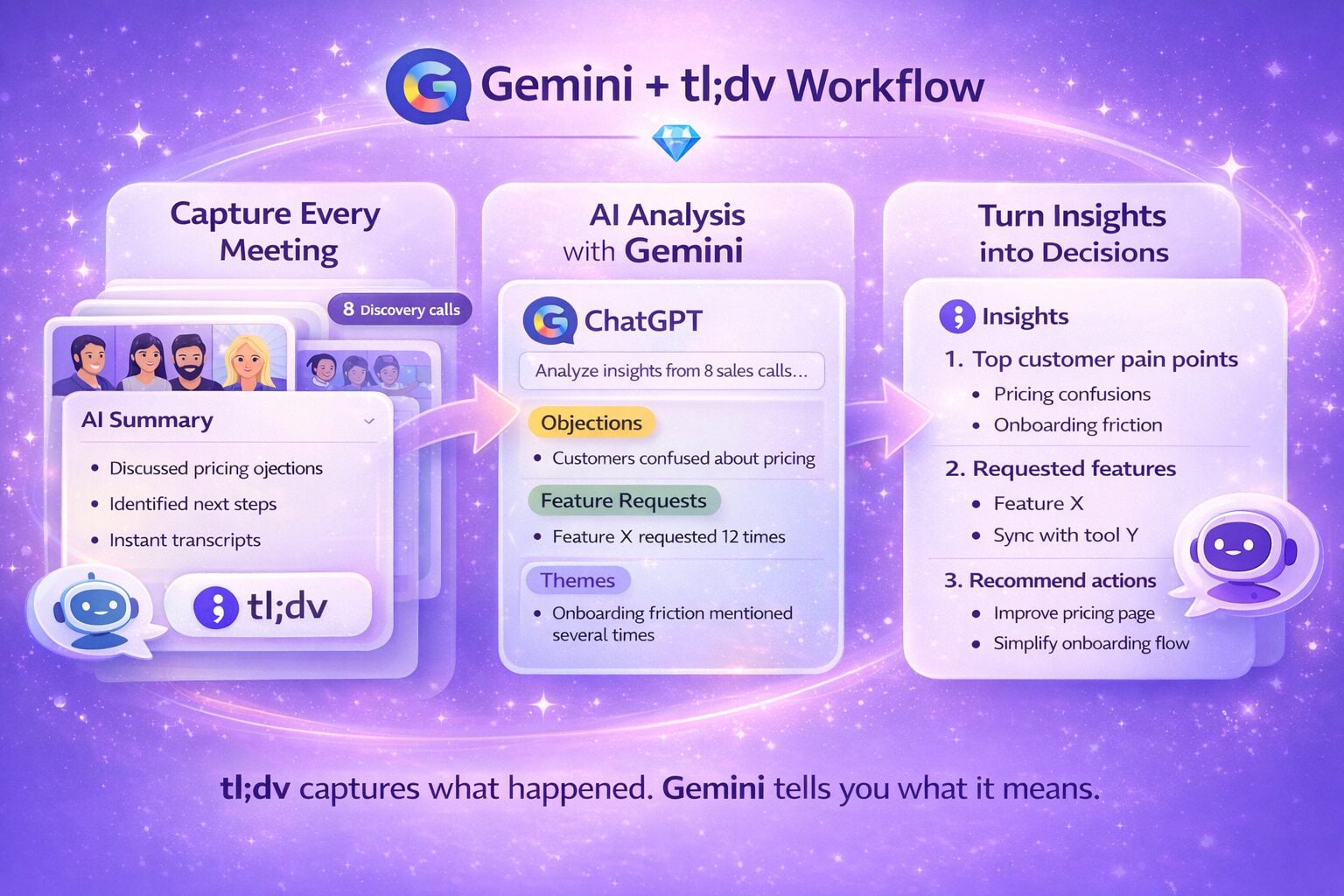
tl;dv is an AI note taker that records, transcribes, and generates AI meeting notes across Zoom, Google Meet, and Microsoft Teams. After the call, you get a full transcript in 30+ languages, speaker-attributed summaries, AI-generated action items, and a follow-up email draft. That output feeds directly back into Gemini.
Pre-meeting prep: Run Gemini’s Deep Research on the company or contact. Load the last three tl;dv call summaries from that account into a Gem as a knowledge base. You walk into the meeting knowing the market context and the full conversation history from every call before it.
Post-meeting pipeline: After the call, tl;dv generates the transcript and action items. Paste them into Gemini in Gmail and ask it to draft the follow-up referencing what was actually said. Because the input is specific, the output is specific. The manual step of writing a follow-up from memory disappears.
Gems connected to tl;dv meeting history: Export tl;dv summaries for an account to a Google Doc. Connect that Doc to a Gem. Every Gemini session on that account loads your full call history automatically. Ask “What objections has this customer raised most consistently?” and Gemini answers from your actual meeting records.
NotebookLM as a research layer across calls: Export tl;dv transcripts and upload them to NotebookLM. Ask questions across months of meeting history with full citations. “Which call first surfaced the pricing concern?” NotebookLM cites the exact source document. Nothing disappears into a recording nobody rewatches.
How do tl;dv and Gemini compare for meeting-related tasks?
| Recursos | tl;dv | Gemini |
|---|---|---|
|
Real-time meeting recording |
Yes: Zoom, Google Meet, Microsoft Teams |
No (Meet summary only, Workspace required) |
|
Full transcript with speaker attribution |
Yes: 30+ languages |
Não |
|
Resumos das reuniões sobre IA |
Yes: all platforms, customizable templates |
Basic (Meet only) |
|
Action items from live calls |
Sim |
Não |
|
Cross-meeting AI queries |
Yes (Business plan) |
Não |
|
CRM field mapping |
Yes: HubSpot, Salesforce, Pipedrive |
Não |
|
Smart keyword trackers |
Sim |
Não |
|
Relatórios recorrentes de IA |
Sim |
Não |
|
Bot-free recording mode |
Yes: desktop app, Audio-only mode |
Não |
tl;dv’s Free plan includes unlimited recording and transcription, plus 10 AI-processed meetings per month. Pro is $18/user/month (unlimited AI notes, CRM integrations, 5,000+ tool connections). Business is $59/user/month (multi-meeting AI queries, Smart Trackers, Recurring AI Reports, CRM field mapping).
Gemini AI Pro at $19.99 and tl;dv Pro at $18/user: under $40/month for AI coverage across your documents and your meetings.
Start free with tl;dv (no credit card required).
Is Gemini the Right AI for Your Workflow?
Direct Answer: For Google Workspace users, yes. The native integration across Gmail, Docs, Sheets, Slides, and Chrome gives Gemini an edge no standalone AI assistant matches. For writing-heavy work where voice and polish matter, Claude produces noticeably better prose. For workflows that rely heavily on non-Google tools, ChatGPT’s plugin ecosystem has more coverage.
The limitations matter more than the marketing suggests. Safety filters are Gemini’s most frustrating problem in daily use. It sometimes refuses to engage with completely reasonable requests, flagging neutral questions about health, politics, or cultural topics as sensitive. Other models handle the same prompts without friction. This comes up repeatedly in user discussions online and in my own testing.
Writing quality is a genuine step behind Claude. Gemini’s prose tends to be functional but generic, leaning technical or academic. You can steer it with enough prompting, but you’re doing more work than you should have to. I use Claude for long-form writing where tone and voice matter. I use Gemini for research, multimodal work, and anything that lives inside Google’s tools.
Long iterative sessions lose coherence despite the massive context window. Gemini starts recommending things you’ve already tried, forgets constraints you set earlier, and loops back to failed approaches. For focused, single-session tasks it’s excellent. For long projects that evolve over many turns, be prepared for frustration.
One limitation most people discover too late: Gemini doesn’t let you export your chat history. You can import your ChatGPT or Claude history in. You can’t get your Gemini conversations back out. ChatGPT and Claude both offer chat export. Gemini doesn’t. Worth knowing before you build a working practice around it.
None of those limitations make Gemini the wrong choice. They make it a choice with clear trade-offs. Know the trade-offs, and the decision is easy.
FAQs About Using Gemini
Is Google Gemini free to use?
Yes. The Free plan includes Gemini 3 Flash (with limited 3.1 Pro access), Deep Research, Gems, Canvas, Guided Learning, Gemini Live, NotebookLM, and 50 daily AI credits. Google AI Plus costs $7.99/month, Pro is $19.99/month, and Ultra is $249.99/month. Every paid plan lets you share access with up to five family members at no extra cost, each with their own individual login. No other major AI platform currently offers this.
What is the difference between Gemini and Bard?
Bard was Google’s original AI assistant, launched in March 2023. In February 2024, Google rebranded Bard as Gemini. If you had a Bard account, it automatically became a Gemini account. Same product lineage, different name. Gemini is now the name across all plans, models, and apps.
Can Gemini integrate with other apps?
Yes. Gemini integrates natively with Google Workspace (Gmail, Docs, Sheets, Slides, Drive, Calendar, Meet), Chrome, YouTube Music, and Google Maps. Connect them in Settings → Connected Apps and reference files, emails, and calendar events directly in the chat using @ commands. For non-Google tools at scale, tl;dv connects to Salesforce, HubSpot, Slack, Notion, and 5,000+ tools automatically after every meeting, which is where most of the cross-tool workflow actually lives for professional teams.
How does Gemini protect my privacy?
On consumer accounts, conversations may be reviewed by human reviewers and used to improve Google’s models by default. Turn this off at myactivity.google.com → Gemini Apps Activity → toggle off. Workspace accounts (Business and Enterprise) have stricter data handling: conversation data is not used to train Google’s models. The Personal Intelligence feature, which connects Gemini to your Gmail and Google Photos, is fully opt-in and off by default. Google states it does not train on your inbox or photo library when this feature is enabled.
How do Gemini and tl;dv work together?
Gemini covers everything that happens in a document, a spreadsheet, or a browser. tl;dv covers everything that happens in a meeting. They connect at every stage: Gemini’s Deep Research feeds pre-meeting prep; tl;dv’s post-call transcripts and action items feed back into Gemini for follow-up drafts; tl;dv summaries connect to Gems as persistent knowledge bases; tl;dv transcripts upload to NotebookLM for cross-call research with full citations. tl;dv is built specifically for the meeting intelligence layer that Gemini’s standard features don’t reach.