Перейти к содержанию






TL;DR
Slack now has an official MCP server so supported AI clients can search workspace content and take Slack actions without running a local community server or managing tokens manually.
I tested the setup with Claude Code. Once the official Slack plugin is installed, Claude can search messages and threads, find relevant workspace information, and send messages back into Slack.
This guide covers the full setup, the issues that can slow you down, how permissions work, practical Slack MCP workflows, and when to bring tl;dv into the setup for meeting summaries and transcripts.
Оглавление
What Is Slack MCP?
Slack MCP is Slack’s official MCP server. It gives supported AI clients access to a set of Slack tools after the user connects and authorises their workspace.
You can then ask Claude to find an old discussion, read the thread where a decision was made, draft a message, locate a file, or update a Slack canvas. You no longer have to find the relevant messages yourself and paste them into the conversation.
Slack currently provides tools for:
- searching messages, files, users, channels, and custom emoji
- reading channel history and complete threads
- drafting and sending messages
- creating channels, DMs, and group conversations
- adding reactions
- reading, creating, and updating canvases
- finding user information and channel members
- uploading files
- creating, reading, and updating Slack Lists
Slack continues to add tools to the official server, so its developer documentation is the best place to check the current list.
If MCP itself is new to you, our Claude MCP guide explains clients, servers, transports, permissions, and the different ways Claude can connect to an MCP server.
Slack also has a separate Slackbot MCP Client. That works in the other direction. Slackbot can connect to external MCP servers and call their tools from inside Slack. This article focuses on using Slack as the MCP server.
Slack MCP Server Use Cases
Slack holds years of conversations that are difficult to use once they disappear into old channels and threads. MCP gives an AI client a way to find that information when you need it.
| Вариант использования | What you can do |
|---|---|
| Workspace search | Find messages, files, channels, people, and older discussions |
| Project research | Review threads and channel history for decisions, blockers, and updates |
| Slack actions | Draft or send messages, create conversations, upload files, and add reactions |
| Knowledge management | Read or update canvases and work with Slack Lists |
| Cross-tool research | Combine Slack discussions with information from other connected tools |
Slack MCP is more useful when the information you need is spread across different tools. For instance, a customer issue might be discussed in Slack, tracked in Jira, and raised again during a sales call. Once those sources are connected to the same AI client, Slack MCP can bring in the Slack context while the other integrations add the rest.
That can give you a much better view of what happened. The sales call tells you what the customer said. Slack shows how the team responded internally. Jira shows what eventually became work.
How to Set Up Slack MCP in 5 Steps
Slack now hosts an official remote MCP server, so you don’t need to create your own Slack app, generate tokens, or run a community Slack MCP server locally for the standard setup.
There are a few ways to connect to it. For this walkthrough, I’ll use Claude Code through Terminal and show the setup exactly as I went through it. If you use Claude Desktop instead, I’ve included the much shorter setup further below.
Slack currently supports partner clients including Claude.ai, Claude Code, Cursor, and Perplexity.
1. Check That Claude Code Is Installed
Open Terminal and run:
claude --version
If Claude Code is installed correctly, Terminal should return a version number.
If you see:
zsh: command not found: claude
you’ll need to install the Claude Code CLI before continuing. Slack lists the Claude Code CLI as a prerequisite for this setup.
You’ll also need access to the Slack workspace you want to connect. If your organisation requires approval for MCP integrations, your Slack admin will need to approve the connection.
2. Install the Official Slack Plugin
Once Claude Code is working, install Slack’s official plugin.
In Terminal, run:
/plugin install slack@claude-plugins-official
Slack publishes this plugin through Anthropic’s official Claude plugin marketplace. It sets up the Slack MCP server connection automatically when it loads.
If the installation works, you should see a confirmation that the Slack plugin was installed.
If Claude Says the Slack Plugin Cannot Be Found
You may see an error similar to:
Plugin "slack" not found in any configured marketplace
This can happen if the official Claude plugin marketplace has not been added to your installation yet.
Add it with:
claude plugin marketplace add anthropics/claude-plugins-official
Then run the Slack installation command again:
claude plugin install slack@claude-plugins-official
Once it works, you should see something similar to:
Successfully installed plugin: slack@claude-plugins-official
Slack publishes the plugin through the official Claude marketplace.
3. Authenticate Your Slack Workspace
Once the plugin is installed, start Claude Code from Terminal:
claude
If this is your first time opening Claude Code through Terminal, you may get a few initial setup screens for things like your theme and Terminal preferences. Complete those first. They are Claude Code settings and are not part of the Slack setup.
Once you reach the normal Claude Code prompt, run:
/mcp
You should see your available MCP connections.
Slack may appear with:
Needs authentication
Select the Slack connection and follow the authentication flow.
Slack uses OAuth to connect the plugin to your workspace. You do not need to manually enter https://mcp.slack.com/mcp or edit an MCP configuration file when you use the official Claude Code plugin.
Once authentication is complete, Claude Code should show a confirmation similar to:
Authentication successful. Connected to plugin:slack:slack.
At that point, Slack MCP is connected and ready to go!
4. Test Slack Search
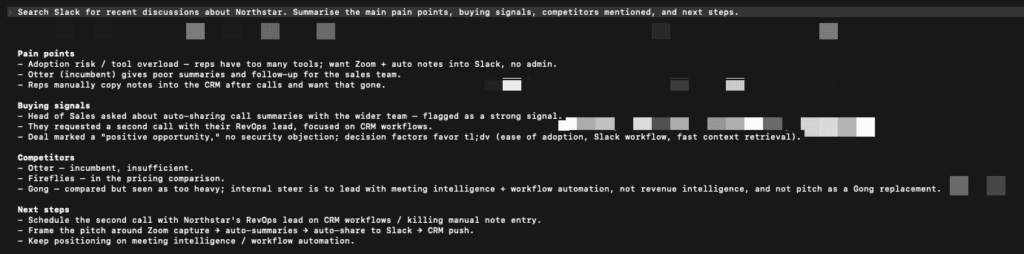
Once Slack is connected, test whether Claude can actually retrieve the right information from your workspace. Start with a specific search so you can easily compare Claude’s response with what is already in Slack. Например:Search Slack for recent discussions about Northstar. Summarise the main pain points, buying signals, competitors mentioned, and next steps.Claude may use several Slack tools to answer one request. It might search for the relevant conversation, read messages or threads, and then return a summary. If the connection is working, you should see Claude call the Slack plugin and return the relevant information from your workspace. In this example, Claude pulled out the customer’s pain points, buying signals, competitors, and next steps from the Slack discussion.
If Claude Keeps Asking You to Approve Slack Searches
Claude Code may ask you to approve individual Slack tool calls. One search can involve several calls, so you may see multiple permission prompts before Claude finishes.
To manage this, run:
/permissions
From there, you can allow the Slack tools you trust so Claude does not stop before every call.
For a real company workspace, I’d keep this limited to the read and search tools you actually need. If the connection also has write permissions, avoid approving every Slack action by default.
Repeated approval prompts do not mean Slack MCP has failed. They come from Claude Code’s own permission controls.
5. Test a Slack Action
Once search is working, test whether Claude can take an action in Slack.
Start by asking Claude to draft the message first:
Based on the recent Slack discussion, draft a short sales update covering the main pain points, buying signals, and next step.
Review the draft, then ask:
Send that update to #sales-insights.
If the connection has the required write permissions, the message should appear in Slack.

For your first test, I’d use a test channel or a workspace where you are comfortable letting Claude post. This gives you a chance to confirm the write action works before using it in a live team channel.
If Claude can search Slack but cannot send the message, check the write permissions granted to the connection.

Connect Slack MCP Through Claude Desktop
If you use Claude Desktop, the setup is much quicker than the Claude Code route above.
- Open Claude and go to Customize
- Select Connectors
- Click +
- Find and add Slack
- Complete the Slack OAuth flow
Claude handles the MCP connection for you, so there is no plugin to install or Terminal configuration required. Slack documents this as the standard Claude Desktop setup.
I tested both methods. Connecting Slack through Claude Desktop took me only a few seconds. The Claude Code setup took a couple of minutes because I had to install the plugin, configure the marketplace when the plugin was not found, authenticate through /mcp, and deal with the initial permission prompts.
So if you simply want to use Slack MCP inside Claude, Claude Desktop is the easier route. Claude Code gives you more control over the setup and permissions, but it involves a few more steps.

How tl;dv Adds Meeting Context to Slack MCP
I’ve shown you how to connect Slack MCP and use Claude to work with information already inside your workspace. But some of the most useful context may still live inside customer calls, demos, or internal meetings.
The biggest reason to have meeting notes come into Slack is that the team can act on them immediately.
With tl;dv, you can choose which meetings get sent, route them to the right channel, and decide exactly what appears there, from AI notes and transcripts to meeting links and participant details. You can also use custom prompts to turn a call into something more useful, like a demo score, coaching feedback, objections, or next steps. tl;dv is also adding scheduled AI reports and speaker analysis to its Slack workflows, which could make recurring reviews and sales coaching much easier.
The tl;dv Slack integration is the way to go about it. Once it is there, Slack MCP can search it alongside the regular conversations and updates on Slack.
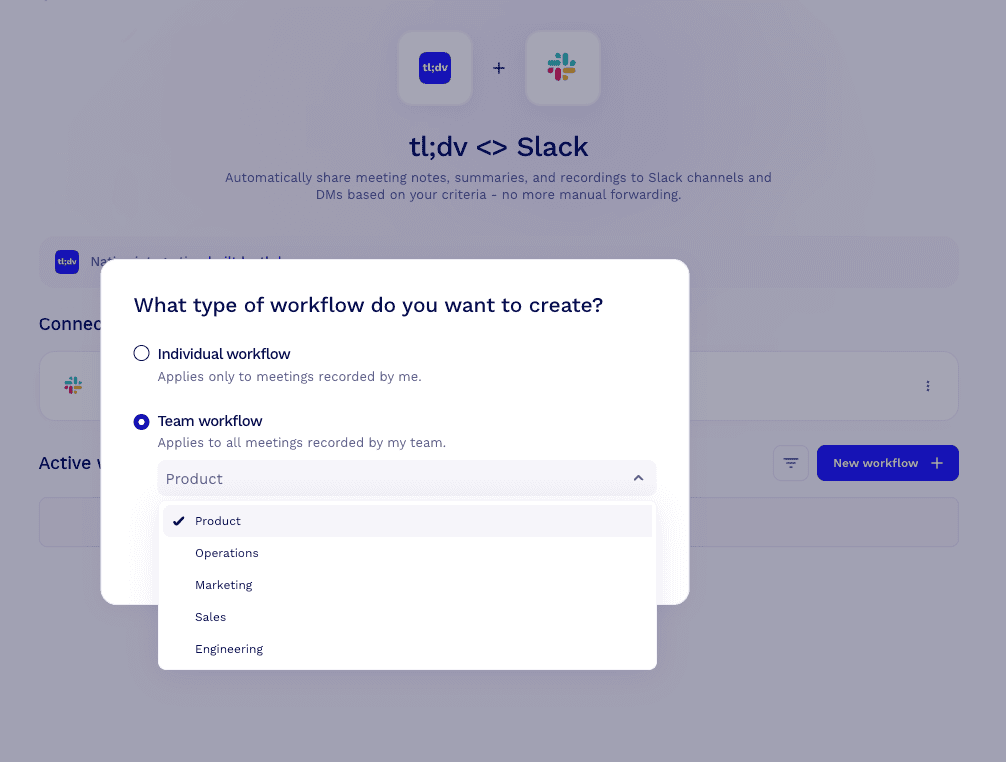
1. Choose Which Meetings Go to Slack
From the tl;dv Slack integration, you can create either choose:
- an Individual workflow for meetings you record
- a Team workflow for meetings recorded by a selected team
You can then choose whether the output goes to a specific Slack channel or directly to someone through a DM.
2. Choose Where the Recording Goes
First, choose what should trigger the workflow. The default option is when a new meeting recording is ready.
You can also add conditions so the workflow only runs for the meetings you want, for example based on:
- meeting title
- meeting type
- participant email
- your role in the meeting
tl;dv also shows upcoming triggers for scheduled reports and speaker analysis. Once available, these could be sent automatically to a Slack channel or DM too.

3. Configure What tl;dv Sends to Slack
Now choose the destination channel and decide what should appear in the Slack message.
You can add meeting information such as AI Notes, meeting title, transcript, participant details, and the meeting URL. You can also switch on Custom prompt if you want tl;dv to create a specific output from the recording.
tl;dv is also expanding what can be sent into Slack. The integration currently shows upcoming options for scheduled AI reports and speaker analysis, both of which can be sent to a Slack channel or DM once available. That could be useful for surfacing recurring trends or rep-level coaching insights without waiting for someone to review each meeting manually.

4. Test the Workflow With an Existing Meeting
You do not need to wait for another call to test the workflow.
On the Test step, select an existing tl;dv recording and run the workflow once. Then open Slack and check what was posted.
If the output is too long, misses something important, or needs a clearer structure, adjust the fields or custom prompt and test it again.
Once the Slack output looks right, activate the workflow for future recordings.

5. Analyse the Meeting With Slack MCP
Once tl;dv posts the meeting output into Slack, Slack MCP can work with it like any other Slack content.
For my test, I had the meeting analysis in one Slack channel and the existing deal strategy spread across other test channels.
I then asked Claude:
Review the latest tl;dv demo call analysis in #sales-team-tst and compare it with the existing Northstar discussions in #sales-tst and #deal-room-tst. Tell me where the call matched our deal strategy, what new information came up, and the three priorities for the next call.
Claude compared the meeting analysis with the earlier Slack discussions. It picked out where the call matched the team’s existing strategy, surfaced information that had not appeared before, and identified what the sales team should focus on next.
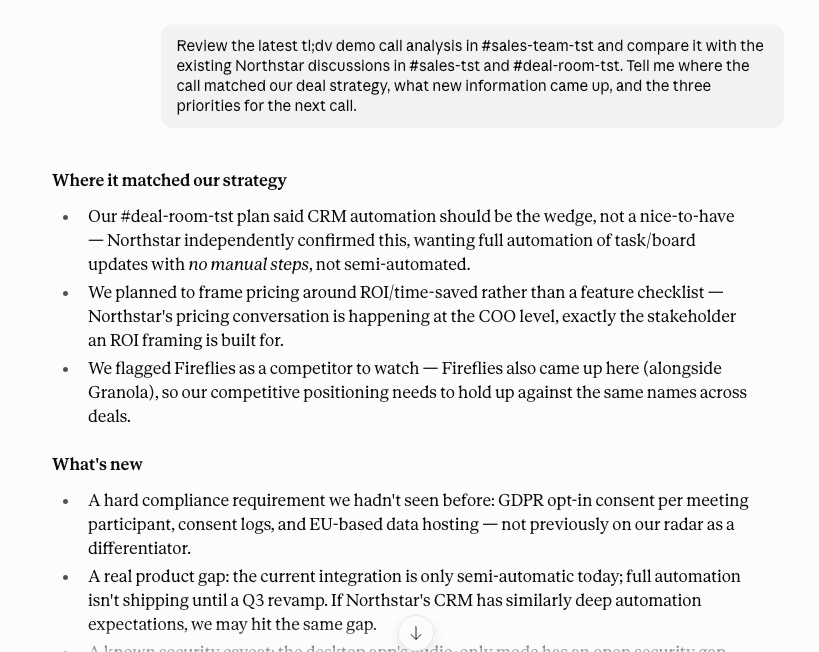
tl;dv gets the meeting analysis into Slack. Slack MCP can then compare it with the team’s existing Slack discussions.
For a deeper look at the meeting-to-Slack setup itself, check out our Google Meet to Slack guide.
Slack MCP vs tl;dv MCP
Slack MCP and tl;dv MCP give Claude access to different parts of your work.
| Slack MCP | tl;dv MCP | |
|---|---|---|
| Main source | Slack workspace | библиотека встреч tl;dv |
| Поиск | Messages, files, channels, and users | Meetings by keyword, date, or participant |
| Detailed context | Channel history and threads | Transcripts, notes, and meeting metadata |
| Write actions | Available with the required Slack permissions | Hosted meeting tools are read-only |
| Лучшее для | Internal discussions and Slack actions | Customer and internal meeting research |
If tl;dv already sends the meeting summaries you need into Slack, Slack MCP can work with them there.
Use tl;dv MCP when Claude needs direct access to the original meeting library, including full transcripts, notes, metadata, or meetings that were never shared in Slack.
Common Slack MCP Errors and Fixes
Most Slack MCP problems are around the setup, authentication, or permissions.
Here are some of the issues I’ve come across, plus a few others users commonly run into.
1. Claude Can’t Find the Slack Plugin
If you get Plugin "slack" not found, add Anthropic’s official plugin marketplace first, then reinstall the Slack plugin.
2. Slack Shows “Needs Authentication”
Run /mcp, select Slack, and complete the OAuth flow. If authentication fails unexpectedly, check that Claude Code and the Slack plugin are up to date.
3. Claude Keeps Asking for Permission
One search can trigger several Slack tools. Use /permissions to approve trusted read or search tools instead of confirming every call.
4. Claude Can’t Find Private Messages
Check the connected Slack account and whether the required private-channel or DM permissions were approved during authentication.
5. Search Works but Sending Fails
Sending messages requires chat:write. Read access alone is not enough.
6. A Custom Client Won’t Connect
Slack uses Streamable HTTP and does not support Dynamic Client Registration, so custom clients need a registered Slack app and OAuth configuration.
FAQs About Slack MCP
Does Slack MCP cost extra?
Slack does not currently list a separate fee for using its official MCP server. Your actual cost depends on the Slack plan and AI client you connect, since tools such as Claude, Cursor, Perplexity, and ChatGPT have their own plan requirements.
Which AI clients support the official Slack MCP server?
Slack currently lists Claude.ai, Claude Code, Perplexity, and Cursor as supported partner-built MCP clients. Slack also lists ChatGPT among the partner apps that can connect to the Slack MCP server.
Can I connect more than one Slack workspace through MCP?
It depends on the MCP client you use. Slack apps can support installations across multiple workspaces, but the client may place its own limits on connections. For example, ChatGPT currently supports one connected Slack workspace at a time, so you need to disconnect it before switching to another.
Does Slack MCP work with ChatGPT?
Yes. Slack currently lists ChatGPT as a partner that can connect to the Slack MCP server. ChatGPT can search Slack messages, threads, and channels you have access to, and available Slack actions depend on your permissions and workspace settings.
Can a Slack admin revoke MCP access after it has been connected?
Yes. Slack admins can manage app access, and Enterprise Grid and Enterprise+ admins can control who has access to individual MCP servers connected through installed apps. This means access can be restricted or removed after the initial connection.
Is Slack MCP different from Slackbot’s MCP client?
Yes. The Slack MCP server lets outside AI tools access and take permitted actions in Slack. Slackbot as an MCP client works in the opposite direction, connecting Slackbot to MCP servers from other apps so you can use those tools from inside Slack.