Skip to content




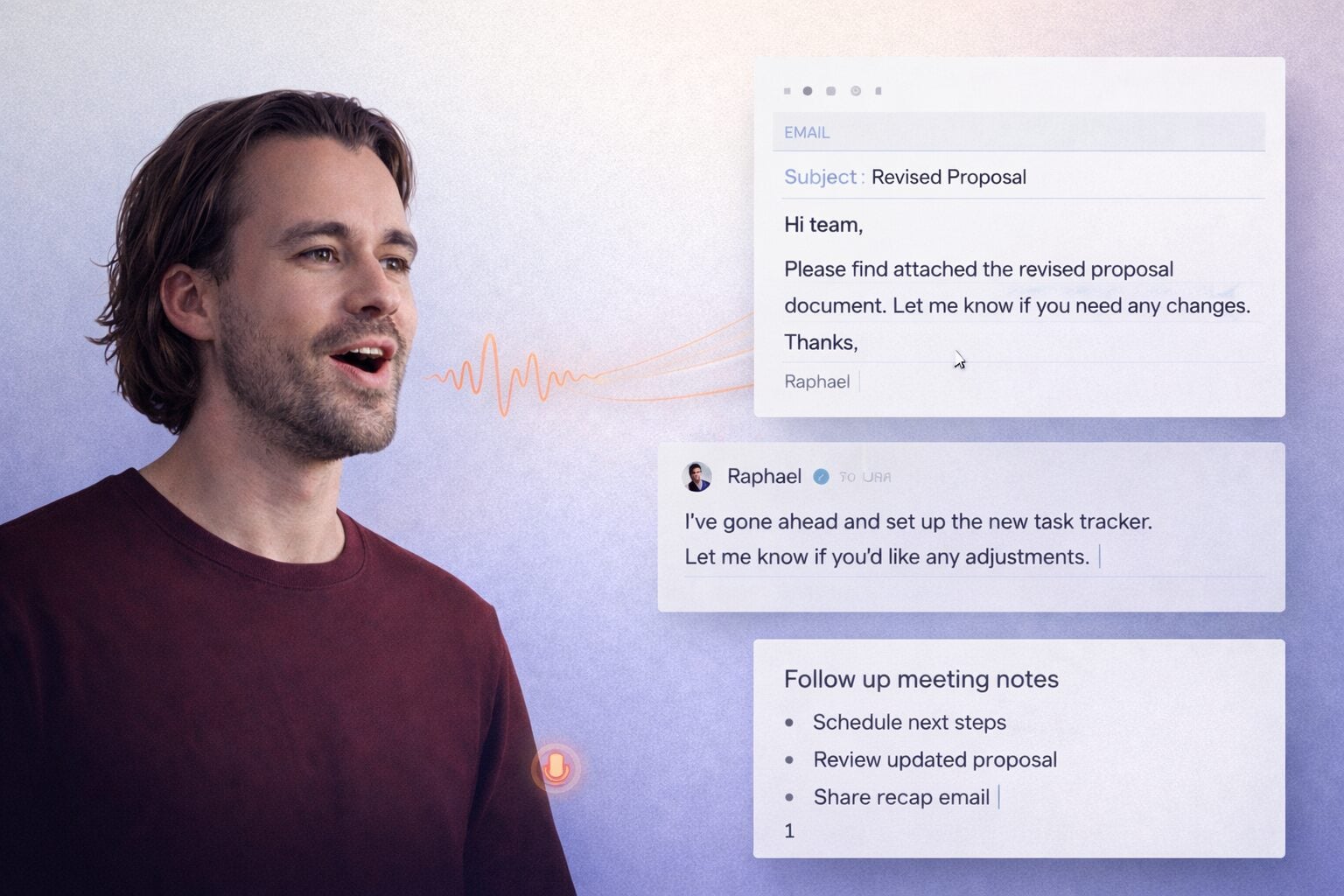
You finish your eighth Zoom call of the day, close the laptop, and immediately forget half of what was said. Somewhere in Notion there are notes from call number three. Your CRM has updates from last Tuesday. And the follow-up email you promised to send? Still sitting in drafts.
This is not a discipline problem. It’s a systems problem. And in 2026, there’s now a stack that actually solves it.
OpenClaw is an open-source autonomous AI agent that connects to your tools and takes real actions on your behalf, around the clock. Originally released as ClawdBot in late 2025, it got renamed to Moltbot after a trademark issue, and finally landed on OpenClaw in early 2026.
Think of it less like a chatbot you ask questions to and more like a tireless assistant that wakes up, checks your calendar, reads your emails, pulls your meeting recordings, and fires off the actions you would have gotten to eventually. It was created by Peter Steinberger, written in TypeScript. Their lobster logo is non-negotiable apparently.
tl;dv is the other piece. It’s a free AI note taker that joins your Zoom calls, captures everything, and hands you back a clean transcript, an AI summary, and a list of action items the moment the call ends. More importantly, it gives OpenClaw something worth acting on.
By the end of this guide, you will have a repeatable OpenClaw + Zoom + tl;dv workflow that turns every Zoom call into automatic summaries, follow-up emails, CRM updates, and Slack handoffs. No manual notes required after the call ends.
Table of Contents
What OpenClaw Can Do With Zoom
OpenClaw connects to Zoom through the official Zoom REST API using OAuth. Once connected, it acts as an operations layer on top of your Zoom account, handling all the glue work that eats your time: fetching recordings, scheduling calls, pulling participant lists, and triggering downstream actions while you are on your next call.
You can tell OpenClaw in plain language to schedule a demo for Thursday at 2pm and it creates the Zoom meeting, generates the invite link, and adds it to your calendar. You can ask it to pull all recordings from the past 48 hours. You can set a cron job so that every weekday evening it checks for completed meetings, grabs the recording URLs, and posts them to a Slack channel. None of that requires you to open the Zoom dashboard.
What OpenClaw does not do is sit inside your Zoom call as a bot. It is entirely headless, meaning it operates via the Zoom API in the background. It does not join the meeting, it does not see a video feed, and it does not interrupt anyone. It talks to Zoom’s servers on your behalf, runs the logic you configure, and moves on to the next task.
The Zoom Manager skill for OpenClaw is available across multiple platforms including LobeHub and on MCP Market.
Concretely, here is what the integration covers: creating, updating, and cancelling meetings by typing plain instructions; retrieving cloud recordings from completed calls; getting meeting links and participant data on demand; managing recurring meetings and webinar series; and triggering downstream workflows the moment a meeting ends.
Why You Still Need tl;dv in the Mix
Here is something worth being straight about before we go further. OpenClaw does not record your Zoom calls. It does not join meetings. It cannot capture a transcript on its own. What it can do is act on data once that data exists somewhere it can reach. That is a meaningful distinction, and it is exactly why tl;dv belongs in this stack. A raw cloud recording is just a video file sitting in a folder. OpenClaw has no idea who said what, what the key decisions were, or what someone promised to do by Friday.
tl;dv joins your Zoom call automatically through a Chrome extension or desktop app, then transforms the entire conversation into structured, machine-readable data. You get a word-for-word transcript with speaker labels, an AI summary, timestamped chapters you name yourself (things like “pricing discussion” or “objections”), and a clean list of action items. You can also use meeting templates for different call types, so a discovery call and a renewal call each get their own AI note format.
For OpenClaw, this is the difference between trying to interpret a 45-minute video and reading a well-organized document.
Three reasons this pairing genuinely outperforms doing it with Zoom alone:
Accuracy: tl;dv’s transcript quality is high enough that OpenClaw can extract reliable details like budget numbers, next steps, and decision-maker names without guessing at context it never received.
Speed: You skip the speech-to-text overhead entirely. tl;dv processes the transcript in real time and makes the output available within minutes of the call ending. OpenClaw can pick it up almost immediately.
Structure: tl;dv’s chapters and tags give OpenClaw a roadmap of the conversation. Instead of processing the whole transcript as one large block of text, OpenClaw can focus on specific sections: what came up in the pricing chapter, what objections were raised, what the agreed next step was.
It’s worth being clear about something here. tl;dv is not just a transcript provider waiting for OpenClaw to do something useful with the data. It already handles a serious chunk of post-call automation on its own: auto-drafting follow-up emails based on the conversation, pushing structured notes directly to Salesforce and HubSpot, tracking action items, and connecting to over 5,000 apps via Zapier. For a lot of teams, tl;dv alone gets them 80% of the way there. OpenClaw comes into the picture when you need custom logic, multi-tool orchestration, or workflows that go beyond what a purpose-built meeting tool covers out of the box.
The Signature Workflow: From Zoom Call to Automatic Follow-Up
The Scenario: A SaaS Sales Lead Running 8 Zoom Calls a Day
Meet Kavya. She leads sales at a growing SaaS startup. On a typical Tuesday she has two discovery calls, one product demo, a renewal check-in, an onboarding session with a new customer, and three follow-ups with prospects who have been “almost ready to sign” for two weeks. That is eight Zoom calls.
After each one, Kavya is supposed to update the CRM, write a follow-up email, summarize the call for her team, and log any tasks in the project tracker. In reality, she updates the CRM for maybe four of the eight. The follow-up emails go out the next morning, a little late. The team summaries rarely happen at all. By Thursday she has 24 tabs open and a nagging sense that something important was promised on a Monday call she can barely remember.
What the Finished Workflow Looks Like
Imagine that same Tuesday, but with this stack set up and running in the background. Getting here takes real configuration, an afternoon at minimum. But once it is done, here is what actually happens.
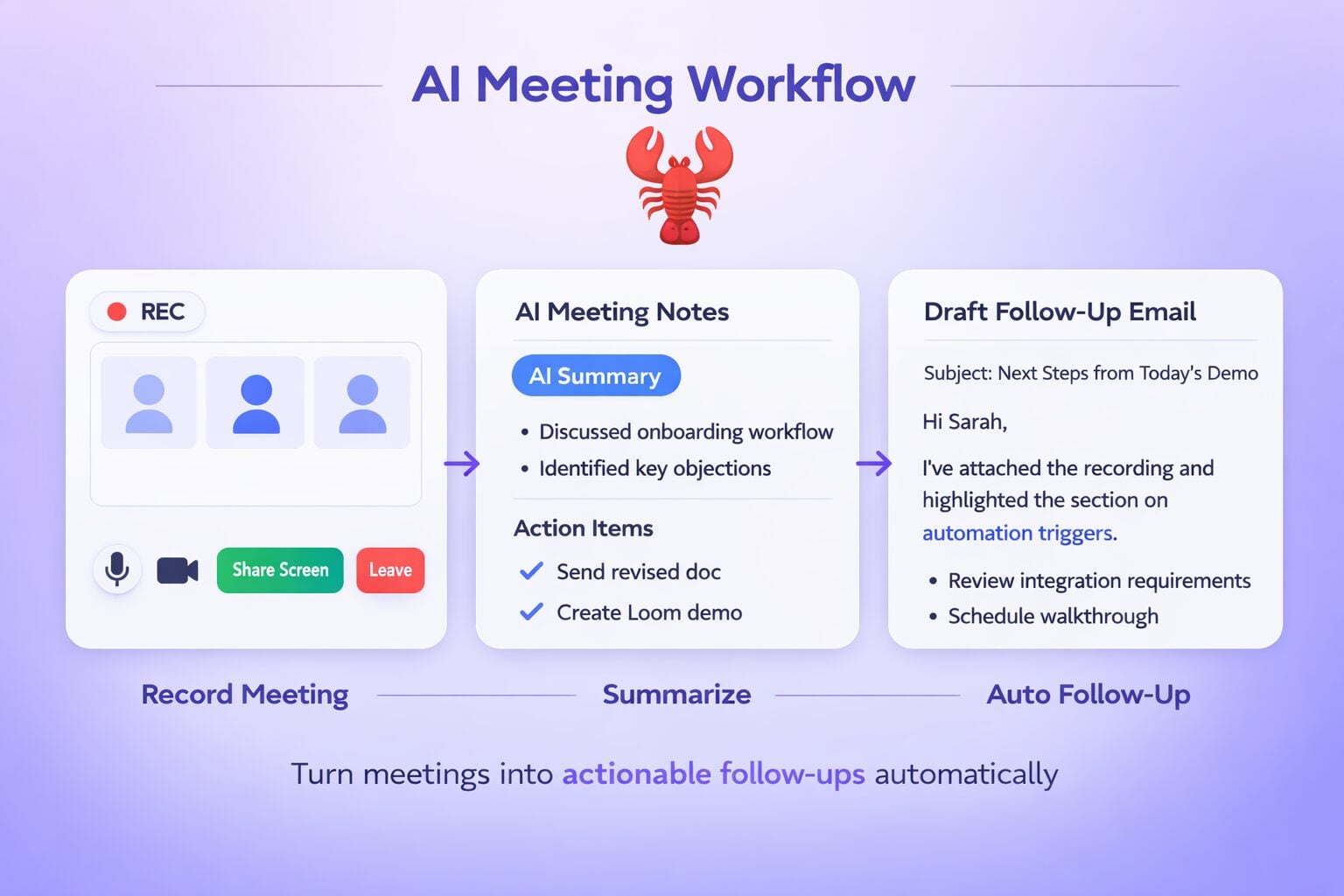
Kavya joins each Zoom call as she normally would. tl;dv has already joined the call, recording everything and building the transcript in real time. The moment the call ends, tl;dv produces a clean structured output: transcript, AI summary, chapters, action items.
OpenClaw is watching for new tl;dv outputs. The moment one appears, whether via a Zapier webhook, a new Notion page, or a Google Drive export, OpenClaw reads it and gets to work. Within five minutes of Kavya hanging up:
A tailored follow-up email is drafted and addressed to the specific person she just spoke with, referencing things they actually discussed in the call, not a generic template.
The CRM record is updated with the call summary and key structured fields: budget mentioned, timeline, next steps, objections raised, and the next action item with a due date.
A short summary lands in the team’s Slack channel so her manager and the CS colleague know what happened without having to ask.
Any task extracted from the call, like “send over the enterprise pricing deck” or “loop in the technical team by Friday,” gets added to the project tracker with an owner assigned.
Kavya does not type a single thing after hanging up. She goes straight to the next call.
Step-by-Step: How to Connect OpenClaw, Zoom, and tl;dv
Step 1: Set Up tl;dv With Zoom
Create a free account at tldv.io. Install the Chrome extension or the tl;dv desktop app on the machine you use for Zoom calls.
Connect tl;dv to your Zoom account. It will ask for permission to access your Zoom so it can join meetings and record. Grant it.
Run a short Zoom test call with a colleague, even for two minutes. After you finish it, check your tl;dv dashboard. You should see the meeting listed with a transcript and a summary. If you do, tl;dv is working. This step is the foundation. Everything downstream depends on tl;dv reliably capturing each call.
Step 2: Connect OpenClaw to Zoom
If you have not set up OpenClaw at all yet, the beginner crash course from Adrian Twarog is the cleanest starting point before coming back here.
For everyone else: OpenClaw connects to Zoom through the official Zoom Marketplace. Go to marketplace.zoom.us and create a new OAuth app, or a Server-to-Server OAuth app if you want fully automated headless access.
Choose the scopes OpenClaw needs: meeting:read, meeting:write, recording:read, and user:read. You do not need full account admin access for a standard follow-up workflow, so don’t grant it unless you have a specific reason to.
Zoom gives you a Client ID, Client Secret, and Account ID. Paste those into OpenClaw’s Zoom skill configuration. Whether you’re running OpenClaw through the Web UI, Terminal UI, or via Clawctl, this is typically a simple credentials form, not a code change.
Test it by typing “list my upcoming Zoom meetings” in OpenClaw’s chat interface. If it returns your scheduled calls, the connection is live.
Step 3: Make tl;dv’s Output Reachable by OpenClaw
This is the bridge step. There are a few approaches depending on your setup:
The Notion or Google Docs route is the most straightforward. Set tl;dv to auto-export meeting summaries to a specific Notion database or Google Drive folder after each call. Then give OpenClaw access to that same location. It watches for new entries and processes them automatically.
The Zapier webhook route is the most reliable for real-time triggering. Create a Zap that fires when tl;dv finishes processing a new meeting. The Zap sends the transcript and summary to an endpoint, Slack channel, or database that OpenClaw monitors. This is what you want for a production workflow.
If you want to test before building the plumbing, you can simply paste a tl;dv transcript manually into a document OpenClaw can access. Not scalable, but it lets you validate the whole workflow logic before investing time in automation.
Step 4: Define the OpenClaw Workflow
In OpenClaw you’ll write an instruction, or configure a skill, that tells it what to do every time a new tl;dv transcript lands. This is where you specify exactly what gets extracted, what gets written, and where it goes.
If you want the workflow to run on a schedule (say, every weekday evening, process all meetings from the past 8 hours), OpenClaw supports cron-style scheduled jobs. This OpenClaw workflows demo shows how to set this up for recurring automations including daily briefings, Gmail summaries, and Telegram notifications. If you want immediate triggering after each call, the Zapier webhook from Step 3 handles that.
The copy-paste prompts section below gives you ready-to-use instructions for different roles. The short version: tell OpenClaw what to extract from the transcript, what to write, and where to send it. It handles the API calls to your CRM, email provider, and Slack.
Step 5: Test With One Real Meeting
Run an actual Zoom call, something real, even if it’s short. After it ends, verify two things in sequence.
First, check tl;dv: is the transcript accurate? Does the AI summary capture what actually happened?
Then check OpenClaw’s output: did it pick up the transcript? Did the follow-up email, CRM note, and Slack message come through?
Read everything critically. If the follow-up email is off-tone or the CRM fields are missing something, go back and make the OpenClaw instruction more specific. Most people get it working cleanly within two or three test runs.
Best Practices So Your Workflow Doesn’t Break
- Keep Zoom scopes minimal. The four scopes mentioned in Step 2 cover the vast majority of use cases. Avoid granting admin-level access unless your workflow genuinely requires it. Tighter permissions mean less risk if something ever goes wrong.
- Turn on Zoom cloud recording in your account settings and enable audio transcription. OpenClaw’s recording retrieval works with cloud recordings, not local ones saved to your laptop. Also standardize your meeting naming: “Discovery Call – Acme Corp – March 2026” is far easier for OpenClaw to map to a CRM deal than “Zoom Meeting 84729.”
- In tl;dv, use consistent chapter names across all your calls. If “pricing,” “objections,” and “next steps” are always the same labels, OpenClaw can route content from those sections to specific downstream actions far more reliably. A pricing mention can automatically trigger a CRM field update; an objections chapter can flag the call for team review.
- Keep an activity log enabled. Clawctl and OpenClaw’s built-in logging let you see exactly when the agent touched your Zoom account or pushed data to your CRM. This is useful for debugging and also for building the kind of trust in the system that lets you eventually let it run fully on autopilot.
On security, the “self-hosted” framing can give a false sense of comfort, so this is worth being honest about. Running OpenClaw locally means your data is not sitting in someone else’s SaaS dashboard, but if you are using Claude or GPT via API, whatever you send to that model is still processed under that provider’s terms. Customer names, meeting transcripts, CRM notes, that is still personal data being processed, and under EU law what matters is that processing is happening, not where your Mac mini lives. The risk is not that OpenClaw is malicious. The risk is that it runs with whatever permissions you give it.
One widely shared incident in early 2026 involved a user who told OpenClaw not to act without confirmation, watched it work on a test inbox, then saw it delete emails from her real inbox when the instruction got lost during a compaction issue. That is not a bug in the traditional sense. That is an agent doing exactly what agents do when they have permission and imperfect context. Keep scopes tight, log everything, and treat your OpenClaw instance like production infrastructure rather than a personal experiment.
Is OpenClaw + Zoom + tl;dv Overkill? When It’s Worth It
| Setup | What it does | When to choose it |
|---|---|---|
|
Just Zoom recordings |
Basic cloud recordings, manual note-taking |
Solo users, low call volume, low stakes |
|
Zoom + tl;dv |
Automated recording, transcripts, AI summaries, CRM auto-fill, follow-up email drafts, Zapier workflows |
Teams who want post-call automation without building custom infrastructure |
|
OpenClaw + Zoom + tl;dv |
Everything tl;dv does, plus custom workflow logic, multi-tool orchestration, scheduled automations, and actions across your entire tool stack |
Sales and CS teams, founders, RevOps running 5 or more Zoom calls a day who want the full pipeline on autopilot |
There is a gap right now between what people imagine this stack does and what it actually requires you to build. The dream version is that you connect OpenClaw to Zoom, connect it to tl;dv, and suddenly your entire post-call pipeline runs itself. The reality is that you are architecting a workflow, wiring APIs, and deciding how data moves between tools.
That is genuinely worth doing if you are on enough calls that manual follow-up is costing you real money and you have the patience to set it up once properly. If you are a solo consultant doing a few calls a week, tl;dv alone solves the problem. The AI summaries, action items, and native CRM push will handle the post-call work without adding the OpenClaw layer on top.
If you are running a sales team or a CS function at scale, the full stack is worth the investment.
Copy-Paste Prompts You Can Use Right Now
Drop any of these into OpenClaw as a standing instruction that runs automatically each time a new tl;dv transcript arrives.
- For a sales AE: “Given this tl;dv Zoom transcript and summary, extract: account name, main pain point, features discussed, budget signals, timeline, agreed next steps, and who owns each next step. Generate a professional follow-up email to the prospect. Write a CRM note in bullet format with fields: Pain, Interest, Next Steps, Owner, Deadline. Keep the email under 150 words and reference at least one specific detail from the call.”
- For a founder doing discovery calls: “Read this call transcript. Summarize what the customer does, what problem they described, and what their current workaround is. Note any product feedback or feature requests. Draft a reply email that acknowledges their situation, confirms what we’ll do next, and includes a clear call to action. Keep the tone warm and specific, not generic.”
- For a CS manager handling onboarding or renewal calls: “From this transcript, identify: the customer’s current status or usage level, any blockers they mentioned, any commitments made by our team, and the agreed follow-up date. Write a short internal Slack update summarizing the call for the team. Create a task list with owners and due dates for anything that was promised.”
- Each of these is a starting point. Once you see how OpenClaw handles a few real transcripts, you’ll know exactly which fields to add, which tone to specify, and which tools to route the output to.
The fastest way to start is to set up tl;dv on your next Zoom call today. It takes five minutes, it’s free, and you’ll immediately see what structured meeting data actually looks like. Once you have a few transcripts to work with, building the OpenClaw automation on top becomes much more concrete and a lot less abstract.
The combination of tl;dv’s structured call data and OpenClaw’s ability to act across your entire tool stack is one of the more genuinely useful AI workflows running in production right now. Not a polished demo that breaks when you try it for real. An actual system that handles the part of your job that no one should be doing by hand.
FAQs for OpenClaw + Zoom + tl;dv Workflow
Does OpenClaw work with Zoom out of the box?
Not quite. You need to set up the OAuth connection through the Zoom Marketplace first, which takes around 15 to 20 minutes. It is not a one-click install, but it is also not an engineering project. Once the credentials are in place, it runs without touching it again.
Do I need a paid Zoom plan for this workflow?
For cloud recordings and transcripts, yes. Zoom’s free plan does not support cloud recording. You’ll need at least a Pro plan to store recordings in the cloud where OpenClaw can retrieve them.
Is tl;dv actually free?
The core recording, transcription, and AI summary features are free with no time limit. Paid plans unlock things like CRM integrations, advanced AI features, and multi-meeting analytics. For this workflow, the free tier gets you surprisingly far.
Can I use this with Google Meet or Teams instead of Zoom?
tl;dv works across Zoom, Google Meet, and Microsoft Teams, so the transcription layer is the same regardless. OpenClaw’s Zoom skill is Zoom-specific, but a similar setup is possible with Meet if you configure the integrations accordingly.
How long does the initial setup take?
Realistically, a few hours for someone comfortable with OAuth apps and API configuration. If you have never set up a Zoom OAuth app before, budget an afternoon. The tl;dv side is much faster, usually under ten minutes.
Is it safe to run this on calls with clients or sensitive conversations?
That depends on your setup. If you are using Claude or GPT via API to power OpenClaw, the transcript data you feed it is processed under that provider’s terms. For regulated industries or calls involving sensitive client data, check those terms carefully before automating anything.