Skip to content





tl;dr: The Best MCP Servers in 2026
Sixteen official MCP servers, grouped into five jobs. These are the picks for each one, with what makes each of them the strongest choice in its category.
| Category | Pick | Why it wins |
|---|---|---|
| Meetings | tl;dv | Read-only tools that query your whole library, not just one platform’s calls |
| Code | GitHub | Official, hosted, and you can switch off almost all of it |
| Docs and knowledge | Notion | Your written record is probably already sitting in there |
| CRM | HubSpot | Generally available, with a sensitive-data caveat worth reading first |
| Browser control | Playwright | Four browser engines, and pages arrive as structured elements so it stays cheap to run |
Those are the five picks. The full sixteen, with tool counts, auth models, and who maintains each one, are in the table further down.
The best MCP servers are the ones that, a month after connecting them to Claude or ChatGPT, you still use frequently. There are plenty of MCP connectors available now, but the list of ones likely to become habitual is a lot shorter. Directories will tell you what exists: hundreds of MCPs ranked, a line of description about each.
That tells you what’s out there. It doesn’t tell you what any of them can reach once installed, or whether it’ll make your working day easier.
I use MCP servers daily, and what I’ve found is that what a server promises and what its tool list actually exposes aren’t always the same thing. So I’ve gone through the documentation and published tool lists for sixteen official MCP servers to work out what each one can reach, what it can change once it’s connected, and what you’re agreeing to when you click connect.
Worth saying up front: this runs on tl;dv’s blog and tl;dv is the meetings pick, so judge that entry accordingly. I do use it myself across a range of clients.
I looked at four things for each server: what it can reach, what it can do once connected, how it signs you in, and who maintains it. A server with fifty tools behind a static key in a config file is less useful than four read-only ones on hosted OAuth, and a star count won’t tell you which you’re looking at.
The categories are meetings, code, docs and knowledge, CRM, and browser control. Each has a pick and a few honorable mentions, because the right choice depends on where your work already lives.
The Best MCP Server for Meetings
You can prompt Claude or ChatGPT to ask what was promised on a call, what work is deliverable this week, or even check against the original scope from an onboarding call with a client several months ago. The result is a solid answer, based on ground truth, and you don’t even need to watch a single video back.
That matters most when you weren’t in the room. Sales calls, check-ins, decision-making calls where something gets promised and then becomes someone else’s job to deliver.
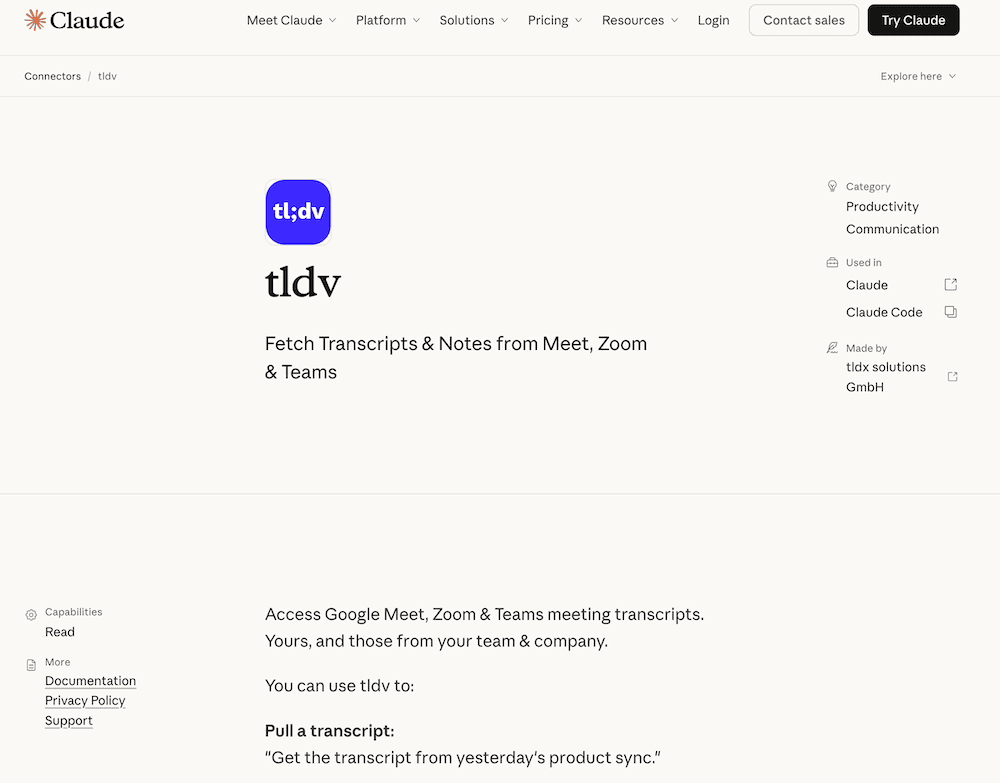
tl;dv
Hosted, OAuth, read-only tools, available from Pro upwards rather than gated to Business and above.
What you can do with it
- Pull a specific meeting by name or date and get the transcript into the assistant’s context
- Search your library for calls where a topic came up, then work from what was said rather than what you remember
- Ask a question across several meetings at once and get an answer that cites which call it came from
- Hand a model the raw transcript to draft from, so a follow-up email is built on the actual conversation
I use this for external client work, not just for tl;dv. The transcripts become part of a bigger corpus alongside client files, previous work, and emails, so I can ringfence a client into a project and have everything in one place. Anyone else who picks the project up gets the same context.
Why it’s the pick: both bot-free and bot-based recordings land in the same library, and the MCP server queries the library. A connector tied to one meeting platform only reaches the calls that happened on that platform. This one reads whatever is in there, however it got captured. All of your calls, not a subset.
Everything in the toolset is read-only, so nothing can delete a recording, change a transcript, or push a call out to anyone else.
The connector also inherits whatever your tl;dv account can already open.
Good at: whole-library retrieval regardless of how a call was captured, permissions inherited from your own account and enforced server-side, OAuth with a five-minute access token lifetime, org admins can block MCP access through integration policies, and both the API and MCP endpoint sat inside the last SOC 2 window and pentest scope with no findings.
Connecting it takes one sign-in from Claude or ChatGPT, and it’s available from Pro upwards. Try tl;dv’s MCP server.
Also worth knowing
Granola has six read-only tools. What you get is a cited response rather than a raw transcript, which means fewer round trips but less to work from if you wanted the full text.
Fathom is the thinnest of the four. Read-only by necessity rather than design, since the Fathom API exposes no write operations for the server to expose. Fine for pulling up a recent call, less so across a library.
Fireflies has the deepest toolset here at nineteen tools, covering soundbites, channels and analytics. Several of those tools write, two of the search tools are still experimental, and it can connect by API key as well as OAuth, so the surface you’re authorizing is considerably larger.
The Best MCP Server for Code
A code MCP server gives your assistant access to your repositories, which is where the code lives along with the record of every change made to it. Instead of pasting snippets into a chat window, it reads the real thing.
GitHub
The official GitHub MCP, hosted by them. You sign in with your GitHub account.

What you can do with it
- Search code across any repository you already have access to
- Read issues and pull requests, including the comments and review threads attached
- Pull up a file as it looked at a particular point in time, not just as it looks now
- Open issues and pull requests, and push changes, if you give it permission to write
Also worth knowing
Git only works against repositories saved on your own machine. No account, no sign-in, nothing remote. Useful if the work is already on your laptop, no help if it isn’t. Sentry writes as well as reads across around twenty tools, so it’s a bigger surface than the read-only options here. What you get back is error reports sitting next to the code that caused them.The Best MCP Server for Docs and Knowledge
A docs MCP server gives your assistant the written record, so answers come from the spec or the project page instead of general knowledge.
Notion
Official, hosted, sign in with your Notion account.

What you can do with it
- Search the workspace and get back the pages that match. You don’t need to know where they live
- Read a page or database entry, properties and all
- Because it writes as well as reads, you can create pages and update them, so output lands in your workspace instead of a chat window
- Query a database with filters, which is where most Notion setups keep anything structured
Why it’s the pick: your written record is probably already in Notion. A docs server that reads but can’t write means copying output back by hand every time, and nobody keeps doing that.
Write access is the trade, and it’s less optional than you’d expect. The hosted server always acts with your full access, and there’s no read-only mode.
Edits happen at page level too. Update one section and the server replaces the whole page instead of patching the single block you changed. Fine on a simple page. Less fine on one with embeds, or one three people are editing at once.
Good at: Notion maintains it, you sign in with your own account, and it searches the entire workspace. Database queries come back structured. Enterprise plans add MCP Governance on top: an approved list of AI apps, connection auditing, and one switch that disconnects the lot.
Also worth knowing
Atlassian Rovo is the one if Confluence and Jira hold your source of truth. Cloud-hosted, covering Jira, Confluence, Compass, Jira Service Management and Bitbucket, and it respects permissions already set on that content. OAuth 2.1, though admins can also enable API token access.
Google Workspace runs a separate server per product and is still in Developer Preview. Setting it up is a manual job in Google Cloud.
The Best MCP Server for CRM
A CRM MCP server gives your assistant direct access to the pipeline. Ask what’s gone quiet this month and you get the actual deals back. Not a nudge to go and check.
HubSpot
The one you want is the remote server at mcp.hubspot.com, generally available since April 2026. Sign-in is OAuth 2.1 with PKCE. Watch out for the local developer server, which has a confusingly similar name and gets picked by mistake often enough that it’s worth double-checking first.

What you can do with it
- Search contacts, companies and deals, then work from the records themselves
- Pull a deal with its properties and stage history, so “why did this stall” has an answer
- Read associations, which is how you get from a company to everyone who’s touched it
- Create and update records, and log activities, if you grant those scopes
Why it’s the pick: generally available instead of stuck in preview, and per-user permissions are checked on every call, so the assistant only reaches what your seat reaches.
Then there’s the limitation that decides whether you can use it at all. With HubSpot Sensitive Data switched on, activity objects are blocked from MCP access: calls, emails, meetings, notes, tasks and conversation data. The entire interaction history, in other words.
Custom objects are the other gap, with no partial workaround. If your data model lives in custom objects, this isn’t your path.
Good at: generally available rather than in preview, sign-in with your own HubSpot account, and coverage across the standard object model including activity history.
Also worth knowing
Salesforce wants Enterprise Edition or above, an External Client App registered up front, and an admin to switch the servers on. What you get back is field-level security, object permissions and sharing rules applied to every tool call, which is why it’s the stronger option past a certain size.
Apollo is a prospecting tool. Prospect search, enrichment, sequence enrollment, and none of the record-keeping the other two handle. Still in beta, needs a paid plan, and enrichment draws down credits every time it runs.
The Best MCP Server for Browser Control
A browser MCP server lets an assistant use a browser the way you would, so it can work on sites with no API and no connector.
Playwright
Microsoft’s, and the one to start with. Drives Chromium, Firefox, WebKit and Edge, across around forty tools.

What you can do with it
- Navigate, click, type and submit on any site a browser can reach
- Read page content as structured elements instead of as an image
- Fill and submit forms, including multi-step flows
- Run the same sequence across four browser engines to check it works everywhere
Also worth knowing
Chrome DevTools is the debugging option, from the Chrome team. Twenty-six tools covering performance tracing, console output and network inspection. Chrome only. Two defaults worth changing: it collects usage statistics, and performance traces send URLs to Google’s CrUX API. Browserbase runs the infrastructure instead. Managed cloud sessions, replay and persistence across runs, through six tools. Its documented endpoint takes the API key as a URL parameter.What Each Server Can Actually Access
Everything below comes from published tool lists and official documentation, checked in August 2026.
| Server | Tools | Reads or writes | Auth | Maintained by |
|---|---|---|---|---|
| tl;dv | 4 | Read only | Hosted OAuth | Official |
| Fireflies | 19 | Both | Hosted OAuth or API key | Official |
| Granola | 6 | Read only | Hosted OAuth | Official |
| Fathom | Not published | Read only | Hosted OAuth | Official |
| GitHub | Configurable | Both, read-only mode available | Hosted OAuth | Official |
| Git | Not published | Both, local repos | None, runs locally | Reference server |
| Sentry | Around 20 | Both | Hosted OAuth | Official |
| Notion | Around 18 | Both, no read-only mode | Hosted OAuth | Official |
| Atlassian Rovo | Not published | Both | OAuth 2.1 or API token | Official |
| Google Workspace | Per product | Both | OAuth, self-configured | Official, Developer Preview |
| HubSpot | Around 9 | Both | OAuth 2.1 with PKCE | Official |
| Salesforce | Fixed per server | Both | Per-user OAuth 2.0 with PKCE | Official |
| Apollo | 13 | Both | Hosted OAuth | Official, beta |
| Playwright | 40+ | Acts on pages | None, runs locally | Official, Microsoft |
| Chrome DevTools | 26 | Acts and inspects | None, runs locally | Official, Google |
| Browserbase | 6 | Acts on pages | API key in URL | Official |
Two things fall out of that table.
The first is that read and write sit in the same connector almost everywhere. Thirteen of the sixteen can change something. The three that can’t, tl;dv, Granola and Fathom, are all meeting servers.
Second, you cannot always compare tool counts. GitHub lets you choose which toolsets load and flip the whole server to read-only with a header, Salesforce ships fixed sets that admins switch on but can’t modify, and Google runs a separate server for each product. What’s worth keeping an eye on is how much of a server you can toggle off.
On authentication, everything on this list except the browser servers signs you in through your own account with hosted OAuth. Browserbase is the odd one out: its documented endpoint takes the API key as a URL parameter. Anything in a query string ends up in server logs and browser history, so rotate that key regularly.
MCP Security: What to Check Before You Install
Five minutes of checking before you click connect, whichever server you’re about to install.
Check who maintains it. Community servers can be excellent and can also be abandoned, and you can’t tell which from the install button. Everything in this roundup is either official or maintained by the MCP steering group.
Read the scopes against what you actually need. If a server asks for write access and all you want is to read, it’s asking for more than the job needs.
Assume it can write, unless the documentation tells you otherwise. Thirteen of the sixteen servers here can change something, and it’s worth knowing what those write tools reach before you connect. Sharing a transcript with a hundred people and renaming a meeting are not the same risk.
Turn on approval for anything that acts. Most clients can ask you to confirm before a specific tool runs. Use it on writes, on anything that sends, and on anything that costs money.
Find the revoke path before you need it. Hosted sign-in means you revoke in the service’s own settings. Hunt for a key in a config file and you’ll put it off.
Check what’s on by default. Chrome DevTools collects usage statistics and sends performance trace URLs to Google unless you pass the flags to stop it.
Then there’s the one with no clean fix. Text your assistant reads can carry instructions aimed at the assistant rather than at you, which is what people mean by prompt injection. GitHub ships content filtering on by default and a lockdown mode for public repositories, which should tell you something about how common this is.
If you only connect one server, make it the one holding your meetings. tl;dv’s MCP server is read-only. Try it here.
FAQs About Best MCP Servers in 2026
How Many MCP Servers Can You Run at Once?
There’s no protocol limit, but there is a practical one. Every connected server loads its tool schemas into context, so a dozen servers crowd out the thing you’re actually working on. Most clients let you toggle servers per conversation, so connect what the task needs and switch off the rest.
Are Community MCP Servers Safe to Install?
Some are excellent. The problem is that you can’t tell from the install button, and a community server sees whatever you authorize it to see. If an official version exists, take it. If it doesn’t, read the source, check when it was last updated, and grant the narrowest scopes the job allows.
Do MCP Servers Work With ChatGPT as Well as Claude?
Yes. MCP is an open standard, and hosted servers work with any client that supports remote connections, including ChatGPT, Cursor, VS Code and Claude Code. Setup differs by client. Servers that run locally are more restricted, since the client has to support that transport too.
What's the Difference Between an MCP Server and a Connector?
A connector is what the interface calls a server once you’ve added it. The server is the thing running on the vendor’s infrastructure, and the connector is your authorized connection to it. Some clients also use “connector” for one-click directory entries, as opposed to custom servers you add by URL.
Do You Need a Paid Plan to Use MCP Servers?
It depends on both ends. Some servers are free and some sit behind a paid tier. tl;dv starts at Pro, Apollo needs a paid Apollo plan, and Granola gates folder scopes to paid plans. Custom connectors in Claude also require a paid Claude plan.