Spice up your next call with these funny Zoom backgrounds! We’ve searched the whole wide web and selected our favorite Zoom background images for your use. We’ve even created a few ourselves!
Everything from funny, weird, and even serious Zoom backgrounds can be found in this list. So let’s make haste and get to it.
Pssst: All of these Zoom background images are 1920×1080 – so no re-sizing is needed.
Pssssssssst: Frequent Zoom users? Do yourself a favour and install the free Zoom meeting recorder app that makes Zoom calls x100 more fun and productive (it’s tl;dv, just in case you were wondering).
All the Amazing and Funny Backgrounds for Zoom in One Slider!
Ain’t got time to scroll? We’ve got you covered. Check out all our funny Zoom backgrounds here in a single slider. We’ve got memes, jokes, and pop culture references, as well as some festive cozy ones, TV fangirl ones, and even some epic travel shots.
Basically, we’ve covered all the bases for weird and wacky Zoom backgrounds so you’ll never run out of style. Download several and mix up your Zoom calls in 2026.
Funny Zoom Backgrounds
Funny Zoom backgrounds are hotly requested! Clearly, people are looking for creative ways to express their personalities online. Not one to displease the people, we’re kicking off our list of Zoom backgrounds with our collection of what we think are the funniest background images for Zoom.
Let’s get started!
Rick and Morty Zoom Background
Download this funny Zoom background here!
Fan of Rick and Morty? Why not set up shop for your online calls in Rick’s garage-come-lab. Just be careful you don’t turn the pickle filter on at the same time.
The Oval Office Zoom Background
Like our funny backgrounds for Zoom? Click here to downloas this Oval Office Zoom backiground!
Want to feel what it would be like to be president? Attend your next Zoom call from the Oval Office. This is the ideal spot to be in for big decisions.
Tiger King Zoom Background
Download this funny Tiger King Zoom background here!
Oldie but goldie. Tiger King fans can take their next call beside their favorite mullet-donning maniac and his pet tiger. Ahh, what an iconic trio you’ll become.
Ted Talk Zoom Background
Hilarious Zoom background? We think so! Download here.
Always wanted to give your own TED Talk? Now you can! Download this funny Zoom background and lecture your colleagues about this month’s churn rate…
Weird but Funny Zoom Background
Want to download our funny backgrounds for Zoom? Click here!
Ever wanted to take a call in front of hundreds of rolls of toilet paper? No? Well, why not just do it anyway with this wacky Zoom background. What have you got to lose, besides your job, dignity, and friendships?
P.S. we are not responsible if your colleagues assume you’re having some kind of mental breakdown.
Awesome Queen Zoom Background
Want to download our funny backgrounds for Zoom? Click here!
Join Queen in your next Zoom call. Feel free to blast out Bohemian Rhapsody too. I’m sure your teammates won’t mind.
Friends Zoom Background
Download this Friends Zoom background and look like you're attending a meeting via Joey's lazyboy!
Why not take your next Zoom call from Joey’s apartment in Friends. This iconic set piece is sure to break the ice and get people talking. And if people don’t get the reference then at least you know who to fire next (unless it’s your boss that doesn’t get the reference, then it might be best to switch it up – maybe try that toilet roll one).
SpongeBob Square Pants Zoom Background
Want to download our funny backgrounds for Zoom? Click here!
How about calling from a pineapple under the sea? This SpongeBobZoom background will always get a chuckle out of someone in your team.
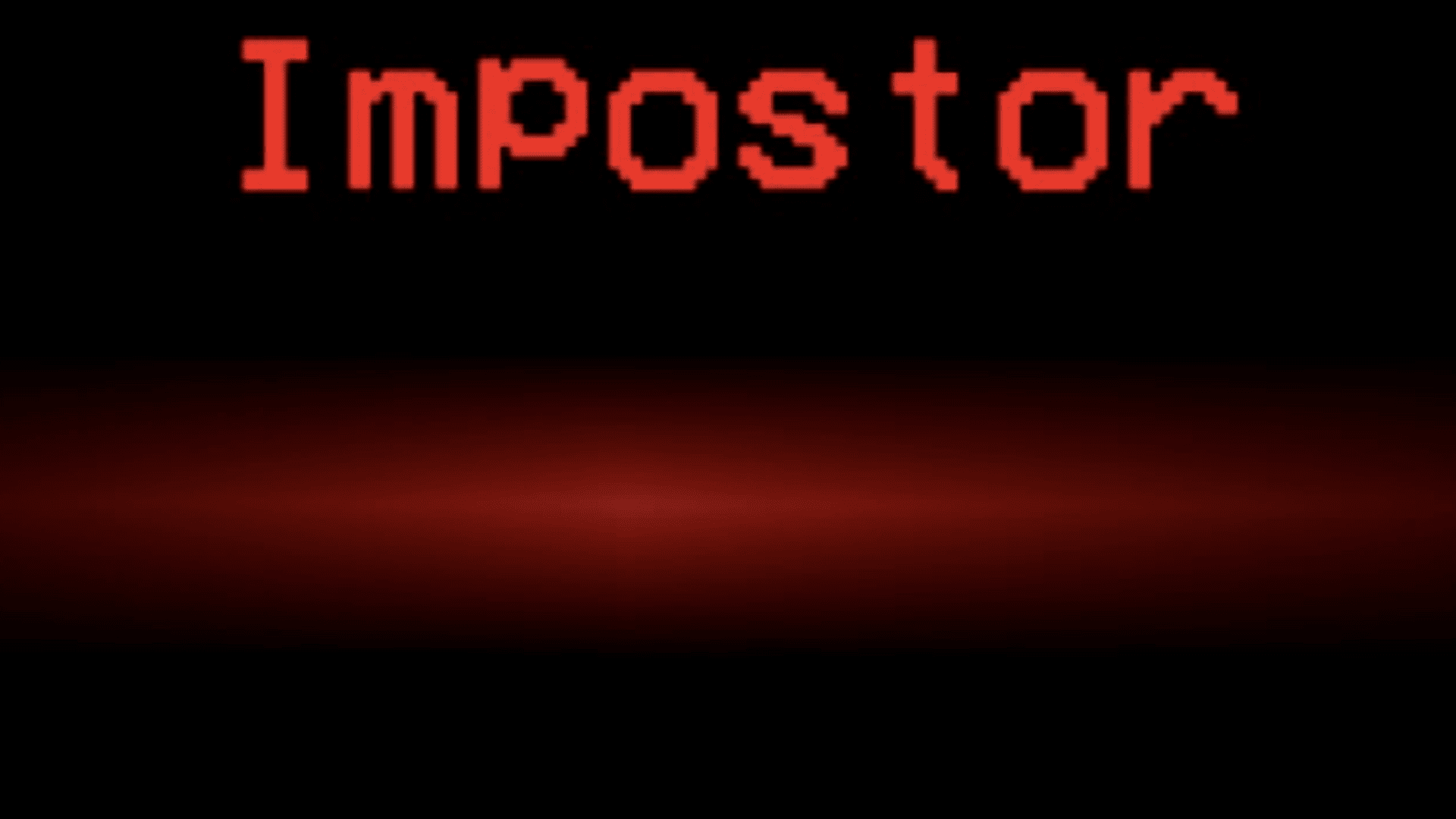
Among Us, Imposter Zoom Background
Download this Among Us Zoom background here!
While it’s not as popular as it was during COVID, this Among Us background is a surefire way to lighten the mood in your next work call.
Casting Couch Zoom Background
Download this Casting Couch Zoom background here!
Want to skirt along the edges of unacceptable work behavior? Look no further than the infamous casting couch for your next Zoom background.
Breakinng News Zoom Background
Download this Newsroom Zoom background here!
Got breaking news to share with your team? What better Zoom background to use than this CNN Breaking News one!
The Funniest Backgrounds of All – MEMES!
We all know you’re really here for the memes! Here are some of our favorite meme Zoom background images that you can download in one click for your next call.
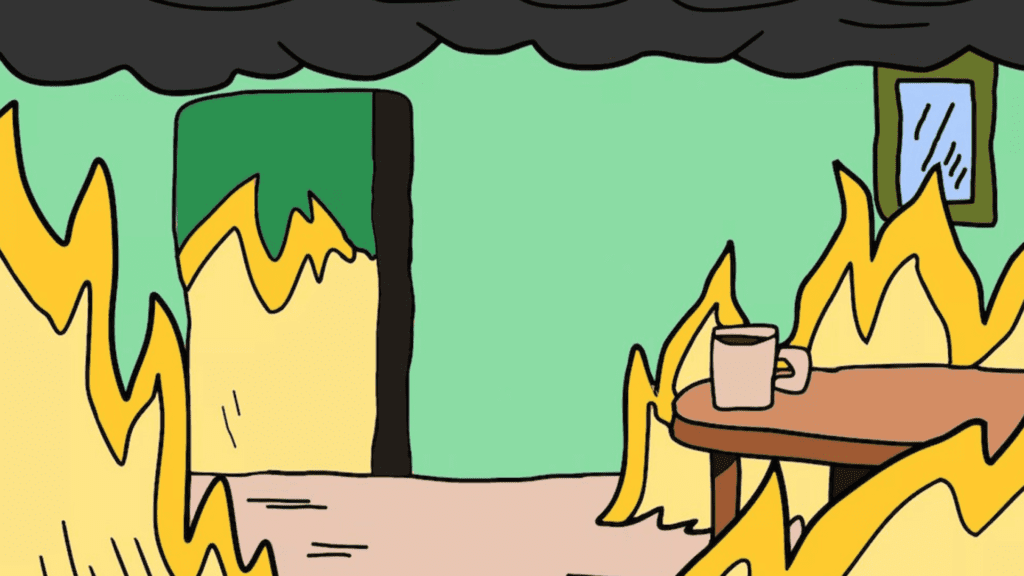
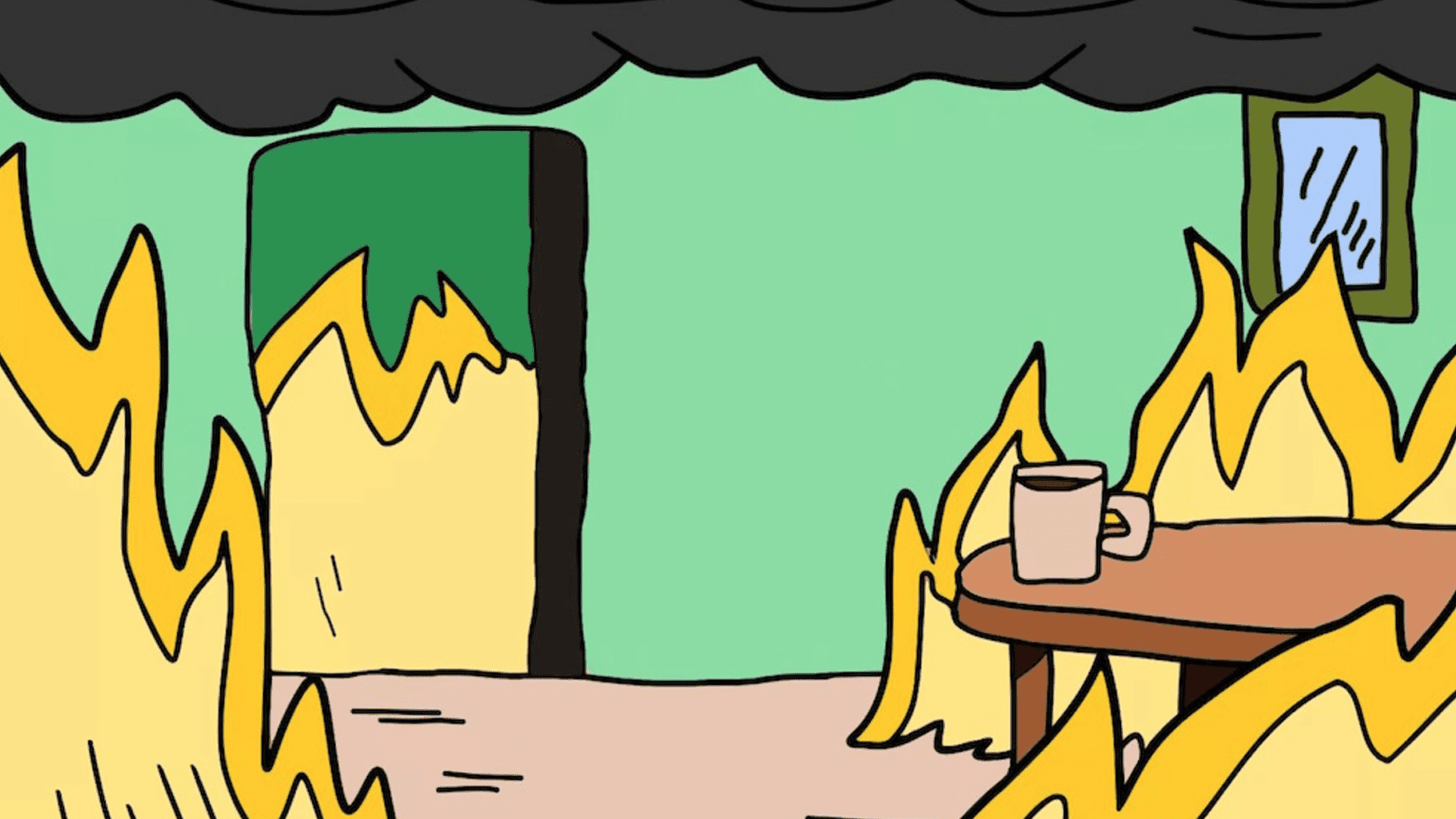
Everything is Fine - Meme Zoom Background
Download this "Everything is fine" funny meme background here!
Calling all customer support workers: this funny Zoom background is just for you.
Me Waiting Patiently to Talk - Meme Zoom Background
Download this "partiently waiting" funny meme background for Zoom.
Find yourself drowned out by louder voices? Stand out with everybody’s favorite Colombian drug lord. You won’t be ignored this time.
"That photo" - Zoom Meme Background
Download this funny meme background here!
Be a part of celebrity history with “that photo” as your Zoom background. It’s ideal for laid back chats.
The Office Zoom backgrounds
If you want to share your love for The Office with your friends at work, these two Zoom backgrounds will do the trick. They’ll almost be able to hear the theme song.
Dunder Mifflin Zoom Background
Be a part of Dunder Mifflin by downloading this Dunder Mifflin Zoom background here!
Be a part of Dunder Mifflin with this basic The Office Zoom background. It’s not so over the top that it’ll get called out, but it’ll certainly attract eagle-eyed colleagues.
The Office Zoom background
Watch out! Michael is leering at you! Download this The Office Zoom background here!
Michael is watching your every move. Watch what you say during video calls with this background.
Actual Legit Zoom Backgrounds
Holidays and Christmas Zoom Background
Download this Holidays & Christmas themed Zoom background here!
Prepare for the festive season with this cute and cozy Christmas Zoom background. It’s perfect for the holiday season when you want to spread some warmth and joy but you’re stuck behind a computer screen.
Minimalistic & Professional Zoom Background
Download our Nice and professional Zoom background here!
Simple, sleek, professional. What more could you want? If you just want to get your home off the screen, this is the Zoom background to make you feel more professional.
Library Zoom Background
Want this fancy library Zoomn background? Grab it here!
Channel your inner nerd with this snazzy library background. It’s calm and cozy and peaceful, perfect for a work chat and a cup of tea.
Zoom Background for Teachers
Teaching from afar? This Zoom background for teachers will make your students feel right at home.
Star Trek Zoom Background - That's Serious, Right?
Download this super serious background - you know where!
Take your next Zoom call from the Enterprise. You can be whizzing around space at lightspeed and still have (inter)stellar connection.
Cute Zoom Backgrounds
Howl's Moving Castle Anime Background for Zoom
Awwwww! My favorite anime scene can be download in a anime Zoom background here!
For anyone that loves Howl’s Moving Castle, there aren’t many backgrounds that will be cozier.
Animal Crossing Background for Zoom
Animal Crossing Zoom background? Yes! Download it here.
Ideal for calls with kids, maybe not so much for work. This Animal CrossingZoom background is sure to garner attention.
Beautiful Natural Landscape Zoom Backgrounds
Summer Zoom Background
Download this summer Zoom background here.
Nothing says exotic summer like a snap from an Arabian desert. This background is perfect for Summer 2026.
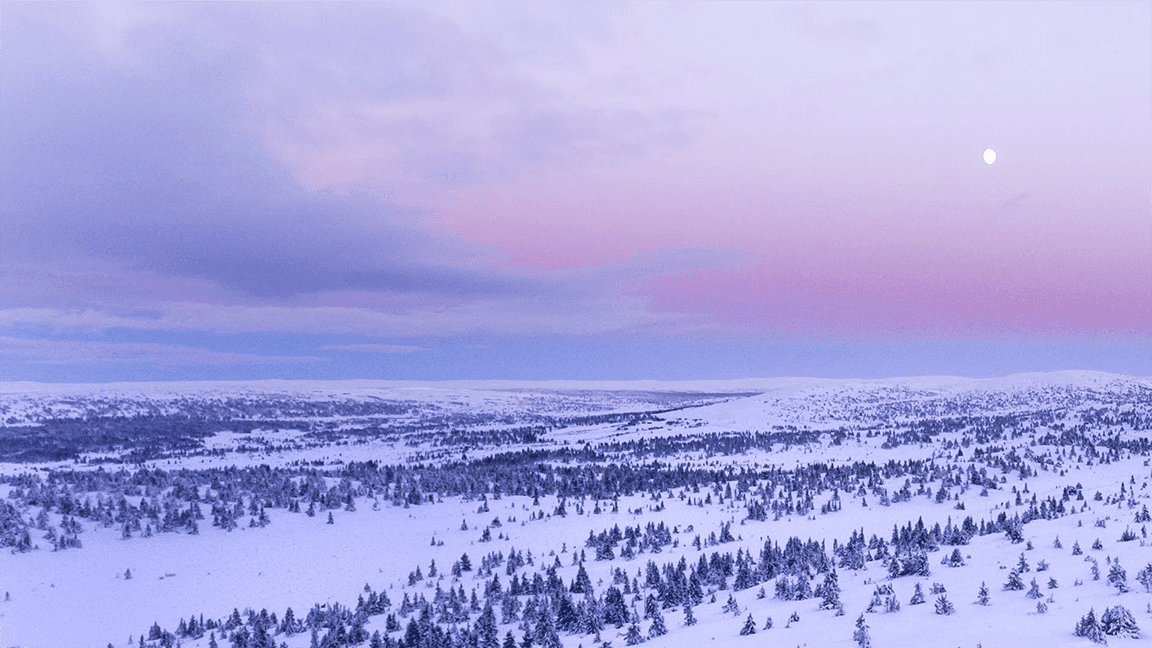
Winter Wonderland & Snow Zoom Background
Love snow Zoom backgrounds? One of our many good backgrounds can be downloaded here!
Similarly, if you’re of the frosty disposition, this winter wonderland Zoom background is great for natural winter vibes.
Summery Beach Background
Grab this beach Zoom background here!
Prefer island life to deserts and snow? I know I do. This island sunset with a palm tree swing is a great background for those with the travel bug.
Offices Galore Zoom Backgrounds!
Fancy Office Background for Zoom
Fancy office background for Zoom
Always wanted a fancy sky-rise office? You’ve got one. Just download this image and set it as your background.
Virtual Office Zoom Background
This virtual office zoom background can be yours too!
Want a virtual office? Consider it done. This Minecraft-style office is as good as yours.
Fancy Home Office Zoom Background
Fancy home office Zoom background can be download here!
Want a super snazzy home office? This fancy mansion staircase, complete with Greek god statuettes, will surely suffice.
Super Serious Business Zoom Background
This Fancy home office Zoom background is obtainable here!
When it’s time to discuss serious business, you need a serious background. This boardroom-style Zoom background will make you look like the top dog.
Last But Not Least, My Fave (& Funniest) Zoom Background!
We think this is one of the funniest Zoom backgrounds! Download by clicking on the image.
An iconic SpongeBob meme that will get your colleagues laughing at the shock (and absurdity) of it. Feel free to download it here and set it up for your next call!
BONUS: Zoom Video Backgrounds
Want to take things up a notch? Zoom allows you to use videos as a background, so long as the video has a resolution between 360p and 1080p. It also must be an MP4 or MOV file.
“All Work and No Play Makes Jack a Dull Boy” Zoom Background Video
This background is great for those who are overworked and want to release a cry for help without having to actually say it. Plus, it works thematically if you’re recording meetings with tl;dv after our award-winning The Shining video (see below if you’ve got no idea what I’m on about).
Be the Zoom Background Enthusiast Your Workplace Deserves ❤️
There are enough funny Zoom backgrounds on here to last months of calls. Whether you want a meme, a pop culture reference, or a cozy atmosphere, bookmark this page so you can come back and get a different one in the future.
And while you’re busy impressing everyone with your backgrounds, let an AI note taker handle the actual meeting notes, because multitasking is overrated.
FAQs About Zoom Backgrounds
What kinds of backgrounds can I use in Zoom?
You can use static images (JPG / JPEG / PNG) or video files (MP4 or MOV) as virtual backgrounds.
Zoom also includes a built-in “Blur” option that softens or obscures your real background rather than replacing it entirely.
How do I set a custom background (image or video)?
Download or select an image/video you want to use. Zoom recommends a 16:9 aspect ratio and at least 1280×720 px for images.
Open Zoom. On desktop: go to Settings → Background & Filters → Virtual Backgrounds and click the ‘+’ icon to upload your file.
If you’re already in a meeting: click the upward arrow (^) next to the Video icon → “Choose Virtual Background”, then pick your image or video.
To revert to your real background, choose “None.”
How do I blur my background instead of replacing it?
Blur is available in the same menu as the virtual backgrounds. Simply select the Blur tile and Zoom will soften everything behind you while keeping your face clear. You can activate this either before joining a meeting or while you’re already in one. On mobile devices, Blur is usually only accessible inside an active call.
Do I need a green screen?
A green screen isn’t required, although it does make the effect look sharper. Without one, Zoom relies on your camera to distinguish you from the background, so bright, even lighting and a bit of contrast in your clothing make a surprising difference. With a green screen, the edges tend to look much cleaner and less glitchy.
Why does my virtual background look glitchy or patchy?
Most flickering or “bleeding” occurs when the lighting is uneven or the camera struggles to detect your outline. Clothing that closely matches the colours behind you can confuse the software too. Improving the lighting in your room or switching to a solid-colour backdrop usually helps. If your device is older, switching from video backgrounds to static images often reduces visual glitches.
Why use a virtual background at all?
People use them for all sorts of reasons. They provide quick visual privacy, which is especially helpful when you’re working from home. They can also boost professionalism by giving you a consistent setup for interviews or client calls.
On the lighter side, themed or humorous backgrounds can add personality, break the ice, or match a team event. The Blur option sits neatly between the two, offering discretion without drawing attention.
Can Zoom backgrounds be used on other platforms?
In most cases, yes. Microsoft Teams, Google Meet, and Webex all support custom virtual backgrounds, and many of the same files will work across platforms as long as they meet each platform’s basic requirements. You might need to adjust the image’s aspect ratio or format, but you won’t usually have to start from scratch.
Are there any limitations I should be aware of?
Some features may be restricted by your device’s performance, especially video backgrounds, which demand more processing power. Older laptops and phones may fall back to images or blur only.
In workplace accounts, administrators can disable or limit background use, so certain options may not appear. Updating Zoom regularly and checking the system requirements usually clears up most issues.
What file formats and dimensions work best?
Images saved as JPG or PNG tend to be safest. A widescreen aspect ratio, like 16:9, usually fills the frame neatly. For video backgrounds, short, looping MP4 files keep things smooth without straining your device too much. If a format doesn’t load, converting it to JPEG or PNG often solves the problem.
Where can I find backgrounds to use?
Right here! We’ve got over 30 available for you to download now. If you want to get creative, you can even make your own. You can also download them from Zoom’s official library or browse themed collections from creative tools, blogs, and platforms dedicated to video-meeting resources.
If you prefer something more personal, even a simple photo you’ve taken yourself can work well once it’s cropped to the right size.
Our AI tracks playbooks adoption and measures how well objections are handled, giving managers coaching insights to improve rep performance. It summarizes countless meetings and highlights key discussions. It’s great for reps too – automating meeting prep, CRM updates and follow-up emails
CRM Update Agent
Seamlessly record, transcribe, process and share insights to specific fields in your CRM (Hubspot, Salesforce, Pipedrive, & more!).
Sales Call Analyst Agent
Analyze sales calls to identify trends, objections, or successful techniques.
Action Item Tracker
Extract and track assigned tasks and deadlines from meetings to ensure accountability.
Follow up Email Agent
Auto-record and draft follow-ups based on meeting discussions.
Competitor Intelligence agent
Pull competitor insights from meetings to uncover trends and strategies.
Training and Upskilling Agent
Capture training sessions and generate summaries or highlights for future reference.
Cut through busywork. Make every meeting count.
tl;dv’s AI meeting agents automate recording, transcription, summarization, and integration into tools like CRMs and productivity platforms. Powered by agentic workflows, they simplify your processes and transform meetings into actionable insights with precision and control.
Training & Upskilling Agent
Capture and summarize customer feedback to uncover needs and trends.
Voice of the Customer Agent
Capture training sessions and generate summaries or highlights for future reference.
Knowledge Management Agent
Centralize and organize insights from meetings into a knowledge base.
Competitor Intelligence Agent
Extract competitor insights from meetings to uncover trends and strategies.
Performance Review Agent
Summarize feedback or discussion points from 1:1 performance reviews.
Employee Onboarding Agent
Provide new employees with summaries of key past meetings to get them up to speed.
 Skip to content