Skip to content





TL;DR: How to Record a Phone Call in 2026
On iPhone (iOS 18.1+), tap the record button in the Phone app during a call. It’s free, built-in, and saves an audio file and transcript to Notes. On Android, the method depends on your phone: Pixel 6+ and Samsung One UI 7+ have native recording in the dialer; most other brands are hit or miss, especially in the EU.
If your device or region doesn’t support it, a third-party app like TapeACall uses a merge-call workaround, though most cost money (and don’t make it clear how much until you’ve already signed up) and quality varies. For business calls where you need a transcript, action items, and CRM logging rather than a raw audio file, a tool like tl;dv does that automatically.
Whatever you use, check your local consent laws first. Roughly a dozen US states require everyone on the call to agree before you hit record, and the rules are even stricter in most of Europe.
To record a phone call in 2026, you have three real options: your phone’s built-in recorder, a third-party app, or a dedicated transcription tool that writes up the call for you. Which one you reach for depends on your device, your location, and whether this is a throwaway personal call or something you’ll actually need a record of later.
The good news: recording a call no longer means jailbreaks, merge-call gymnastics, or aiming a second phone at the speaker. iPhone has done it natively since iOS 18.1, and most Android phones now ship their own version. The catch: every legitimate method announces the recording out loud to both parties. If you came here to secretly tape someone, I have bad news, your phone has bad news, and that little voice in the back of your head probably has bad news too. In fact, whether you’re allowed to hit record at all depends on consent laws that shift by state and by country.
Below: how to record on any device, the free methods, the apps worth paying for, the legal lines you can’t cross, and what to use when a raw audio file isn’t actually the thing you need.
How to Record a Phone Call: The Fastest Method for Your Device
The fastest way to record a phone call is whatever’s already built into your phone. If you have a modern phone, you should be able to just open your call screen and tap the record button.
On iPhone, that’s the Phone app on iOS 18.1 or later. On most Android phones, it’s the Google Phone app or your manufacturer’s dialer. No download required.
You’ll only need a third-party app if your phone or region doesn’t support native recording, or if you want a clean transcript, searchable notes, or automatic logging for work calls.
Here’s how each method stacks up: whether it’s free, whether it warns the other person, and whether you walk away with a transcript or just an audio file.
| Method | Free? | Warns the other party? | Auto-transcribes? | Where it's saved |
|---|---|---|---|---|
| iPhonePhone app (iOS 18.1+) | Free | YesSpoken alert at start | Yes | Notes app (on-device) |
| Android — PixelGoogle Phone app | Free | YesAt start & stop | NoAudio only* | Phone app — Recents/History |
| Android — SamsungGalaxy dialer (One UI 7+) | Free | YesAt start & stop | Yes+ summary** | Voice Recorder app (+ Notes) |
| Android — Xiaomi, OnePlus & othersBuilt-in dialer | Free | YesWhere supported | NoAudio only | File Manager / dialer historyRegion-gated |
| Third-party appTapeACall, Cube ACR, etc. | Paid | NoBeep off by default | VariesOften paid add-on | App / cloud account |
| No appSpeakerphone + Voice Memos / 2nd device | Free | ManualYou tell them | No | Voice Memos / recorder app |
How to Record a Phone Call on iPhone (iOS 18.1 and Later)
To record a phone call on iPhone, open the Phone app during an active call and tap the record button in the top-left corner. Simple. Your iPhone needs to be running iOS 18.1 or later. Apple finally added native call recording in October 2024, after roughly a decade of making everyone jump through merge-call hoops, so there’s no app to install and nothing to pay for.
Turn On and Use Call Recording in the Phone App
Start or answer a call, then tap the record icon (a small waveform, top-left of the call screen). Your iPhone plays an audible announcement to everyone on the line: “This call will be recorded”. This ensures the other party always knows. There’s no silent mode, by design. Tap the button again to stop, or it ends when the call does.
One thing to note: if you’ve updated to iOS 26, Apple redesigned the call screen and moved the controls around, so the button sits in a slightly different spot. The feature works exactly the same though.
Where iPhone Saves Your Recordings (Audio and Transcript)
Recordings land in the Notes app, not the Phone app, filed automatically under a “Call Recordings” folder. Each one includes the audio and a written transcript Apple generates on-device, which you can search, copy, or share.
That’s useful for a one-off personal call, but for recurring work calls — where you need the transcript synced somewhere, action items pulled out, and a follow-ups that write themselves — a dedicated tool like tl;dv does that part automatically, which we’ll get to later. For now: Notes is where to look.
How to Record Calls on Older iPhones or in Blocked Regions
If you’re on an iPhone that can’t run iOS 18.1, or you’re in a region where Apple disables the feature (the entire EU, plus Russia, Saudi Arabia, and others), native recording simply won’t appear. Two workarounds:
- Speakerphone + a second device. Put the call on speaker and record it with Voice Memos on another phone or a laptop. Low-tech, but it works anywhere.
- Google Voice (US, incoming calls only). Enable recording in settings, then press 4 during an inbound call. Free, but it won’t touch outgoing calls.
For anything more reliable, third-party apps are the best bet. They’re covered below.
How to Record a Phone Call on Android
There’s no single way to record a call on Android. Since Google removed the ability for third-party apps to record calls back in 2022, it was left up to the respective manufacturers to build their own versions. On a Pixel or a recent Samsung, recording is built into the dialer and free; on other brands it’s a coin flip that often comes down to your region.
Google Pixel Native Call Recording
Pixel phones (Pixel 6 and newer) have native call recording built into the Google Phone app, rolled out widely in late 2025. During a call, tap Record; Google plays an audible announcement to both parties when recording starts and again when it stops — there’s no quiet option. Recordings are audio-only and saved on the device itself, accessible from the call entry in your Recents or History.
Worth knowing: the transcript-and-summary feature (Google’s “Call Notes”) is separate from basic recording and only available on newer Pixels in select regions.
Samsung, Xiaomi, and OnePlus Built-In Recorders
Samsung pulled ahead here. On Galaxy phones running One UI 7.0 or later, the Samsung dialer records, transcribes and summarizes the call automatically via Galaxy AI. Everything gets saved neatly in the Voice Recorder app. It needs a Samsung account and an internet connection. This transcript feature is cut from the budget A-series (A56, A36, A26, A17).
Xiaomi and OnePlus are more old-school: where call recording is available, it’s audio-only, with the file dropped into your File Manager or dialer history. Regionally, there are distinctions. Both manufacturers disable native recording entirely in the EU and several other markets, so whether you see the option at all depends on where your phone thinks it is.
Why Most Third-Party Android Call Recorders Stopped Working
If you’ve wondered why that call-recorder app you downloaded records nothing but silence, here’s the answer: in 2022, Google closed the Accessibility API loophole those apps relied on to tap into call audio. Since then, most third-party recorders on modern Android either capture only your side of the conversation through the microphone, or fail outright.
A few still work on specific older devices, but as a category they’re a shadow of what they were, which is exactly why the manufacturer’s built-in tool is almost always your best bet on Android.
How to Record a Phone Call With a Third-Party App
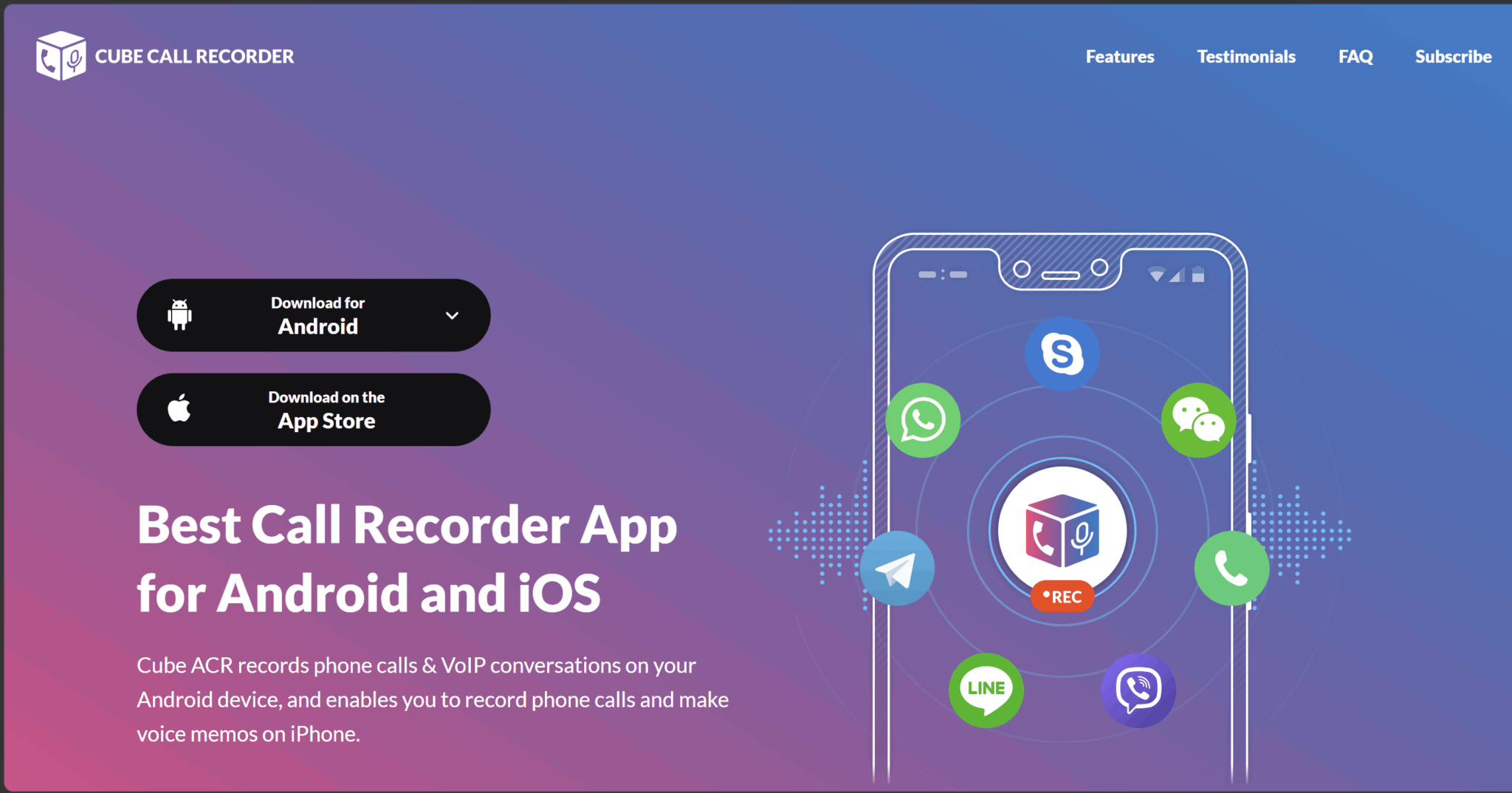
When your phone or region won’t record calls natively, third-party apps like TapeACall, Cube ACR, and Rev fill the gap. Most of them set up a three-way call. When you tap record, the app dials its own recording line and merges it into your conversation, capturing both sides through that bridge.
How the Merge-Call Trick Works
Take TapeACall: hit record, and it puts your call on hold, dials its recording number, and merges the two lines. The catch is that this depends on three-way calling from your carrier. If conferencing is disabled on your plan, the merge button stays greyed out and the app can’t record at all.
Cube ACR (Android only, now distributed as a direct APK after Google’s 2022 Play Store purge) skips the merge and records automatically the moment a call starts, including WhatsApp, Telegram, and Signal calls.
Free vs. Paid
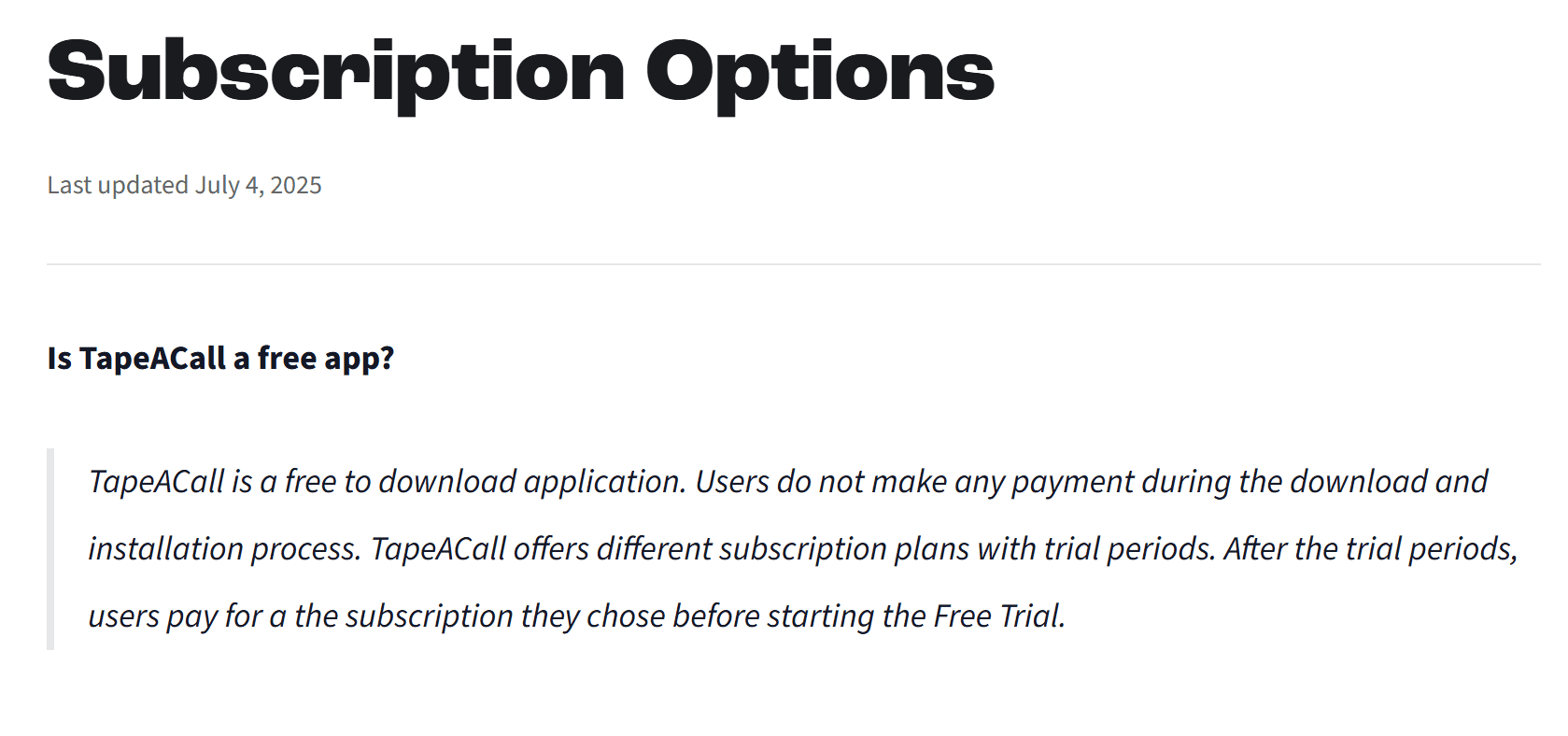
Most are subscription-based, but bizarrely they rarely tell you how much they cost. Instead, they make you download the app and sign up for free, and then catch you later with pricing tiers.
Cube ACR’s premium tier runs roughly $20/year for Android, or $50/year for iOs, according to Pricing Now. TapeACall hovers around $9.99/month with extra in-app charges for unlimited recordings, though pricing shifts by platform and has crept up over time. I would tell you to check the live figure before subscribing, but this is all TapeaCall shows on their website.
Rev Call Recorder provides a free option for iPhone, but it’s US-only and charges $1.25/minute if you want a transcription on top.
When You Actually Need One
For most people, the built-in recorder beats any app. You’d reach for a third-party tool in four cases:
- Your device or region has no native option
- You need automatic recording of every call without tapping
- You need notes, summaries, actionable insights and conversational intelligence from your calls
- You want to capture VoIP calls (WhatsApp, Signal) that native dialers ignore.
How to Record a Phone Call for Free Without an App
You can record a phone call for free without installing anything. Just put the call on speakerphone and capture it with Voice Memos or a second device, and in the US, Google Voice records incoming calls free. The catch is always audio quality and convenience.
The speakerphone method is the universal fallback. It works on any phone, in any country, regardless of native support. Start the call, switch to speaker, and record with Voice Memos (iPhone), Recorder (Android), or a laptop. The downside is obvious the moment you play it back: room echo, background noise, and the other person sounding distant and tinny.
Google Voice is cleaner but limited. With a free US account, enable call recording in settings, then press 4 during an incoming call to start. Both parties will hear an automated announcement. The limitation: it only records inbound calls, not ones you place.
For a one-off, either is fine. For anything you’ll need to reference later with a clear transcript and searchable text, these workarounds run out of road fast.
How to Record and Transcribe Business Calls (the Better Way)
For a personal call, your phone’s built-in recorder is all you need. But for sales calls, client calls, and anything that has to land in a CRM or turn into follow-up, a raw audio file is the wrong choice. What you actually need is a transcript, the notes, the action items, and the next email, which is what a call intelligence tool like tl;dv produces automatically.
Here’s the problem: sales reps spend the majority of their time not selling — Salesforce’s 2026 State of Sales report puts it at 60% lost to admin, data entry, and internal busywork. A voice memo sitting in your Notes app doesn’t fix that. It just adds one more thing to transcribe by hand later.
That’s the gap. tl;dv records the call, transcribes it in 40+ languages with automatic language detection, writes the summary, pulls out the action items, and drafts the follow-up email. Essentially, it automates the work after the call, done before you’ve even closed the tab. On Pro and above, it syncs the outcome straight to your CRM (Salesforce, HubSpot, Pipedrive, and more), so the call notes and next steps land exactly where you need them, rather than a folder you’ll never reopen.
And because tl;dv’s desktop app can record any audio on your device (bot-free), it captures the conversations that don’t happen on a tidy calendar invite. One click, no bot in the participant list.
Phone Recorder vs. Call Intelligence Tool — When to Use Which
Be honest with yourself about what the call is. Calling your landlord, a friend, a quick personal back-and-forth? Use the native recorder. It’s free, it’s instant, and reaching for anything heavier is overkill.
But if the call feeds your job (a discovery call, a customer interview, a deal you’ll need to remember in three weeks), audio alone leaves all the actual work on your plate. That’s where a tool that transcribes, summarizes, and logs the outcome earns its place. The test is simple: does this call generate revenue or decisions? If yes, you don’t need a recording. You need intelligence.
And the free plan unlocks unlimited recordings, unlimited transcription, AI notes for up to 10 meetings a month, all with no credit card required.You can run it alongside your phone’s recorder and see the difference yourself.
Is It Legal to Record a Phone Call? Consent Laws by State and Country
US federal law only requires one-party consent, but a minority of states demand that everyone on the call agrees, and the rules change completely once you leave the country. Get it wrong in the strict jurisdictions and you’re not looking at a slap on the wrist — several states treat illegal recording as a felony.
One-Party vs. Two-Party (All-Party) Consent, Explained
In a one-party consent state, only one person on the call has to agree to the recording. That person can be you. This is also the federal baseline: the Electronic Communications Privacy Act (18 U.S.C. § 2511) requires just one party’s consent. A majority of states require only one-party consent, meaning a participant can record without anyone else’s permission. In an all-party (often called two-party) consent state, every single person on the line must be informed and agree before you hit record.
Which US States Require All-Party Consent?
Roughly a dozen states require all-party consent — 11 or 12, depending on how you count Nevada and a few split-rule states. The core list: California, Connecticut, Delaware, Florida, Illinois, Maryland, Massachusetts, Montana, New Hampshire, Pennsylvania, and Washington, with Nevada often added for phone calls specifically. These all-party states cover roughly 35% of the U.S. population. The edges are genuinely murky: Michigan’s statute reads as all-party, but its courts recognize a participant exception, and Oregon’s stricter rule applies to in-person conversations, not phone calls.
The rule that trips people up most is interstate calls. If even one participant is in a two-party state, treat the entire call as two-party. It’s better to apply the strictest law that touches the call. In Kearney v. Salomon Smith Barney (2006), the California Supreme Court held that California’s two-party law applies to calls made to or from California, even when the other party sits in a one-party state.
The safe move everywhere: announce the recording at the start.
Call Recording Laws by Country
Outside the US, the picture shifts. The UK allows individuals to record their own calls for personal use without telling anyone, but businesses must disclose under UK GDPR and PECR.
Canada is one-party: you can record a call you’re part of, though businesses fall under PIPEDA and must inform.
Germany is strict: recording someone’s spoken words without consent can be a criminal offense, and the EU’s GDPR regime makes all-party consent the practical standard.
Australia varies by state, but most treat recording a private call without consent as illegal. That EU strictness is exactly why Apple doesn’t offer iPhone call recording across the European Union.
In general, these rules apply to recording phone calls and video calls, with or without a bot.
| Jurisdiction | Consent rule | What it means |
|---|---|---|
| US — federal baseline | One-party | You can record a call you're on, no notice required |
| US — all-party states (~12) | All-party | CA, CT, DE, FL, IL, MD, MA, MT, NH, PA, WA (+ NV) — notify everyone |
| United Kingdom | One-party | Personal use OK; businesses must disclose (UK GDPR / PECR) |
| Canada | One-party | Record if you're a participant; businesses must inform (PIPEDA) |
| Germany / EU | All-party | Consent required; criminal without it — why iPhone recording is blocked in the EU |
| Australia | Varies | State-based; most ban recording a private call without consent |
Recording a Phone Call: The Choice is Yours
The right call recording method comes down to what you actually need from the recording. For a personal one-off, your phone’s native recorder is all you need: it’s free, instant, and already in your pocket. If your device or region blocks that, a third-party app using the merge-call method is the next best option.
For business calls, recurring client conversations, or anything that needs to feed a CRM or generate follow-ups, skip the audio file entirely and go straight to a transcription tool like tl;dv that does the work after the call for you.
Whatever method you choose, check your local consent laws before you hit record.
FAQs About How to Record a Phone Call
Can you record a phone call without the other person knowing?
Not with any legitimate method in 2026. Every built-in recorder on iPhone and Android plays an audible announcement to both parties when recording starts. Both Apple and Google designed them that way deliberately.
Third-party apps like TapeACall turn off their beep by default, but secretly recording someone still exposes you to serious legal risk in all-party consent states and in most countries outside the US. The short answer: your phone won’t let you, and the law often won’t either.
How do I record a phone call on iPhone for free?
If you’re on iOS 18.1 or later, it’s built into the Phone app. During an active call, tap the record icon in the top-left corner. Your iPhone announces the recording to everyone on the line, then saves the audio and an on-device transcript to the Notes app automatically. No third-party app, no subscription.
If your region blocks it or you’re on an older model, you’ll need a third-party app.
Why can't I record calls on my Android phone?
Two likely reasons. First, Google closed the API loophole that third-party recording apps relied on in 2022, so most of those apps no longer work on modern Android. Second, manufacturers like Xiaomi and OnePlus disable their built-in recorders entirely in the EU and several other regions.
If you’re on a Pixel 6 or newer, or a Samsung running One UI 7.0+, native recording should be available — check your dialer during an active call.
Is it illegal to record a phone call?
It depends on where you are. US federal law requires only one-party consent, meaning you can record a call you’re participating in. But around a dozen states — including California, Florida, Illinois, and Pennsylvania — require everyone on the call to agree first.
Outside the US, Germany and most of the EU require all-party consent and can treat violations as a criminal offense. The safest rule everywhere: announce the recording at the start of the call.
Can I record a FaceTime, WhatsApp, or Zoom call?
Yes, though the method differs by platform. Zoom has built-in recording for hosts. FaceTime can be captured using your iPhone’s native screen recording (swipe into Control Center and tap the record button).
WhatsApp and Signal calls are trickier — native dialers don’t touch them, but Cube ACR on Android can capture VoIP calls, and tools like tl;dv record any audio playing on your desktop. Consent laws apply to these calls exactly as they do to regular phone calls.
How do I record and transcribe a phone call automatically?
For personal calls on iPhone, the native recorder already generates an on-device transcript saved to Notes. For business calls where you need a clean transcript, pulled action items, and CRM sync, a dedicated tool like tl;dv handles all of it automatically — it records, transcribes in 40+ languages, writes the summary, and logs everything to Salesforce, HubSpot, or Pipedrive without any manual steps after the call ends.