Skip to content





TL;DR: How Does Google Meet AI Notetaker Compare to tl;dv?
Google Meet AI Notetaker (Gemini) is a solid freebie if you’re already on the Standard plan or above and constantly use Google Workspace. For everyone else, tl;dv does more, works everywhere, and starts free.
- Google Meet AI notes requires Workspace Standard or above ($16.80/user/month). tl;dv has a generous free plan with no credit card required.
- Cross-platform support for Zoom, Teams, and beyond was announced by Google at Cloud Next in April 2026, but it hasn’t finished rolling out yet. tl;dv works across platforms today.
- There’s no CRM sync on any Google Workspace plan. tl;dv auto-syncs to Salesforce, HubSpot, Pipedrive, and more from the Pro plan.
- Google Meet AI notes supports one language per meeting, set manually. tl;dv transcribes in 40+ languages.
- Google Meet AI Notetaker does win on friction if you’re already knee-deep in Google’s ecosystem. It’s native to Meet, needs no install, and drops notes straight into Google Docs. Hard to beat for pure internal Workspace teams who never run a customer call.
Google Meet’s AI note-taker is everywhere. Over 110 million attendees used “Take Notes for Me” in March 2026, with 8.5x year-over-year growth. If you’re already paying for Google Workspace, it’s the obvious place to start. But it gives you a Doc per meeting and stops there: no recording, no CRM updates, eight languages, and nothing to search across last quarter’s calls. That’s fine for an internal stand-up. It isn’t fine when the call is a customer, a deal, or a hire. This comparison shows exactly where Gemini’s notes are enough, and where tl;dv picks up the rest. For a wider look, see our full list of Gemini meeting notes alternatives.
What Is a Google Meet AI Note Taker (and What Counts as One)?
“Google Meet AI note taker” can mean two different things depending on who you ask: Google’s own built-in feature, or one of the dozens of third-party tools that plug into Google Meet. They work very differently, cost very differently, and produce very different results.
Google’s Built-In “Take Notes for Me” vs. Third-Party Tools — What’s the Actual Difference?
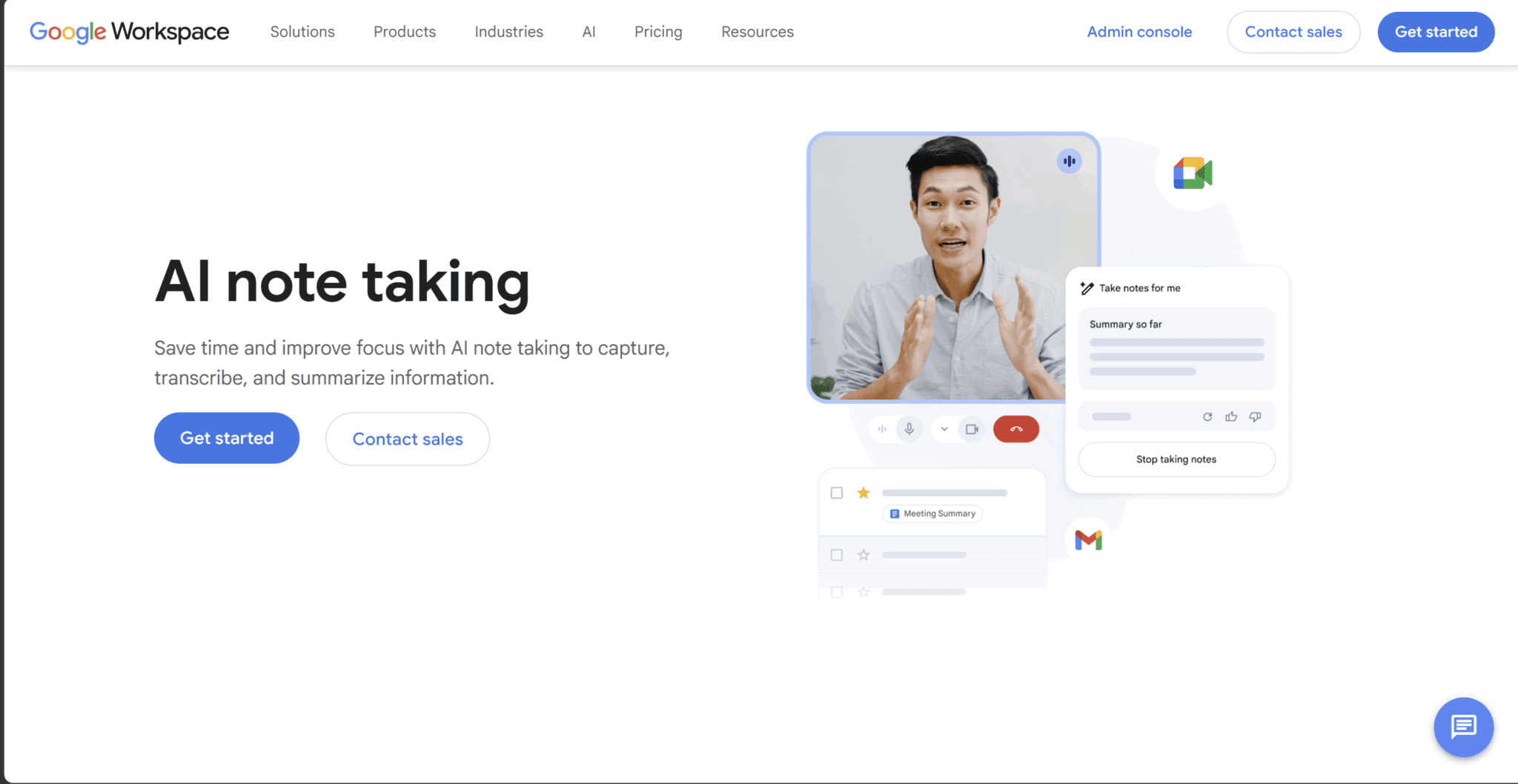
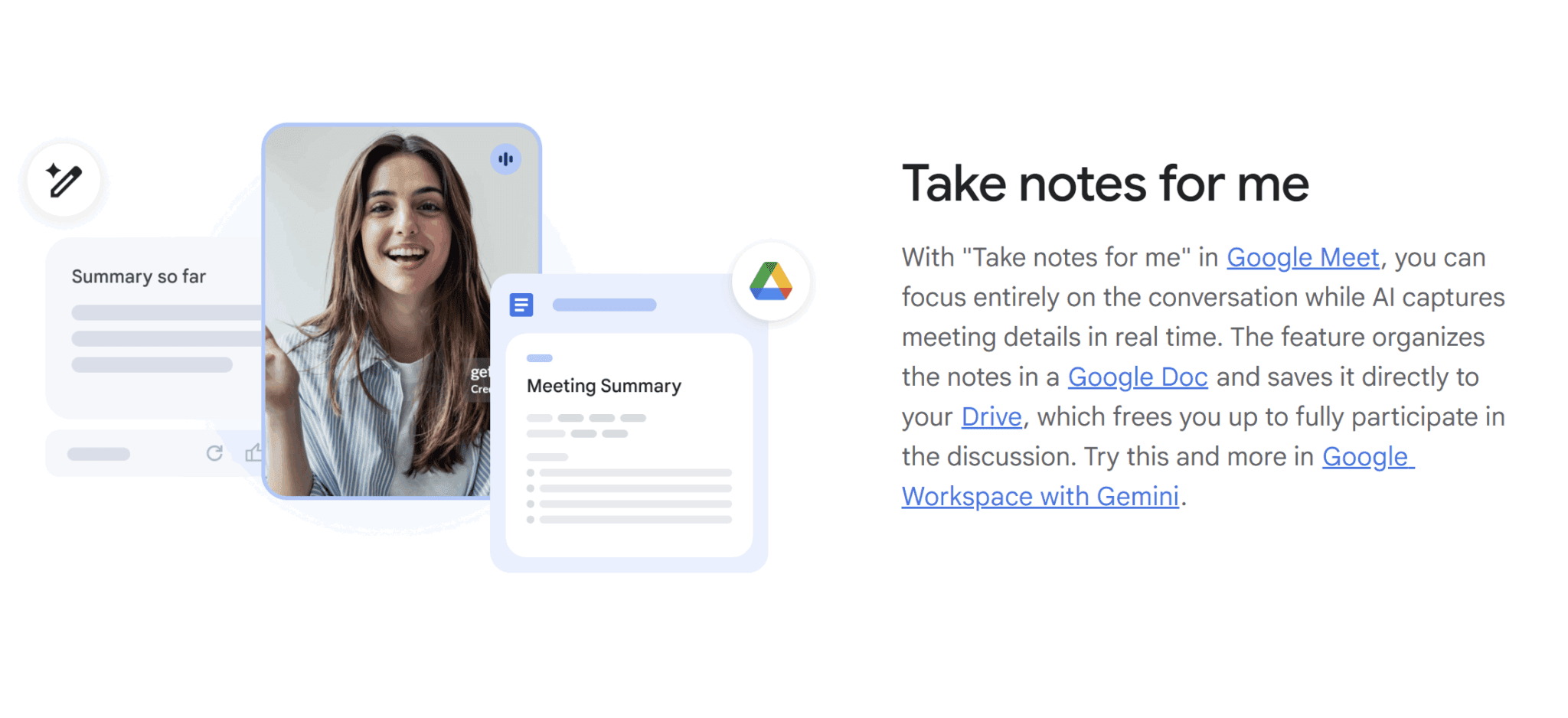
Google’s “Take Notes for Me” is a native Gemini feature baked directly into Google Meet. There’s nothing to install, no bot joining the call, no third-party data leaving Google’s infrastructure. You enable it from the meeting interface, it runs silently in the background, and when the meeting ends, a Google Doc appears in the organizer’s Drive. You’ll also get a summary and action items attached to the Calendar event.
There’s zero friction, so long as you already have the right Workspace plan. Although, it’s worth mentioning that the Google Doc gets buried fast and there’s no meeting library or dashboard where you can view all your meetings together.
Third-party tools like tl;dv take a different approach. Rather than being embedded in the meeting platform itself, they layer on top of it, often through a Chrome extension or desktop app. The trade-off is a slightly higher setup cost in exchange for considerably more capability: CRM sync, multi-language transcription, sales coaching features, cross-platform recording, and integrations with the rest of your tool stack. There are countless Gemini alternatives so it’s worth doing some thorough research before choosing.
Does It Join as a Bot, a Browser Extension, or a Background Process?
The method of capture affects what other participants see, what data gets recorded, and what you can actually do with the output afterward.
Google Meet AI notes runs as a background process entirely within Google’s own infrastructure. Participants see a small blue pencil icon indicating notes are being taken, but nothing joins the call. There’s no bot seat, no external recording, no third-party involvement.
tl;dv offers up two distinct modes depending on what you’re recording. You can invite a bot to join your Google Meet (+ Zoom + Teams) calls. This allows video capture. Not a fan of bots? tl;dv’s desktop app is bot-free by recording device audio. That means no bot joins, participants won’t see a tl;dv presence in the participant list, and you get access to all features except for video recording.
Both options feature consent flows for GDPR compliance, and both have speaker recognition so you get a proper transcript afterwards (something Gemini doesn’t provide).
How Does Google Meet AI Note-Taking Actually Work?
Google Meet’s “Take Notes for Me” is straightforward to use once it’s enabled. The most difficult part is getting it enabled in the first place. tl;dv is simple from the moment you create your account.
Setup: Does It Require Admin Approval, or Is It Self-Serve?
For Google Meet AI notes, there are two hurdles before a user can even touch the feature.
- The Workspace plan: You need Standard or above.
- Admin enablement: An admin must enable the feature in the Google Admin console before users can access it.
If your Google Account is through your work or school, your admin may not have turned on “Take notes for me” at all. This means taking notes is completely out of your control, regardless of whether or not you’re a paying customer. It’s down to your admin.
Once both conditions are met, end users need to enable it themselves, either from:
- Google Calendar before a meeting
- The pre-meeting greenroom
- Within the call itself
As of January 2026, hosts can also set it to turn on automatically for every meeting they host, but that toggle is off by default.
One important nuance: in Google Meet, recording, transcription, and “Take notes for me” are three separate features. Turning on the first two doesn’t automatically give you the third. Google doesn’t make it easy for you.
tl;dv is fully self-serve. Create your account, connect your calendar (optional), and it starts recording Google Meet calls automatically. No IT involvement, no admin console, no plan upgrade required to get started. The free plan covers the basics immediately.
What Does It Produce: Transcript, Summary, or Both?
Both tools produce more than just a summary, but they structure the output differently.
Google Meet AI notetaker generates a Google Doc containing a meeting summary, suggested next steps, and — if recording and transcription are separately enabled — a linked transcript. The summary and action items appear automatically after the meeting ends and are attached to the Google Calendar event.
The meeting organizer receives an email with a link to the recap shortly after the meeting ends, and the link is also available in the Calendar event. As of April 2026, users can also customize which sections appear in their notes, choosing the level of detail and exactly what gets captured. That customization feature only began rolling out on April 30, 2026 though.
As mentioned earlier, the downside here is how messy Google Docs organization is. It’s not so easy to organize your notes or find them again afterwards as it is with competitors like tl;dv.
tl;dv produces a timestamped transcript with speaker labels, an AI summary, action items, and even custom AI notes built from templates you define. You can also run multi-meeting AI queries across your entire library of past calls, which Google Meet AI notes has no equivalent for.
Where Do the Notes End Up, and Who Can Access Them?
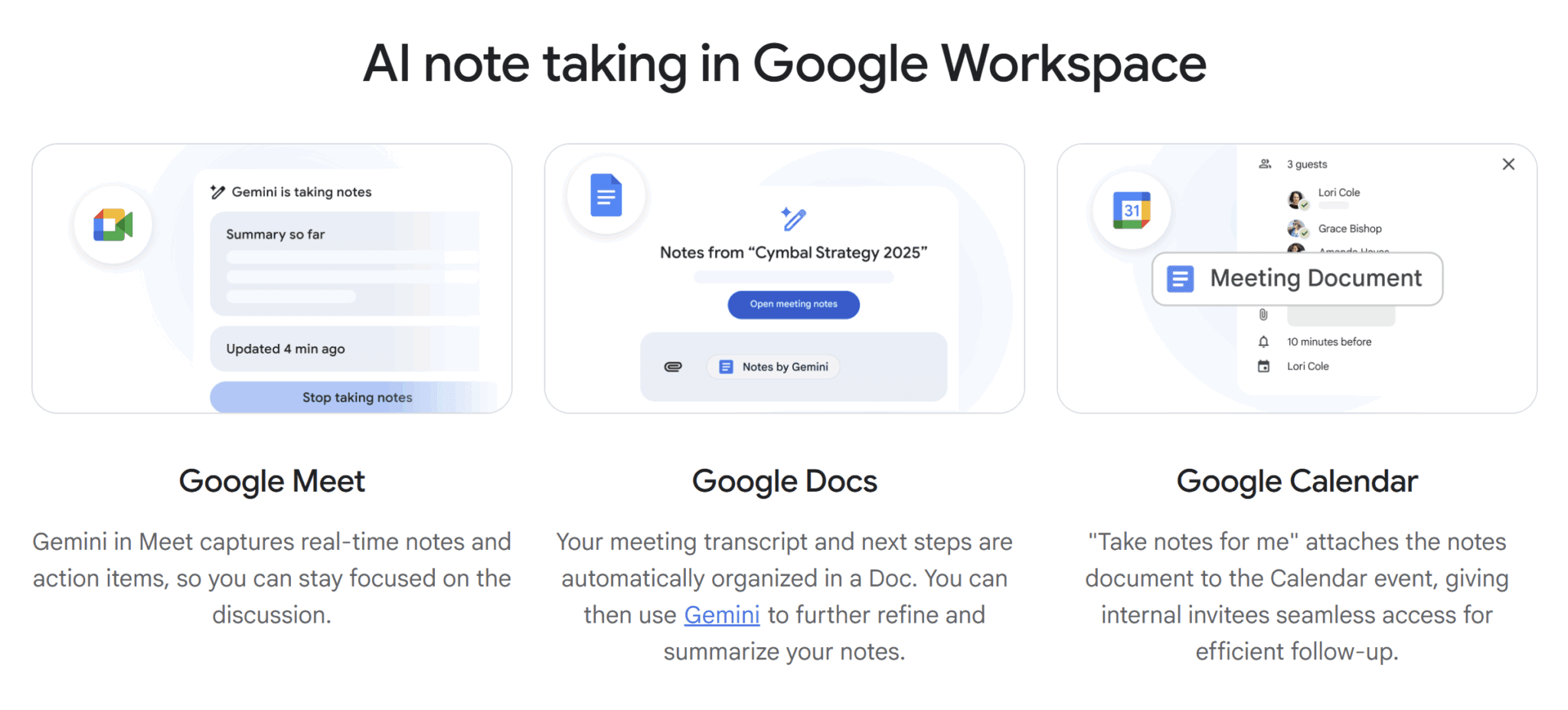
For Google Meet AI notes, the meeting notes document is saved in the meeting organizer’s Drive folder and automatically attached to the Google Calendar event, accessible to internal meeting invitees based on configured settings. External guests do not automatically get access. Admins can set a default sharing value and restrict whether hosts can override those sharing settings during a meeting. This is a useful control for organizations with strict data policies, but another configuration layer that needs to be set up correctly before it works as expected.
tl;dv stores everything in your tl;dv account dashboard, searchable across all your past meetings. Sharing is per-recording: you can share a clip, a transcript, or a full meeting link with anyone, including external participants, without needing them to have a tl;dv account.
Can You Edit, Annotate, or Regenerate Notes After the Meeting?
Google Meet AI notes land in a Google Doc, which means you can edit them like any other document: add comments, restructure sections, correct errors. What you can’t do is regenerate the summary from scratch or re-prompt Gemini with different instructions after the call. What the feature produces post-meeting is what you get.
tl;dv lets you edit the transcript directly, add timestamped comments, create clips from specific moments, and re-run AI summaries using different templates.
On Business plans you can also ask questions across your entire meeting library, so if you want to pull every mention of a specific competitor across the last three months of calls, that’s a single query rather than a manual search. Furthermore, you can schedule these types of AI reports to recur at regular intervals set by you. Monday morning summary of the past week’s sales calls across your entire sales team? A few clicks and it’ll be set up for life.
Which Google Workspace Plan Do You Need for AI Notes?
Google Meet’s AI note-taker isn’t free. It’s bundled into Google Workspace Standard and above, which costs $16.80 per user per month on monthly billing, or $168 per user per year annually. If you’re on the Starter plan, Gemini in Meet simply doesn’t exist for you.

This is where Google Workspace is both an advantage and a disadvantage. If you’re already using Workspace for all its other benefits, this might be included in your current monthly cost. If not, you’re going to pay for stuff you might not even use.
It’s an entire productivity suite after all: Gmail, Docs, Sheets, Calendar, Drive, and the AI note-taker comes along for the ride. That’s a reasonable deal if you already need all of that. It’s a terrible deal if all you want is better meeting notes.
Psssst: Google is currently running a 50% introductory discount. Standard drops to $8.40/month for the first three months. After that, it reverts to $16.80. Worth knowing before you plan a budget around it.
Here’s how tl;dv and Google Workspace compare on price:
tl;dv vs Google Meet AI Notes: Pricing at a Glance
Standard billing rates as of June 2026. Google Workspace prices shown at monthly billing; annual rate shown as yearly total.
| Plan | tl;dv | Google Workspace | What you get for AI notes |
|---|---|---|---|
| Free | Free No credit card required |
Not available | tl;dv: unlimited recordings + AI notes (up to 10 meetings/month), transcription in 30+ languages, Slack/email/calendar integrations |
| Entry paid (monthly billing) |
$29/user/mo Pro plan |
$16.80/user/mo Workspace Standard — minimum plan for Gemini in Meet |
tl;dv: unlimited AI notes on any video conferencing platform, email follow-up drafter, 5,000+ integrations, MCP server & API · Google: AI summaries + transcript saved to Google Drive/Docs only |
| Entry paid (annual, per year) |
$216/user/year Pro plan |
$168/user/year Workspace Standard |
Same features as monthly — annual billing saves ~38% on tl;dv Pro, ~17% on Google Standard vs monthly |
| Mid-tier (monthly billing) |
$39/user/mo Business plan — CRM integrations for teams, AI playbook monitoring, objection handling |
$26.40/user/mo Workspace Plus |
tl;dv: full sales intelligence stack, multi-meeting AI insights, AI reports · Google: larger meetings (500 participants), same AI notes feature as Standard |
| Enterprise | Custom | Custom | Both: SSO, SCIM provisioning, dedicated support, advanced admin controls |
| CRM integrations | ✓ Pro plan and above, with automatic CRM sync | ✗ No plan | tl;dv syncs to Salesforce, HubSpot, Pipedrive and others. Google Meet AI notes output stays in Google Drive. |
| Cross-platform (Zoom, Teams, + more) |
✓ All plans | ✗ Google Meet only | tl;dv records across Google Meet, Zoom, and Microsoft Teams, or in bot-free mode, it works for any platform. Gemini in Meet works only inside Google Meet. |
| Usage-based AI fees | ✗ None on paid plans | ✗ None stated | tl;dv Business explicitly tags itself "No usage-based AI fees." Free plan: 10 AI-noted meetings + 10x Ask AI per month. |
Is Google Meet AI Notes Free?
No. Gemini in Meet requires Workspace Standard or higher. The Starter plan lists Gemini in Workspace apps as “Limited”. In practice, that means basic Gemini access is for Gmail only. The full “take notes for me” feature is locked behind Standard.
Do you remember when you could get per-user Gemini add-ons? Yeah, well Google discontinued them in January 2025. Now it’s pay up or jog on.
How Does tl;dv’s Free Plan Compare?
Firstly, tl;dv’s free plan is genuinely free: no credit card, no trial clock. You get unlimited video recordings, unlimited transcription in 40+ languages, and AI meeting notes for up to 10 meetings per month, plus Slack, email, and calendar integrations out of the box. The mobile app (Android and iOS) is included too.
The usage limits only kick in at scale: 10 meetings with AI notes per month, and 10x Ask AI queries are enough for solo users and small teams running a few meetings a week. When you do need more, Pro costs $18/user/month (when billed annually), or $29 per month when billed on a month-to-month basis. This removes the caps and adds the email follow-up drafter, 5,000+ integrations, and the MCP server.
Are There Hidden Costs on Either Platform?
Google Meet AI Notes: The main hidden cost is the plan upgrade itself. The promo pricing can make this sting more than expected. It’s $8.40/month at the introductory rate, which doubles to $16.80 after just three months. If you have a 10-person team, that’s a jump from $252/quarter to $504/quarter once the promo expires.
Recording storage also counts against your Google Drive allocation (2TB on Standard), and the feature requires the host to hold an eligible Workspace license, so if your IT admin hasn’t enabled Gemini for your org, it doesn’t matter what plan you’re on.
tl;dv: Seat-based pricing, no usage-based AI fees on paid plans. Storage is unlimited across all plans. The main upgrade driver is the feature tier: AI playbook monitoring, objection handling, and multi-meeting AI insights are Business-only.
Platform Compatibility: Does Gemini Work Beyond Google Meet?
Until April 2026, the answer for Google Meet AI notes was a hard no. It was Meet-only, full stop. That changed when Google announced at Cloud Next ’26 that “Take Notes for Me” would expand to Zoom, Microsoft Teams, and in-person meetings. It’s a big shift in ambition. It’s just not fully delivered yet.
As of June 2026, the cross-platform rollout is still in progress. Regardless of whether a meeting is in-person or hosted on another provider like Zoom or Teams, Google users will be able to tap “Take Notes for Me” on the Google Meet home screen and have Gemini capture a summary and action items in a Google Doc. Google said the expansion would roll out to customers over the coming weeks from that announcement date. It’s been around two months and there’s still no sign of it, but watch this space.
tl;dv, by comparison, already works across platforms today. You can record any platform audio with its desktop-app bot-free mode, or you can invite the bot to Zoom, Teams, or Meet meetings for video recording.
Does Google Meet AI Notes Work on Zoom or Microsoft Teams?
Not yet. The April 2026 announcement makes clear this is coming, but “rolling out over the coming weeks” from a late-April announcement means real-world availability is patchy as of today. If your team splits meetings across Google Meet and Zoom, you’re likely still waiting.
tl;dv handles this differently and without the wait. The Chrome extension allows you to record Meets, Zooms, and Teams calls in-browser with a bot and video recording. But the desktop app captures device audio, meaning it works across any platform or audio source you run on your computer. No bot joins, no platform-specific integrations required.
Does Google Meet AI Notes Work on Mobile (Android and iOS)?
Yes, but there’s
a catch. The “Take Notes for Me” feature works on both Android and iOS through the Google Meet app, but the live “summary so far” feature is not supported on either platform. So you can start notes from your phone, but the real-time catch-up that’s arguably the most useful in-meeting feature is desktop-only.
The April 2026 in-person expansion is also mobile-first: on Android, you open the Google Meet app, tap “Take Notes for Me,” set your device nearby, and Gemini documents the meeting from your device’s microphone. You don’t even need to be in a video call.
tl;dv also has a free mobile app on Android and iOS for reviewing notes, clips, and transcripts.
Does It Work with Google Meet Hardware and Conference Rooms?
Yes for Google’s own hardware. Gemini in Google Meet delivers “Take Notes for Me” to Google Meet hardware room setups, so if your org runs certified Meet room kits, the feature is available there.
tl;dv records device audio (or the Google Meet itself) so it will always work for conference rooms.
Does tl;dv Have a Chrome Extension?
Yes. The tl;dv Chrome extension has over 500,000 users and automatically records and transcribes Google Meet calls directly in the browser. It’s the lightest-weight entry point: install it, join a Google Meet call, and recording starts. No desktop app required for Google Meet users.
However, if you want the desktop app, it unlocks bot-free audio recording across your entire device.
Language Support: How Many Languages Can Each Tool Handle?
Google Meet AI notes supports 8 languages. tl;dv supports 40+. That gap is the whole story for international teams, but the details of how each tool handles language are worth understanding before you commit to either.
Does Google Meet AI Support Multilingual Meetings or Code-Switching?
No. This is confirmed in Google’s own support documentation. The feature supports one language at a time, so multiple languages spoken in the same meeting are not currently supported. The supported languages as of June 2026 are:
- English
- French
- German
- Italian
- Japanese
- Korean
- Portuguese
- Spanish.
The language must be set manually before the meeting starts, either in Google Calendar when scheduling, or from the meeting settings before you enable note-taking. If participants switch languages mid-call, or if the meeting language wasn’t set correctly in advance, the notes will stop making sense (or stop altogether).
For teams that operate within those eight languages and never mix them in a single meeting, this is fine. For everyone else, it’s a hard wall.
tl;dv handles this differently. It transcribes in 40+ languages with automatic detection, meaning you don’t need to pre-set anything. If a call switches between English and Spanish, or if a participant joins speaking French, tl;dv picks it up without manual intervention. This can be a life-saver. It means your transcripts and notes will always be complete, regardless of language changes. tl;dv is also highly accurate when it comes to different languages. For example, its German transcription came out better than 9 other competitors in our tests.
Can the Summary Output Language Differ from the Spoken Language?
For Google Meet AI notes, no. The summary is generated in the same language the meeting is set to. There’s no option to speak in Japanese and receive a summary in English, for example. What goes in is what comes out.
tl;dv doesn’t currently offer automatic summary translation either. But the breadth of supported languages means the transcript and summary are generated natively in whichever language was spoken, across a much wider range of languages than Google’s eight.
Privacy and Data: Who Owns Your Meeting Content?
Both tools offer strong privacy protections for business users, but if you’re in a regulated industry or handling sensitive customer conversations, you’re going to want to get more details.
Is Google Meet AI Notes GDPR Compliant? What About SOC 2 and HIPAA?
Google Workspace is a mature enterprise platform with a corresponding compliance stack. It holds ISO 27001, SOC 2 Type II, and GDPR compliance, and HIPAA coverage is available under a Business Associate Agreement for eligible plans. For most enterprise procurement processes, Google Workspace will clear the security review without issue.
tl;dv is GDPR-compliant for all users (even when bot-free, making it one of the best GDPR-compliant meeting assistants around) and holds SOC 2 Type I certification. It’s based in Europe and hosts its software across Google Cloud Platform, AWS, and Hetzner — all of which are certified as ISO 27001, PCI DSS Service Provider Level 1, and SOC 1 and 2 compliant. It’s also compliant with the EU AI Act. For enterprise buyers, especially those based in Europe, tl;dv is a secure choice.
Is Your Meeting Data Used to Train Google’s AI Models?
This is the question that makes privacy teams nervous, and the answer for Workspace users is a clear no, with an important caveat about which account type you’re using. Google states directly that it doesn’t use your data, prompts, or generated responses to train Gemini models outside of your domain without permission, and doesn’t sell your data or use it for ad targeting.
That commitment applies to paid Google Workspace accounts. Personal Gmail users using Gemini operate under a different, less protective policy. If anyone in your org is accessing Meet AI features through a personal Google account rather than a managed Workspace account, the protections don’t apply.
tl;dv does not train AI models on your meeting data either, making it a strong candidate for privacy-conscious teams.
What Consent Notices Are Shown to Participants When AI Notes Are Active?
Google Meet displays a visible indicator to all participants when “Take Notes for Me” is active: a blue pencil icon in the meeting interface. Admins can also require explicit participant consent before note-taking begins, though this setting is off by default. Whether that’s sufficient for your jurisdiction depends on local recording consent laws. Some US states and many EU contexts require active consent rather than passive notification.
In tl;dv, there are consent collection flows whether you’re using the bot or the bot-free version. When there’s no visible in-meeting indicator, consent messages are sent automatically. The admin can adjust the settings.
Admin Controls: Can IT Restrict Who Uses AI Notes or Where Notes Are Stored?
Google Workspace admins can control AI note-taking across the org from the Admin console. This allows them to set default sharing options and restrict whether notes can be shared outside the domain. Remember, you also rely on the admin to let you take notes in the first place. Notes also follow Meet’s retention policies, which is a nice-to-have for legal, compliance, and financial services teams.
tl;dv offers recording privacy defaults, consent settings, and team-level configuration on Business plans and above.
CRM and Workflow Integrations: Where Do the Notes Go After the Call?
Google Meet AI notes go to Google Docs. That’s it. End of story. tl;dv sends them wherever you need them to go — your CRM, your Slack, your project management tool, or all three simultaneously. For internal teams that live entirely in Google Workspace, the first option is fine. For anyone running a sales or customer success function, it’s a dead end.
Does Google Meet AI Notes Integrate with Salesforce, HubSpot, or Pipedrive?
No, not on any plan. Google Meet’s AI notes land in a Google Doc attached to your Calendar event and Drive folder. Don’t expect a native connection to any CRM; you’ll be disappointed. To get meeting notes into Salesforce or HubSpot from Google Meet, you’d need to copy and paste manually, build a Zapier workflow yourself, or use a third-party tool on top of Google’s native feature.
tl;dv handles this automatically from the Pro plan. Meeting summaries and AI insights sync directly to HubSpot, Salesforce, Pipedrive, Salesloft, Zoho, Monday, and more. Even better, they’re sent to the right contact or deal record without manual input. The CRMs listed above have native integrations, but you can find more than 5,000+ apps in total through Zapier.
Can Meeting Notes Auto-Create Tasks in Asana, Jira, or ClickUp?
Again, Google Meet AI notes can’t do this natively. Action items identified by Gemini appear in the notes Google Doc. From there, you have to copy and paste them over to your project management tool of choice.
tl;dv connects to Monday.com, Asana, Notion, Trello, and others, turning meeting takeaways into tasks directly. Combined with the Zapier integration, virtually any downstream tool in your stack can receive structured output from a tl;dv meeting automatically.
Here’s how the two tools compare across the integrations that matter most:
tl;dv vs Google Meet AI Notes: Integrations Compared
Where your meeting notes actually end up — and how much of it happens automatically.
| Integration | tl;dv | Google Meet AI notes |
|---|---|---|
| HubSpot Auto-sync to contact/deal |
✓ Native Pro plan and above — automatic sync |
Not available No plan |
| Salesforce Auto-sync to account/opportunity |
✓ Native Pro plan and above — automatic sync |
Not available No plan |
| Pipedrive Auto-sync to deal record |
✓ Native Pro plan and above — automatic sync |
Not available No plan |
| Slack Post-meeting digest to channel |
✓ Native All paid plans |
Not available |
| Google Docs / Drive Notes saved automatically |
✓ Available Via integration |
✓ Native Default output on all eligible plans |
| Notion / Asana / Monday Task creation from action items |
✓ Native Pro plan and above |
Not available |
| Zapier Custom workflow automation |
✓ Native Pro plan — 5,000+ connected apps |
Workaround only Via Google Drive/Docs trigger — limited structured data |
| Public API & webhooks | ✓ Available Pro plan and above |
Not available |
| MCP server | ✓ Available Pro plan and above |
Not available |
| Email follow-up drafter | ✓ Available Pro plan and above |
Partial Summary emailed to organizer only — no draft generation |
Output Quality: How Good Are the Summaries, Transcripts, and Action Items?
Google Meet AI notes produces clean, readable summaries. tl;dv produces a more complete record: timestamped transcript, speaker labels, action items, searchable library, and custom templates.
For a quick recap of an internal standup, Google’s output is fine. For anything you need to act on, share with a CRM, or reference across multiple meetings, the gap widens fast.
How Accurate Is Speaker Attribution (Diarization) on Each Platform?
Google Meet AI notes identifies speakers in the transcript using their Google account display names. This works well for internal meetings where everyone is logged into Workspace. For external participants or guests joining without a Google account, attribution can be inconsistent.
Our very own Dani teseted Gemini in Google Meet herself and said, “It’s fast, automatic, and mostly accurate… if you don’t ask too much of it”. The April 2026 update added timestamp citations to summaries, so now, when the notes reference a decision, you can click through to the exact moment in the transcript and actually double check the attribution. tl;dv had this feature since day one, so maybe that gives you some idea about how the two are positioned when it comes to meeting intelligence.
tl;dv automatically identifies individual speakers in the transcript regardless of platform. A G2 review from April 2026 says, “the high-quality recording with seamless speaker switching makes it easy to track exactly who said what.” He also praised its “lightning-fast delivery.”
Does It Capture Action Items, Owners, and Deadlines — or Just a Summary?
Google Meet AI notes does capture suggested next steps as a dedicated section in the notes document. As of April 2026, a new Decisions section was added that tracks meeting outcomes with statuses including:
- Aligned
- Needs Further Discussion
- Disagreed
- Shelved.
What it still doesn’t do is actually assign owners to action items, set deadlines, or push those items to a task management tool automatically — you know, the actually important stuff.
tl;dv captures action items with speaker attribution and timestamps, and on Pro and above can push them directly to project management tools or your CRM. One G2 reviewer said, “I love how … it emails me the important topics covered and summarized action items, super handy for instances where I cannot join the meeting.” This reviewer also claims “It’s the best AI meeting transcription tool I’ve used thus far,” and his only downside was that it can’t natively record meetings from the portal, something that’s been resolved since the review was made with the desktop app’s bot-free recording.

There’s an awkward limitation to flag for Google Meet AI notes, noted across multiple independent reviews, including Dani’s: notes, transcripts, and recordings are saved as separate, unlinked files in Google Drive rather than a single unified view. If you need to cross-reference the summary against the transcript, you’re opening multiple tabs. It’s super easy to lose things, especially as they all follow the exact same naming structure. You can also work with Google Drive MCP but tl;dv’s MCP does the same thing without needing Google at all.
tl;dv keeps all transcripts, summaries, clips, and action items in a single meeting record inside one dashboard. Not only that, but you can cross-reference them against other meetings with multi-meeting AI to track patterns and trends across entire batches of calls.
Can You Search Across Past Meetings, or Only Within a Single Transcript?
This is one of the starkest functional differences between the two tools. Google Meet AI notes has no cross-meeting search. Each meeting produces its own Google Doc, and finding something discussed three weeks ago means manually searching Google Drive, or somehow remembering which meeting it came from.
tl;dv’s global transcript search is available on the Pro plan and above. On Business, multi-meeting AI insights is even better: ask questions across your entire library of past calls and get structured answers back, rather than a list of search results to read through manually.
One way to think of it is that tl;dv is an AI meeting assistant, where Google Meet AI notes are… well, just notes.
How Well Does Each Tool Handle Accents, Jargon, and Crosstalk?
Neither tool is immune to accuracy drops under difficult conditions. Heavy accents, fast speech, technical terminology, and multiple people speaking simultaneously will challenge any AI transcription system. Independent testing of Google Meet AI notes shows it can struggle with technical nuances, and the lack of a custom vocabulary feature means there’s no way to train it on industry-specific terms.
tl;dv faces similar challenges with unclear audio, however, it has a custom vocabulary feature that empowers it to learn industry-specific jargon, company names, or anything else you want to teach it (please use it wisely…).
tl;dv also has an edge on language breadth: 40+ languages with automatic detection means the base accuracy starts from the right language, which removes one major source of transcription error before the meeting even starts.
Sales and Coaching Features: Which Tool Goes Beyond Note-Taking?
Google Meet AI notes takes notes. That’s the job, and it does it. If you’re a sales manager looking for call scoring, playbook tracking, objection handling analysis, or any signal about how your reps are actually performing on calls, you won’t find it here. tl;dv’s Business plan is built specifically for that use case.
Does Google Meet AI Support Call Scoring, Playbooks, or Talk-Time Ratios?
No. Google Meet AI notes generates a summary and suggested next steps. There is no concept of a sales playbook, no analysis of how a rep handled objections, no talk-time ratio, no call scoring, and no manager-facing coaching dashboard. It’s a documentation tool, not a performance tool.
tl;dv’s Business plan tracks playbook adoption across calls; managers can see whether reps are hitting the key stages of a discovery call, how objections are being handled, and where deals tend to stall. This allows you to analyze how a conversation went (and how you can improve), rather than just remember what was said. There’s a big difference.
Can It Generate Follow-Up Emails or CRM Call Summaries Automatically?
Google Meet AI notes emails a summary link to the meeting organizer after the call. There’s no follow-up email draft, no CRM call log, and no structured output designed for a sales rep to use immediately after hanging up.
tl;dv’s email follow-up drafter (available on Pro) generates a ready-to-send follow-up based on what was discussed. Combined with automatic CRM sync, a rep can close a call, review the draft, approve it, and have both the CRM updated and the follow-up sent in minutes. It will take that long just for you to find your notes using Google.
Multi-Meeting Intelligence: Can You Query Across All Your Past Calls?
Google Meet AI notes produces individual Google Docs. Without manually copying and pasting them into Gemini, there’s no way to ask “what objections came up most often last quarter?” across your call library. There is no call library. Each call is a separate document in Drive.
tl;dv’s Business plan includes multi-meeting AI insights that let you query across your entire call history. This lets you surface patterns in objections, competitor mentions, or deal stages without manually reviewing a single transcript. For sales managers coaching at scale, that means you can get insights on all your reps’ calls at once!
Who Should Use Google Meet AI Notes (and Who Shouldn’t)?
Google Meet AI notes is a useful tool for teams that are already deep in the Google ecosystem. If you’re looking for an AI meeting assistant and you’re not already using Google, or you sometimes have calls on other paltforms, or you need notes to sync with CRMs and other tools, Google Meet AI notes is not for you.
Is Google Meet AI Notes Good Enough for Internal Meetings?
For pure internal use, Google Meet AI notes is hard to argue with. If your org is already on Workspace Standard or above, there’s nothing to install, nothing to configure beyond an admin toggle, and the output lands exactly where your team already works: Google Docs, Google Drive, Google Calendar. The friction is close to zero.
The April 2026 update added a Decisions section with tracked outcomes and a more structured summary format. It’s still a far cry from being on the same level as a dedicated meeting assistant, but it’s a step in the right direction for internal teams. If the goal is to capture what was decided and who’s doing what, it covers the bases.
Where it starts to fall short, even for internal teams, is scale and searchability. If you’re running a lot of meetings and need to find something discussed three weeks ago, you’re searching Drive, not a meeting intelligence platform. It’s messy enough as it is, let alone with months’ worth of meeting notes in there. It’s just about manageable for small teams. It becomes a nightmare as headcount and meeting volume grow.
When Should You Switch to tl;dv Instead?
The short answer: when meetings are part of a workflow rather than just a communication channel.
If any of the following are true, Google Meet AI notes won’t be enough:
- You run customer-facing calls. Sales discovery, customer success check-ins, user research interviews: any meeting where the output needs to go into a CRM, inform a deal stage, or feed a coaching framework. Google Meet AI notes has no CRM sync on any plan and no sales intelligence features. tl;dv handles both.
- Your team isn’t entirely on Google Meet. If some calls happen on Zoom, Teams, or any other platform, Google Meet AI notes simply won’t be there. tl;dv covers any platform your team uses.
- You have international or multilingual teams. Eight languages with no multilingual support per meeting is a hard constraint. tl;dv transcribes in 40+ languages with automatic detection.
- You need meeting intelligence, not just meeting notes. Cross-meeting search, multi-meeting AI insights, playbook monitoring, objection tracking… None of this exists in Google Meet AI notes. If you need to understand patterns across calls rather than just capture individual ones, you need a dedicated tool.
Which Tool is Right for Your Team?
A straight answer by team type and use case.
| Team type | Recommendation | Why |
|---|---|---|
| Internal ops / admin Google Workspace-only teams |
Google Meet AI notes | Zero friction, no extra cost, output lands in tools your team already uses |
| Mixed-platform teams Zoom + Meet + Teams + other |
tl;dv | Google Meet AI notes doesn't exist outside Google Meet — tl;dv works across any platform |
| Sales teams Discovery, demos, closing calls |
tl;dv | CRM auto-sync, follow-up email drafter, playbook monitoring, and objection tracking — none of which exist in Google Meet AI notes |
| Customer success Check-ins, QBRs, onboarding |
tl;dv | Cross-meeting insights, automatic CRM logging, and searchable call history across the full account lifecycle |
| Recruiting Candidate interviews, debriefs |
tl;dv | Cross-platform recording, 40+ language support, and a searchable library across all candidates |
| International / multilingual teams | tl;dv | Google Meet AI notes supports 8 languages, one per meeting, set manually. tl;dv transcribes in 40+ with automatic detection |
| Enterprise IT-first orgs Full Google Workspace deployment |
Depends | Google Meet AI notes works as a solid baseline for internal teams. Add tl;dv if sales, CS, or recruiting teams need more than documentation |
| Privacy-conscious orgs Regulated industries, sensitive calls |
Depends | Both tools have strong baseline protections. Google keeps data entirely within Workspace. tl;dv is GDPR-compliant, EU-based, and SOC 2 certified — evaluate against your specific compliance requirements |
Google Meet AI notes not cutting it?
tl;dv gives you AI notes, CRM sync, and 40+ language transcription across Google Meet, Zoom, Teams, and beyond — starting completely free.
Get tl;dv free forever →No credit card required. Works on Google Meet, Zoom & Teams.The Verdict: Is Google Meet AI Notetaker Worth It in 2026?
Google Meet AI notes is a useful feature that continues to improve. The April 2026 cross-platform announcement signals Google’s intent to expand. For teams already running on Workspace Standard or above, there’s real value in a note-taking tool that requires zero setup and lands output exactly where your team already works.
Having said that, the honest answer is: it depends entirely on what your meetings are for. Internal standups, planning sessions, and team check-ins where the output stays inside Google’s ecosystem? It’s hard to argue against something that’s already included in your plan. Customer-facing calls, cross-platform teams, multilingual workflows, or anything that needs to feed a CRM? Google Meet’s AI Notetaker simply isn’t good enough.
tl;dv was built for the use cases Google Meet AI notes doesn’t cover. It syncs with your CRM, your Slack, your project management tool, and it works with your coaching framework. Your entire meeting history going back to day one is searchable, comparable, and referencable through multi-meeting insights. The free plan is generous, so you can actually test it out alongside Google Meet without paying any extra.
If you’re evaluating both tools, the fastest way to decide is to ask one question: do your meetings drive revenue? If yes, you need more than notes. You need meeting intelligence.
FAQs About Google Meet AI Notetaker
Can an AI note taker work on Google Meet without joining as a visible participant?
Yes. Both tools covered here do this by default. Google’s “Take Notes for Me” runs as a native background process with no bot seat.
tl;dv can record Google Meet calls from the desktop app without sending a bot into the meeting. tl;dv in the browser or Chrome extension does join with a bot for video recording.
Can you customize the summary format in Google Meet AI notes?
As of April 30, 2026, Google added some customization: users can now toggle which sections appear in their notes, choosing from Summary, Decisions, Next Steps, and Details. The Decisions section also tracks outcomes with statuses like Aligned, Needs Further Discussion, and Shelved.
What you can’t do is re-prompt Gemini with different instructions after the meeting or apply custom templates. tl;dv lets you build custom AI note templates, including methodology-specific frameworks that apply automatically to every call.
Is your meeting data used to train Google's AI models?
Not if you’re on a paid Google Workspace account. Google has publicly confirmed that enterprise data used within Gemini for Workspace is not used for model training and is not reviewed by humans. That commitment applies to managed Workspace accounts, but personal Gmail users accessing Gemini operate under a different policy.
tl;dv does not use customer data to train AI models either, confirmed via its privacy documentation.
Does Google Meet AI notes work with Zoom or Microsoft Teams?
Not yet for most users. Google announced at Cloud Next ’26 in April 2026 that “Take Notes for Me” is expanding to Zoom, Teams, and in-person meetings, with rollout beginning in the weeks following that announcement. As of June 2026 the rollout is still in progress and availability is patchy.
tl;dv works across platforms today via the browser, Chrome extension, or the desktop app (any audio source).
What are the free plan limits on tl;dv?
tl;dv’s free plan includes unlimited video recordings, unlimited transcription in 40+ languages, and AI meeting notes for up to 10 meetings per month. Slack, email, and calendar integrations are included, as is the mobile app for Android and iOS.
The AI usage limits — 10 meetings with AI notes and 10x Ask AI queries per month — are the main constraints. No credit card is required to get started.
Are there Vault, DLP, or eDiscovery implications for Google Meet AI notes?
Yes. And this matters for legal, compliance, and financial services teams. Google Meet AI notes documents follow Meet’s retention policies, which means they can be covered by Google Vault on eligible plans for eDiscovery, legal hold, and audit purposes. Admins can also configure DLP policies and restrict sharing outside the domain.
tl;dv doesn’t have a Vault equivalent, though Business plan admins have access to recording privacy defaults, consent settings, and team-level configuration.
Is Google Meet AI notes available on personal Gmail accounts?
The feature requires a Google Workspace account on Standard or above, but can be used by personal Gmail accounts too.
tl;dv works with any Google account and is free to get started.