Skip to content





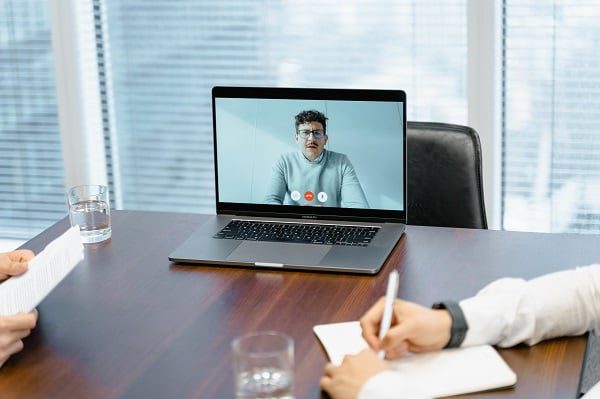

Google Meet has gained ground as a go-to online meeting and conferencing solution for individuals and businesses alike. The platform according to Google CEO Sundar Pichai has over 100 million daily active users from all over the world. It is more than obvious that both individuals and organizations utilize the video conferencing tools available to facilitate their personal and professional lives.
It has so many features to make such meetings successful. But if you are like me, you have constantly had to try hard to find the record button to no avail. Google, by default, doesn’t provide participants with the option to record meetings. That is the number one reason why most people cannot record their meetings. However, to record, you need to have certain permissions from your administrator and be subscribed to a Google Meet plan that has recording features. It is important to get this permission as it is illegal to record sessions without proper permission. Always make it a point to know what the law says when you decide to record a particular session as the laws vary within regions.
If you want to record your Google Meet meetings, you can do a few things. First, you have the correct permissions from your administrator. Second, you are subscribed to a Google Meet plan with recording features. And finally, download and install the Google Meet desktop app.
Always Seek Permission
To record your Google Meet meetings, make sure you have the right permissions and that you are subscribed to a plan with recording features.
On the other side of the narrative, Google only allows accounts with specific Google Meet plans to record sessions. It isn’t anyone who can record meetings. This is why we recommend using browser extensions to record your Google meet. tl;dv has more features that make it extremely easy to record and use meeting recordings. You can add live timestamps to your meeting recording and have access to an automatically generated transcript of your meeting without having to manually download your meeting recording to share it. Also, quickly edit your meet, and chop it up into small chunks for various audiences, all in the tl;dv chrome extension dashboard.
Who Can Benefit From Recording Google Meet Sessions?
When it comes to recording Google Meet, almost all participants can benefit from a copy of how the meeting went for future purposes. But in specific cases, students may need to have recordings of lectures for study, later on, group discussions, and further analysis of the topic at hand.
Various teams in the organizational setting can also benefit from recordings, from assessing the meeting to taking down notes and minutes, and for future reference, there are various applications for a recorded Google Meet for any organization. And when you are a salesperson who conducts sales calls via Google Meet or some other video conferencing software, recordings can save your life.
Truth is, sales are very critical and a simple mistake could be diminishing your sales pitch. By recording and studying your calls, you can find problems and solve them as soon as you can instead of never finding out why you lost that sale. Other scenarios where recordings could be necessary include employee onboarding and communication with clients.
When To Record Your Google Meet Call?
Recording meetings is a great way of saving time, especially for long meetings that become difficult to track each moment of the meeting.
By recording your Google Meet, you can create action items later by recording your Google Meet and keeping everyone on the right page by documenting your conversations. At the same time, you save time by bookmarking important moments during meetings using timestamps which tl;dv allows you to do. Also, you create notes that impress prospective clients, which is important for sales calls and more. Notes should contain a transcript and a recording of the conversation. Keep everyone together and make sure everyone is on the same page.
Record Your Google Meet Sessions with The tl;dv Extension
Follow these steps to make Google meeting recordings with the tl;dv
Step 1: Add the chrome extension to your browser by searching for tl;dv in the chrome extensions market. Once installed, you’ll be automatically redirected to the extension page for onboarding.
Step 2: Start your Google Meet session by clicking on record. As a participant, the tl;dv bot will join your meeting once you click to record with tl;dv.
Step 3: As the meeting begins, the tl;dv bot will record every second and transcribe them with SSL encrypted recordings.
Step 4: After the meeting has ended, you will be emailed with the link to the transcript and recordings. You can also edit, cut, and trim your recorded video for instant sharing with others.
Does Google Meet Allows Recording?
Yes, Google Meet allows recording based on your plan. Mobile app users cannot start the recording. However, they will be notified when it starts and stops. Meetings cannot be recorded beyond 8 hours. The recording will stop after 8 hours. There are many situations where it makes sense to record a Google Meet session, whether it is a class lecture or an onboarding session, or a training. These video meetings can be saved so that you can revisit them at any time, review them more thoroughly, and save them for future reference. Only certain Google Workspace editions or plans are allowed to use the native recording function. To record video meetings, other Meet users will need to use a third-party extension like tl;dv.
Google Workspace editions to get started:
- Essentials Business Standard
- Essentials, Business Standard
- Business Plus
- Enterprise Essentials
- Zoom Enterprise Standard
- Enterprise Plus
- Zoom Education Standard (staff/student license)
- Education Fundamentals (staff/student license)
- Zoom Education Plus (staff/student license)
- Teaching and Learning Upgrade (Teaching and Learning Upgrade license) Workspace Subscriber (Individual)
Is Google Meet Automatically Recorded?
No. Google Meet calls are not automatically recorded. However, you can record your Google Meet meetings with the help of specific permissions and a Google Meet plan that has recording features. And, if you are using the tl;dv chrome extension, you can make recordings with even more ease and convenience.
Where Does My Google Meet Recording Go?
It may take some time before your video appears because Google has to process it first. Also, it may take some time to show the video if your video is long or your download speed is slow.
If the video does not appear immediately, try again later. Then, you can rest assured that if you saw the confirmation before stopping the recording, the video should appear eventually.
Google Drive allows you to share your recording with any other management tool. In seconds, you can upload the recording to your project management platform or Google Classroom.
You can also download the recording directly from Google Drive to your computer storage. Click the “more button” (three vertical dots at the top of the file) and choose “Download.” meeting recording will save the recording to your computer’s download folder.
These steps will allow you to access the Google Meet recording on your drive.
- Log in to Google Drive.
- To the left, click the “My Drive” link.
- Choose the “Meet Recordings” folder.
- The folder should contain your recorded video.
Can You Record On Google Meet For Free?
No, Google Meet currently doesn’t allow meeting recording in the free plan. If you want to record a meeting but do not have a need for a full Google Meet, enjoy added benefits like transcripts, meeting notes, and timestamps, and even do basic meeting video editing, you’ve got to try tl;dv.
How Do I Record Google Meet Without Permission?
The browser extension, tl;dv, is the best way to record google meet calls without permission. tl;dv has more features that make it extremely easy to record and use meeting recordings. You can add live timestamps to your meeting recording and have access to an automatically generated transcript of your meeting and instead of manually downloading your meeting recording to share it, you can do so from your online dashboard. You can quickly edit your meet, and chop it up into small chunks for various audiences, all in the tl;dv chrome extension dashboard.
Conclusion
Recording meetings is a safer option, regardless of whether you are a student, a corporate worker, or a private business person. In a variety of different situations, tasks, and projects, you will need to record Google Meet Extension. A built-in screen recording tool, a Chrome screen recorder plug-in, can come in handy. Sign-up with tl;dv, Google Meet recording extension today. No need for downloading meeting recordings as everything goes into your cloud and is accessible to your dashboard. Just click a button and you are done. Easy? Now you can get started with tl;dv for free.