Skip to content





⚡Quick Verdict (TL;DR)
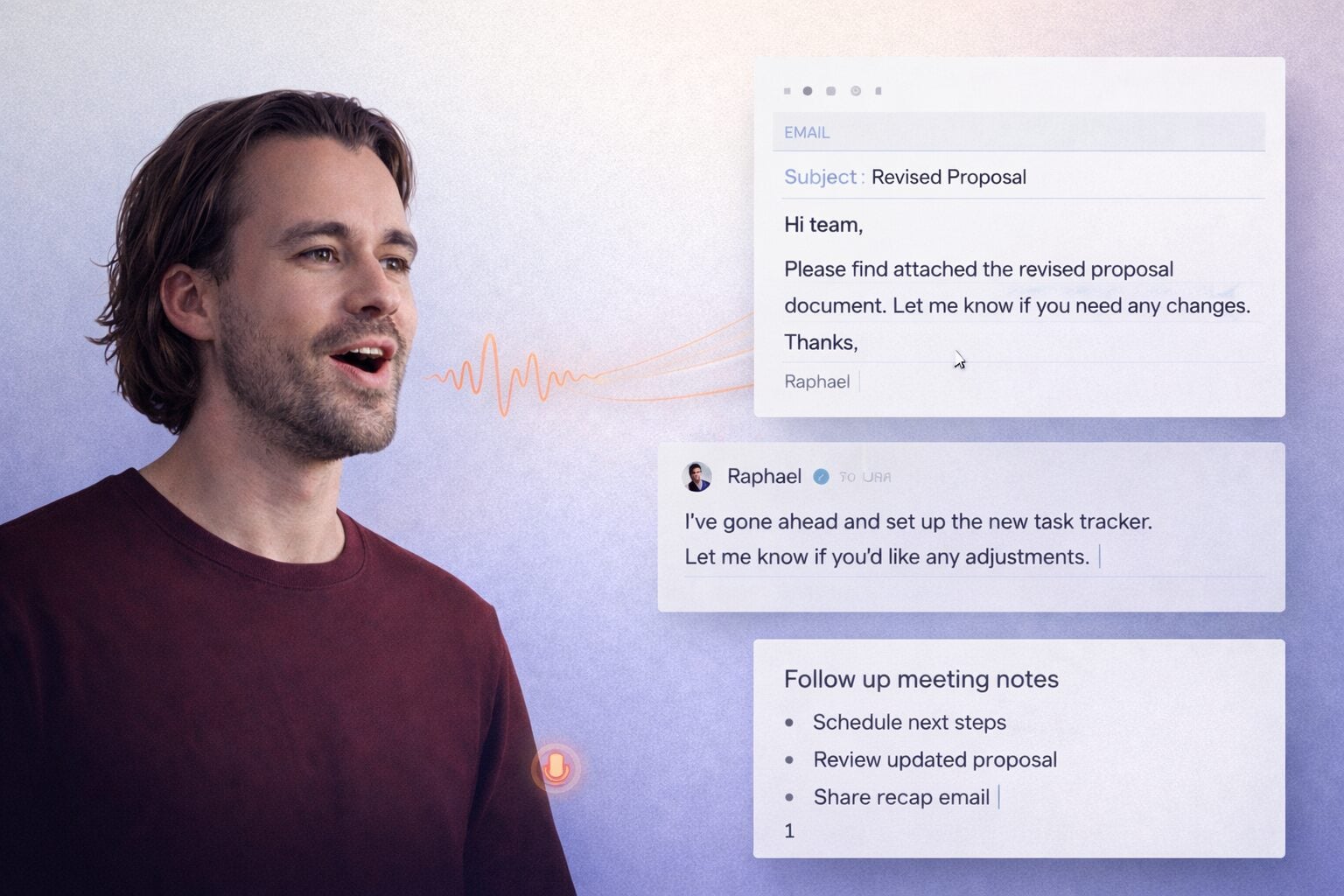
What Wispr Flow is: An AI voice keyboard that works inside every app on Mac, Windows, iOS, and Android. Press a hotkey, speak naturally, and get clean, context-aware, formatted text wherever your cursor is sitting. No separate editor, no switching windows.
Who it’s good for: Knowledge workers who write heavily across email, Slack, docs, and notes. Professionals who move between multiple devices or operating systems. Healthcare and legal teams who need HIPAA compliance without paying enterprise prices. Anyone who already lives in AI tools like ChatGPT or Perplexity and wants to drive them by voice.
Who should avoid it: Users who need fully offline, on-device processing with zero cloud involvement. Mac-only power users who want to configure their own AI models (SuperWhisper is the better fit there). Very light users who won’t come close to the 2,000-word weekly free limit.
The one thing you must know before subscribing: All transcription happens in the cloud. There is no offline mode. If sending audio to external servers is a hard no for your workflow, Wispr Flow is not the right tool regardless of plan.
Overall rating: 4.3 / 5: One of the most polished AI dictation tools available right now. The cloud-only architecture is the one real caveat, but Privacy Mode handles it well for most professional use cases
Table of Contents
Why I Stopped Typing: My 2-Week Wispr Flow Pro Experiment
I type fast. Always have. So when a colleague told me to “just try talking to my computer instead,” I was a little smug about it.
Then I actually tried Wispr Flow for two weeks, across an M3 MacBook, a Windows 11 PC, and an iPhone 16 Pro. And I have to be honest: I don’t go back to straight typing as much anymore.
That’s not a casual statement. Running a company like tl;dv, where we think about voice and AI every day, means I’m pretty hard to impress with voice technology claims. Wispr Flow impressed me anyway.
I’ve used Apple Dictation, I’ve fought with Google’s voice input, and I spent an afternoon with SuperWhisper convinced it was going to change everything (it didn’t, not for me). What Wispr Flow does differently is subtle but real: it doesn’t just transcribe what you say, it figures out what you meant to write and formats it accordingly.
Slack messages come out sounding casual. Emails come out sounding professional. Code comments come out without all the filler words you said while thinking. It’s context-aware in a way that genuinely surprised me.
So. Is it actually the best AI dictation tool for Mac, Windows, and mobile in 2026? Let’s get into it properly.
What is Wispr Flow? (And How it Differs from SuperWhisper)
Wispr Flow is an AI voice keyboard that works inside every app on your device. You press a hotkey, speak naturally, and it inserts clean, polished text directly where your cursor is sitting, whether that’s Gmail, Notion, Slack, VS Code, or a random form on a website.
The key word there is polished. This is not a raw transcription. Wispr Flow runs your speech through cloud-based AI models that understand context and automatically remove filler words, fix sentence structure, and format the output for whatever app you happen to be in.
The company describes it as being 4x faster than typing, which works out to roughly 220 words per minute versus the average typing speed of about 45 wpm. In my two weeks of testing, that claim held up for longer-form content like emails and documents. For short sharp replies, the gap is smaller but still noticeable.
So how does it differ from SuperWhisper?
This comes up constantly in any conversation about AI dictation, so let’s address it clearly.
SuperWhisper runs entirely offline on Apple Silicon. Your voice data never leaves your device. It’s genuinely powerful for power users who want to configure their own AI models, choose between speed and accuracy trade-offs, and keep everything local. If you’re a Mac-only person who handles deeply sensitive work and wants zero cloud involvement, SuperWhisper is worth serious consideration.
Wispr Flow takes the opposite approach. It’s cloud-based, which means faster processing and smarter context-awareness, but it does mean your audio goes to external servers. It also runs on Mac, Windows, iOS, and Android, which SuperWhisper does not. If you move between devices or platforms, that cross-platform sync alone changes the conversation entirely.
The community consensus, backed up nicely by this head-to-head comparison from Willow Voice, is roughly this: Wispr Flow is the more polished, more accessible, better-designed product for most professionals. SuperWhisper is the privacy-first powerhouse for technical users who want control.
One YouTube creator with 18K subscribers who compared all three top tools put it simply: Wispr Flow “by far has the best UI.” That tracks with my experience. It works out of the box. No configuration required.
Key Features: Breaking Down What Wispr Flow Actually Does
Speed Test: Can You Really Write 150+ Words Per Minute?
The headline claim is 4x faster than typing. Based on my testing, this is most accurate when you’re writing anything longer than two sentences.
For email drafts, meeting notes, long Slack threads, or any kind of document work, speaking is dramatically faster than typing. The 150-to-220 words per minute range is achievable once you stop second-guessing yourself and just talk. The AI handles cleanup, so you don’t need to speak like you’re dictating to a court stenographer.
For very short replies (a two-word answer, a quick reaction), the overhead of triggering the hotkey and speaking makes it roughly equivalent to typing. That’s fine. The tool is built for volume.
Command Mode: The Feature That Changes Everything
Command Mode is where Wispr Flow starts to feel genuinely different from basic dictation tools.
Here’s how it works: after you’ve spoken and the text appears, you can invoke Command Mode to give voice instructions about what to do with it. Highlight a paragraph, press the Command Mode shortcut, and say “make this more formal” or “translate this to Spanish” or “turn this into a bullet list.” It executes.
You can also use it as a voice assistant without even dictating first. Say “search Perplexity for the latest pricing on AWS EC2 instances” and it opens Perplexity with your query. Say “summarise what I just wrote and email it to the team” and it takes action.
The “Hey Flow” wake word means you can issue commands without touching your keyboard at all.
For anyone who writes a lot and also uses AI tools like ChatGPT or Perplexity, the ability to push prompts directly via voice is genuinely useful. One creator who reviewed Wispr Flow described using it to “push ChatGPT and Perplexity AI prompts directly with voice” as one of his most-used daily workflows. I can see why.
Watch this Command Mode demo if you want to see it in action before downloading.
Custom Dictionary and Snippets
This is a quiet but very practical feature.
Custom dictionary lets you teach Flow unusual words, names, or jargon it would otherwise mangle. If your company name is something like “Morepalooza” or you work in a field with technical terminology, you register it once and Flow spells it correctly every time.
Snippets let you define shorthand triggers. Speak a short phrase, and it expands into a longer block of text you use frequently, like a standard email sign-off, a meeting invite template, or a support response.
Both of these sync across your devices, which brings us to the next point.
Cross-Platform Sync: Wispr Flow’s Biggest Practical Advantage
This is genuinely the feature that sets Wispr Flow apart from most competitors.
Your custom dictionary, snippets, settings, and usage stats sync across Mac, Windows, iPhone, and Android. Start a workflow on your Mac, continue it on your iPhone, switch to Windows at the office. Everything is consistent and up to date.
SuperWhisper works on Mac and iOS only. If you use Windows for anything, it’s simply not an option. If you’re on an Android phone, same situation.
For teams and individuals who move between devices and operating systems, this cross-platform story is Wispr Flow’s clearest competitive advantage.
| Platform | Wispr Flow | SuperWhisper | Apple Dictation |
|---|---|---|---|
|
Mac |
Yes |
Yes |
Yes |
|
Windows |
Yes |
No |
No |
|
iPhone / iOS |
Yes |
Yes |
Yes |
|
Android |
Yes |
No |
No |
|
Works in all apps |
Yes |
Yes |
Mostly |
|
AI formatting |
Yes |
Yes |
No |
|
Offline processing |
No |
Yes |
No |
100+ Language Support
Wispr Flow supports over 100 languages, with particularly strong performance in British English alongside model parity for seven languages beyond English.
For multilingual teams or individuals who work across languages, this is a real feature rather than a checkbox. You can switch languages mid-workflow without changing settings. The AI reformats appropriately for each language’s conventions.
Wispr Flow Pricing: Is the Pro Plan Worth $12 a Month?
Wispr Flow has three plans:
Flow Basic (Free)
- 2,000 words per week on Mac or Windows
- 1,000 words per week on iPhone
- Unlimited words on Android (limited time offer at time of writing)
- Custom dictionary and snippets
- 100+ language support
- Privacy Mode and HIPAA-ready included even on the free tier
Flow Pro ($12/month billed annually, or $15/month on the monthly plan)
- Unlimited words on all platforms
- Command Mode for voice editing
- Prioritised support and feature requests
- Early access to new features
- Team collaboration features
- 14-day free trial, no credit card required
Flow Enterprise (contact for pricing)
- Everything in Pro plus team management and admin controls
A few things worth noting on pricing. First, 2,000 words per week on the free plan is genuinely usable for light personal use, but you’ll hit the ceiling fast if you use it for work. At my testing volume (emails, notes, documents), I was burning through the free limit within two to three days.
Second, the 20% saving on the annual plan is real. $12/month versus $15/month adds up to $36 in savings per year. Not life-changing but worth taking if you know you’re going to use the tool regularly.
Third, and this is worth flagging: Privacy Mode and HIPAA-readiness are available on the free plan. You don’t have to upgrade to get baseline security features. That’s an unusually generous call on their part.
For a more detailed breakdown of what each tier includes, Eesel AI has a good explainer on Wispr Flow’s pricing structure if you want a third-party take on it.
Privacy and Security: Is Wispr Flow Safe for Professional Use?
This is the question that comes up most often about Wispr Flow, and it deserves a straight answer.
Is Wispr Flow Secure? Understanding HIPAA-Ready Privacy Mode
The short version: yes, with one important caveat you need to understand.
Wispr Flow processes your audio in the cloud. That is not going to change. The company’s position is that cloud-based processing is what enables the fast, accurate, context-aware transcription that makes the product good. Local processing of the quality Wispr delivers is not yet practical at consumer scale.
What you can control is what happens to that data after processing.
Privacy Mode, which you can toggle on in Settings under Data and Privacy, means zero data retention. When it’s on, none of your audio, transcripts, or edits are stored on Wispr’s servers or used for model training by Wispr or any third party. Usage statistics (like word count) are still collected, but the actual content of what you said is not retained.
When Privacy Mode is off, your dictation data may be used to improve Flow’s models. That’s opt-in, not opt-out, and it’s clearly documented.
A few other security facts worth knowing:
- Wispr Flow is SOC 2 Type II certified, which means an independent auditor has verified their security controls
- HIPAA compliance is available across all plans, including free. Healthcare professionals can sign a Business Associate Agreement (BAA) directly in the app, which permanently locks Privacy Mode on for their account
- ISO 27001 certification was in progress as of late 2025
- Wispr never sells your data. Their business model is software subscriptions
One legitimate concern that third-party reviewers like Letterly have raised is that Wispr Flow’s early privacy policy was vague and created distrust, particularly around what “context collection” meant and which third-party providers were handling audio. Wispr has since made this much clearer, but if you’re in a regulated industry, it’s still worth reading the Privacy and Security docs before committing to a paid plan.
The honest summary for professionals: if you work in healthcare, law, or finance, enable Privacy Mode, sign the BAA if relevant, and review the documentation. If you’re a writer, marketer, or knowledge worker handling non-sensitive content, Privacy Mode on the free plan is more than adequate.
Wispr Flow vs. The Competition
Wispr Flow vs. SuperWhisper
Already covered in some depth above, but to give you the quick version for people skimming:
Choose Wispr Flow if: you use multiple devices or platforms, you want a tool that works out of the box, you need cross-platform sync, or you need HIPAA compliance without paying extra.
Choose SuperWhisper if: you’re Mac and iOS only, you have strict data sovereignty requirements, you want to configure AI models yourself, or you genuinely want zero cloud involvement.
You can also watch this 20-minute video comparing three major tools to see real-world usage side by side.
Wispr Flow vs. Apple Dictation
Not really a fair fight in 2026, but worth addressing because a lot of people start with Apple Dictation and wonder what they’re missing.
Apple Dictation gives you raw transcription. It does not format for context, it does not remove filler words, it does not understand that you’re in an email versus a code editor. What you say is roughly what you get.
Wispr Flow formats output contextually, cleans up speech patterns, and actively improves the text as you speak. It’s a fundamentally different product category. The only reason to stick with Apple Dictation is if you’re using Apple devices only, dictating very short inputs, and don’t want to pay for anything.
Wispr Flow vs. Otter.ai
Otter is a meeting transcription tool, which is a different use case. Otter is designed to record and transcribe meetings, generate summaries, and assign action items. It’s excellent at that.
Wispr Flow is designed to replace your keyboard for day-to-day writing. It works inline in any app in real time. These products solve different problems. Some people use both.
Wispr Flow vs. tl;dv
People who are drawn to Wispr Flow are usually drawn to it for one reason: they hate the manual overhead of typing. Every email that takes ten minutes to write, every Slack thread that drags on because getting words out is slow. Wispr Flow removes that friction.
tl;dv solves the same kind of frustration but in a completely different context. The manual overhead of meetings: taking notes while trying to pay attention, writing up summaries afterwards, chasing action items that nobody wrote down. tl;dv records, transcribes and analyses your calls automatically, pulling out what matters and pushing it where it needs to go.
Same underlying problem (too much manual work in communication), two completely different parts of your day. If the Wispr Flow pitch resonates with you, tl;dv is worth a look for everything that happens on calls.
The Final Verdict: Who Should Use Wispr Flow?
After two weeks of testing, here’s where I landed.
Wispr Flow is a genuinely good product. It’s not hype. For anyone who writes a significant amount of text every day, whether that’s emails, documents, notes, or code comments, it delivers on its core promise. The AI formatting works. The cross-platform sync works. Command Mode, once you get the hang of it, is legitimately useful.
For a team that spends a lot of time thinking about how AI is changing the way people work (it’s kind of our thing at tl;dv), Wispr Flow stands out as one of the more mature implementations of voice AI we’ve seen outside of meeting intelligence. It’s a rare case of a product that actually does what it says on the tin.
It’s the right fit for knowledge workers who write heavily across email, Slack, docs, and notes, anyone who moves between Mac, Windows, and mobile devices, healthcare or legal professionals who need HIPAA-level compliance without paying enterprise prices, teams that want a shared vocabulary via custom dictionaries, and anyone who already uses AI tools like ChatGPT or Perplexity and wants to control them by voice.
It’s probably not the right fit for people who need full offline processing and zero cloud data transmission, Mac-only power users who want deep model configurability (SuperWhisper will serve you better there), or very light users who won’t come close to the 2,000-word weekly free limit.
The free plan is a genuine free plan, not a trial. You can test it properly without a credit card. The Pro plan at $12/month annually is reasonable for the productivity gains if you use the tool daily. The 14-day Pro trial is more than enough time to figure out whether it’s clicking for you.
Frequently Asked Questions About Wispr Flow
Is Wispr Flow free?
Yes. Wispr Flow has a free Basic plan that includes 2,000 words per week on Mac or Windows, 1,000 words per week on iPhone, and unlimited words on Android (as a limited-time offer). The free plan also includes Privacy Mode and HIPAA-readiness, which is unusually generous. You get a 14-day free trial of Flow Pro when you first sign up, with no credit card required.
Does Wispr Flow work on Windows?
Yes, fully. Wispr Flow works on Mac, Windows, iOS, and Android. This cross-platform support is one of its clearest advantages over competitors like SuperWhisper, which is Mac and iOS only. Your settings, custom dictionary, and snippets sync across all your devices.
What is Wispr Flow Pro and is it worth it?
Wispr Flow Pro costs $12 per month billed annually (or $15 per month on a monthly plan). It removes the word-per-week limit on all platforms and unlocks Command Mode, which lets you edit and format text with voice instructions after dictating. If you use Wispr Flow for work and write more than a few thousand words a week, the upgrade is worth it. The free plan is genuinely usable for light personal use, but most professional users will hit the ceiling quickly.
Is Wispr Flow safe and private?
Wispr Flow processes audio in the cloud, which is worth knowing upfront. However, when you enable Privacy Mode in Settings, zero data is retained after processing. No audio, transcripts, or edits are stored or used for model training. Wispr Flow is SOC 2 Type II certified and HIPAA-ready on all plans, including free. It never sells your data. For regulated industries, users can sign a HIPAA Business Associate Agreement directly in the app.
How does Command Mode work in Wispr Flow?
Command Mode lets you give voice instructions to edit, reformat, or act on text after you’ve spoken it. You can highlight a section and say “make this shorter” or “translate to French” or “turn this into bullet points” and it executes. You can also trigger it without existing text to search Perplexity, open applications, or run other tasks hands-free. It’s available on the Pro plan and is one of the more distinctive features of Wispr Flow compared to basic transcription tools.
What languages does Wispr Flow support?
Wispr Flow supports over 100 languages, with strong performance across major European and Asian languages. It includes British English as a distinct option and offers model parity for seven languages beyond English. Language switching happens contextually, making it useful for multilingual teams and individuals who regularly work across more than one language.