Skip to content





If there were no meeting minutes, did the meeting really happen? This question has plagued philosophers and note-takers for decades. If you’ve been designated as the meeting’s sacred scribe, you must know how to take meeting minutes and share these easily with your team. In this article, we’re going to cover all of the basics, regarding how to take, share and store meeting minutes, along with our free meeting minutes templates. We’ll also share our hacks that will level up your meeting minutes game! 😎
In this article
The basics
So you can tackle any meeting, we’ve covered the fundamentals on how to track, store and share your precious meeting nuggets.
Meeting minutes are the written records of a conference. These are used to inform attendees and non-attendees of what was discussed in the live meeting. Taking meeting minutes helps to document important decisions and insights, and formulate the next steps. Meeting minutes enable absent team members to catch up on the content, action-items, and next steps discussed.
Which tools can help to easily and quickly take meeting minutes?
Our default it to always record our meeting with tl;dv. However, every organization is different. Some of the most common meeting minute taking tools are:
- Google Docs or Google Sheets
- The Microsoft suite: including Onenote, Word, and Excel*.
- Notion
- Apple’s Pages
- Evernote
- Notepad
- Zoho Docs
- OpenOffice
*Not many people know that Microsoft also offers free online versions of these.
Create an outline: Having an agenda-based framework (check out our templates below) makes it simple to jot down notes, decisions, and other information under each item as you go.
Mark members as they enter: If you know who will be attending the meeting, you may check them off as they come; if not, have people introduce themselves at the beginning of the meeting.
Don’t overdo it: If you try to take down the dialogue exactly, you won’t be able to keep up, so focus on writing the critical information.
Record the minutes: if you don’t want to miss any important action items, and want all non-attendees to gain full visibility into the meeting, then you can record your meeting with tl;dv. This also frees up participants from any note-taking tasks, allowing them to be more present during the meeting.
Board meeting minutes are similar to most other meetings, just with perhaps a higher level of importance. This is as often higher level company decisions are being made. For this, we recommend either recording the meeting, so no detail will be lost. Alternatively, if you prefer to manually take meeting minutes, then we recommend our robust meeting templates that enables you to quickly document agenda items, speakers and next steps.
Three steps to adequately take board meeting minutes
#1 Plan in advance
Productive meeting minutes, require some forethought. This includes setting agenda items, a meeting goal, next steps and perhaps distributing required reading material before the meeting. Doing this, can increase the efficiency of the meeting and the number of actionable items derived from the meeting minutes.
#2 Understand the agenda and use it
Start with the essentials when deciding what should be included in the meeting minutes. Be conscious of the time, and use the agenda sheet to track whether or not the meeting is running as scheduled. You can perhaps set aside time at the end to cover questions and discussion points that was not in the meeting agenda.
#3 Clarify points and inputs
Make sure when taking meeting minutes that each next step is assigned to at least one team member. Also, clarify due dates and the resources required to complete these.
Why are board meeting minutes important?
Minutes of board meetings are significant for a variety of reasons. Board meeting minutes, first and foremost, serve as historical evidence of the board’s short and long-term strategy. Since each meeting has a specific mission and vision, the board can utilize the meeting minutes as a database for future access to see how far things have progressed.
You’re in good hands with tl;dv! Through our Google Chrome Extension, you can easily record and transcribe any Google Meet with a click of a button. Simply install the tl;dv Google Chrome Extension, and then when you’re in a live Google Meet, simply invite tl;dv to the meeting. After the meeting is finished, you’ll automatically be emailed your transcript and video with timestamped highlights. This allows you to instantly link any meeting note to the exact moment in the recording.
Many choose to store their meeting minutes and meeting notes either locally, or in an online database such as Google Drive, Notion, Dropbox, iCloud or Onedrive. Usually, this will be determined by your team and company. If you’re recording your meetings with tl;dv, your meeting video and transcript recordings will automatically be stored in your tl;dv library.
Three essential free meeting minutes templates
We’ve created our three essential meeting minutes templates (including a simple meeting minutes template)
for teams that don’t record their meetings. All essential information is covered in these templates including agenda items, action items, speakers, and next steps. We’ve sorted these templates according to their level of detail and complexity.
Level 1: simple meeting minutes template
For simple meetings, or if you want an additional written supplement to your meeting recording, we recommend this simple template.
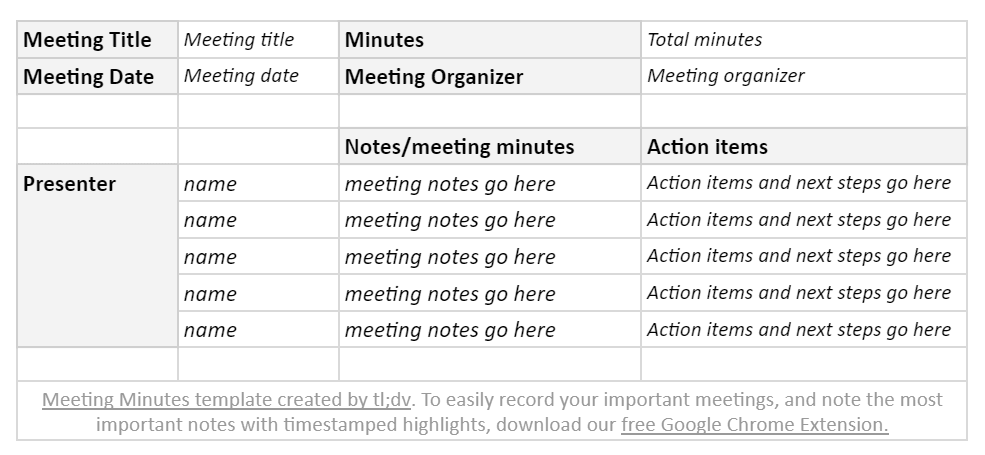
Want to download this simple meeting minutes template? Here are all the formats available:
- Google Sheet meeting minutes template. Copy this to transfer it to your favorite notetaking tools such as Notion, Evernote, Google Docs, and so forth.
- PDF (.pdf) template.
- Microsoft Excel (.xlsx) template.
- Comma-separated values spreadsheet (.csv) template.
- OpenDocument spreadsheet (.ods) template.
Any other format or document type you’d like this simple meeting minutes template in? Simply email [email protected] with the subject header: “Simply meeting minutes template” with your request!
Level 2: intermediate meeting minutes template
This meeting template focuses on the next steps, and who is responsible for these. Additional information you might like to note are expectations and due-dates.
Want to download this template? Here are all the formats available:
- Google Sheet meeting minutes template. Copy this to transfer it to your favorite notetaking tools such as Notion, Evernote, Google Docs, and so forth.
- PDF (.pdf) template.
- Microsoft Excel (.xlsx) template.
- Comma-separated values spreadsheet (.csv) template.
- OpenDocument spreadsheet (.ods) template.
Level 3: the robust meeting minutes template
If you want all of your bases covered, you may want to opt for our robust meeting minutes template.
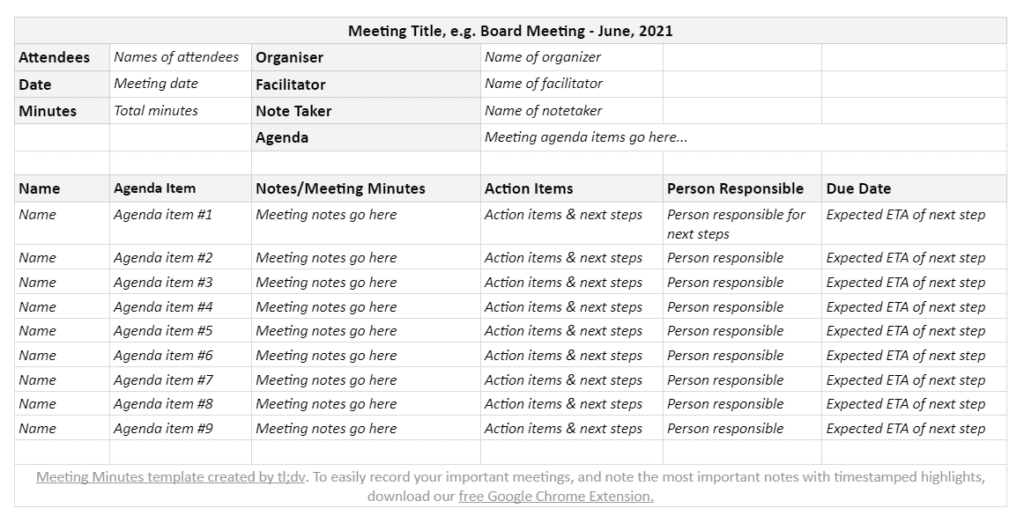
Want to download this template? Here are all the formats available:
- Google Sheet meeting minutes template. Copy this to transfer it to your favorite notetaking tools such as Notion, Evernote, Google Docs, and so forth.
- PDF (.pdf) template.
- Microsoft Excel (.xlsx) template.
- Comma-separated values spreadsheet (.csv) template.
- OpenDocument spreadsheet (.ods) template.
🔥Hot tip: For taking meeting minutes quickly and efficiently, use tl;dv. We’re the only provider of both video and audio recording on platforms like Google Meet. Along with your recording, you’ll also get an automatic transcript!
How to record meeting minutes with tl;dv?
If you could catch up on your meeting in minutes, and be provided with an automatic transcript, would you still take manual meeting minutes?
If you answered no, then these next paragraphs are for you…
Although invented in 1989, live video conferencing hasn’t significantly changed, despite being essential to countless businesses. We wanted to empower teams to get more done, with fewer meetings. Recording meetings was the most logical place to start!
With the tl;dv Google Chrome Extension you can easily record your live video meetings with a click of a button! The kicker? These aren’t just long videos, but also meeting recordings with timestamped highlights which are linked to their exact moment in your transcript and video. Now critical moments need not be lost in a lengthy meeting minutes document or transcript. Easily share the important takeaways, fully contextualized in video.
See what a tl;dv looks like below, in our July product update.
We’re glad you asked, because it is super easy!
- Install our tl;dv Google Chrome Extension.
- Join any Google Meet meeting.
- You can choose to test us out first by creating a tester Google Meet. Go to Goolge Meet and then select “start instant meeting”
- Select “start recording” to invite tl;dv to the meeting (record a Google Meet session)
- Bonus: write in the tl;dv live meeting interface to add timestamped highlights to your meeting recording!
- Once you’ve finished your meeting, exit as normal. Your tl;dv will be automatically sent to your associated email, and can also be found in your tl;dv library.
Now you’re ready to catch up on meetings in minutes! 🙌
How to record a Google Meet session?
We’re glad you asked exactly how to record a Google Meet session! It is much like the process above, so we’ve added the exact process below…
It is easy to record a Google Meet session! Here’s the skinny:
- Install our tl;dv Google Chrome Extension.
- Join any Google Meet meeting.
- You can choose to test out how to record a Google Meet session by creating a tester Google Meet. Go to Goolge Meet and then select “start instant meeting”
- Select “start recording” to invite tl;dv to the meeting (record a Google Meet session)
- Bonus: write in the tl;dv live meeting interface to add timestamped highlights to your meeting recording!
- Once you’ve finished your meeting, exit as normal. Your tl;dv will be automatically sent to your associated email, and can also be found in your tl;dv library.
So that’s how to easily record a Google Meet session! Now you’re ready to catch up on meetings in minutes! 🙌
How to transcribe meeting minutes with tl;dv?
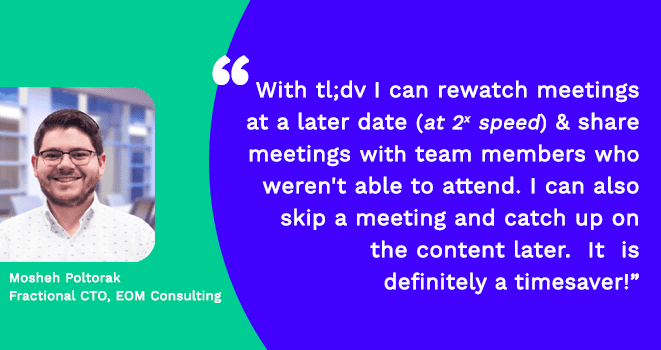
Transcribing meeting minutes can either be done manually or automatically with tools such as tl;dv – which also provides you with a meeting recording along with your transcript. This can take a lot of the leg work out of manually transcribing meeting minutes.
Meeting transcripts are also void of context, emotion and are often inaccurate. This is all avoidable with automatic transcription and meeting recording. So, next time you record a Google Meet session, you can enjoy a transcription as well…
- Install our tl;dv Google Chrome Extension.
- Join any Google Meet meeting.
- You can choose to test us out first by creating a tester Google Meet. Go to Goolge Meet and then select “start instant meeting”
- Select “Start recording” to invite tl;dv to the meeting.
- Once you’ve finished your meeting, exit as normal. Your tl;dv will be automatically sent to your associated email, and also in your tl;dv library.
- Bonus: fly through your transcript with our speedreading feature, that automatically highlights the most important meeting takeaways.
Now you’re ready to catch up on meeting in minutes! 🙌
Bonus: how to instantly share synced meeting minutes? 🤩

Your meeting minutes are only as good as the next steps that proceed them! So we wanted to make meeting minutes as actionable and sharable as possible! With our timestamped highlights, when you share a tl;dv, anybody in your team can be instantly transported to the relevant moment in any meeting. These timestamped highlights and meeting links are easily synced and shared with your favorite CRMs and notetaking tools.
Final thoughts on how to take meeting minutes
For traditional meeting minutes taking, you can use our templates above. But, we think that taking meeting minutes shouldn’t be a drag. Neither should teams have to sacrifice their time in order to stay abreast of what happened in recent meetings. By linking your meeting minutes to the exact moment in any meeting recording, your meeting minutes are more actionable and sharable than ever before! So what are you waiting for, go record a Google Meet session!
Did you download our simple meeting minutes template? Maybe you decided recording meetings is the way forward? Either way, any comments or feedback can be forwarded to [email protected]